AI can now handle a surprising amount of everyday work, from taking meeting notes to reorganizing your calendar. That still doesn’t mean every AI app is worth adding to your stack.
I grouped 19 of the best AI productivity tools by the job they do (meetings, research, email, scheduling, writing, and automation) and asked one question about each: where does it actually make work easier?
TL;DR
- Bluedot — best for meeting notes and keeping meeting knowledge accessible to the whole team.
- ChatGPT — a strong all-purpose option for everyday writing, brainstorming, and analysis.
- Perplexity — best suited for research when you need answers backed by web sources.
- Shortwave — built around making email less time-consuming with AI assistance.
- Reclaim — useful for automatically organizing your calendar around tasks, habits, and meetings.
- Notion AI — a good fit for teams that already keep their docs and knowledge in Notion.
- Grammarly — best for improving and editing writing without changing your existing workflow.
- Zapier — the most relevant pick when the goal is automating repetitive work across different apps.
What to look for in an AI productivity tool
I judged every tool on the same six things, but they mean different things in each category. Good output from a meeting assistant looks nothing like good output from an AI calendar.
- Manual work removed. A tool should take something off your plate, not add another dashboard to check. If you can't say what it replaces, it probably won't stick.
- Setup and everyday use. Saving ten minutes isn't much of a win if you spend just as long writing prompts, fixing automations, or managing the tool itself.
- Fit with your stack. A useful tool shouldn't make you rebuild existing workflows around it. Integrations matter most when the tool sits in the middle of a workflow you already have.
- Output quality. Accurate meeting notes, research you can trace to a source, calendar changes that make sense, writing you don't have to redo from scratch.
- Privacy and data handling. Meeting, email, and knowledge tools see a lot of sensitive information. Check where data is stored, whether it's used to train AI, and whether you can delete it.
- Pricing and limits. Free plans can cover occasional use, but some tools only get useful on paid tiers. Watch for usage caps, AI credits, task-based billing, and features locked behind higher plans.
Best AI productivity tools at a glance
Best AI productivity tools for meetings and notes
Meetings are one of the easiest places to hand work over to AI. A good AI meeting assistant records the conversation, turns it into usable notes, and saves you from rewatching a call just to find one decision.
The three tools below differ in how they record and in how much they do with the meeting afterward. For a deeper comparison, see our roundup of the best AI note takers.
1. Bluedot — best for recording every kind of meeting
Bluedot is a secure, privacy-first AI note-taker that records, transcribes, and summarizes online and in-person meetings without sending a bot into your calls.
It captures audio directly from your device and supports audio and video recording across Chrome, macOS, Windows, iOS, Android, and Apple Watch.
Bluedot is GDPR-compliant, SOC 2 Type II audited, and never uses customer data to train AI models.
It's the pick if you want one tool for every conversation, with no bot in your calls.
After each call, you get a transcript, AI meeting notes, and a recording you can replay.
There are 50 ready-made templates for various types of meetings. On the Pro tier, you can also create your own custom templates.
The meeting library is in a shared workspace. Teammates can open the notes, and AI Chat answers questions across every meeting your team has recorded.
On the Business plan, notes sync to HubSpot and Salesforce, so they end up in your CRM instead of staying in Bluedot.
Your data stays in the EU or the US (your choice), and it's never used to train AI. Admins can set custom retention rules.
Best for: teams that want bot-free notes from online, phone, and in-person meetings in one place.
Look elsewhere if: you only need a free tool for the occasional call, or you'd rather type your own notes and let AI fill the gaps (see Granola).
Pricing: The free plan gives you five recordings for the lifetime of the account. Basic costs $14/user/month annually ($18 monthly) and is audio-only. Pro, at $20/user/month annually ($25 monthly), adds video and custom templates. CRM sync starts with Business at $32/user/month annually.
2. Granola — best for lightweight meeting notes
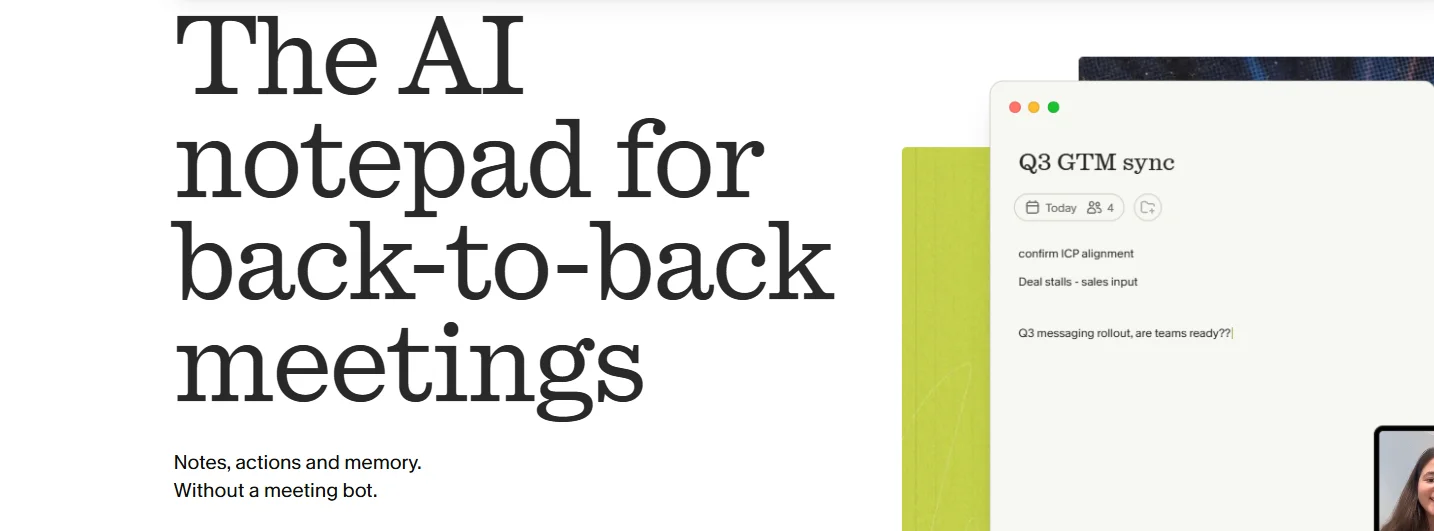
Granola is an AI notepad, not a meeting recorder.
You type notes during the call, and Granola merges them with the transcript afterward. Your own notes stay in, and the AI fills the gaps.
No bot joins. On Mac and Windows, it records device audio across Zoom, Google Meet, Microsoft Teams, and Slack Huddles.
Granola also deletes the audio once the transcript is done. That's fine if you only want text, but it can be a problem when you need to check what a client actually said.
And your data is stored in the US only, with no EU option.
Best for: people who like writing their own notes and want AI to fill in what they missed.
Look elsewhere if: you need replayable recordings or EU data storage.
Pricing: The free Basic plan includes unlimited meetings but only 30 days of meeting history. Business costs $14/user/month, billed monthly only, and adds unlimited history, integrations, and API access.
3. Fireflies — best for meeting analytics
Fireflies is the most analytics-heavy option of the three.
If you just want a transcript and a decent summary, most of it is overkill. It gets interesting when you want to know what's happening across dozens of calls.
It tracks talk time and sentiment, and its topic tracker pulls up every conversation where a subject came up. That's useful for sales and customer-facing teams looking for recurring objections or the questions customers keep asking.
The catch is that Fireflies still defaults to bot-based recording. On a new account, the Notetaker is set to auto-join calendar meetings with a conferencing link. You can turn that off and use the desktop app for bot-free system-audio capture instead, but you let's go with don't get audio and video recordings and named speaker labels in that mode.
By default, the bot joins every meeting on your calendar and emails the summary to all attendees. If you'd rather nothing showed up in your meetings, Bluedot is less intrusive.
Best for: sales and CS teams that want analytics across a lot of calls.
Look elsewhere if: you don't want a bot on your calls, or you want pricing without add-ons.
Pricing: The free plan includes unlimited transcription and AI summaries, with 400 minutes of team storage. Pro is $10/user/month annually ($18 monthly) and adds video plus 8,000 minutes of storage per seat. Business costs $19/user/month annually ($29 monthly), removes the storage cap, and adds conversation intelligence and team analytics. Some advanced AI features run on separate credits.
Best AI tools for productivity: all-purpose assistants
General-purpose assistants are the obvious place to start if you don’t need AI for one specific workflow. They’re useful because you can throw very different kinds of work at the same tool (drafting, research, planning, analysis), without setting up a separate app for each task.
4. ChatGPT — best all-purpose AI assistant
ChatGPT is the safe bet when you want one AI tool for a bit of everything.
I'd use it for work that changes from day to day: outlining an article, working through a spreadsheet, summarizing a long document, or getting up to speed on something new.
Projects keep files and instructions together for longer-running work, so you're not starting from zero every time. Web search and deep research cover questions where a quick answer isn't enough.
The catch: it's a generalist. For meeting notes, scheduling, or email, a purpose-built tool needs less prompting and fits the workflow better.
Best for: everyday writing, analysis, and research that doesn't fit one category.
Look elsewhere if: you need an AI assistant for one specific workflow, like meetings or your calendar.
Pricing: There's a free plan, and ChatGPT Plus costs $20/month.
5. Claude — best for writing and complex work
Claude is the one I'd use when a task needs more context and more back-and-forth.
It's good at long documents, detailed edits, and research-heavy writing: pieces you refine over several rounds instead of taking one answer and moving on.
You can upload a lot of source material and keep related work together in Projects, so it works more like a workspace than a one-off chatbot.
Claude can also work with your meeting data. Bluedot's MCP connector gives it access to your transcripts, so you can draft follow-ups or reports straight from what was said.
It is important to remember that Pro still has usage limits, and long conversations with large files can burn through them faster.
Best for: reports, article drafts, and anything that takes a few rounds to get right.
Look elsewhere if: you mostly need quick answers and everyday admin help.
Pricing: The free plan is enough to try it, and Claude Pro costs $20/month.
6. Gemini — best for Google Workspace users
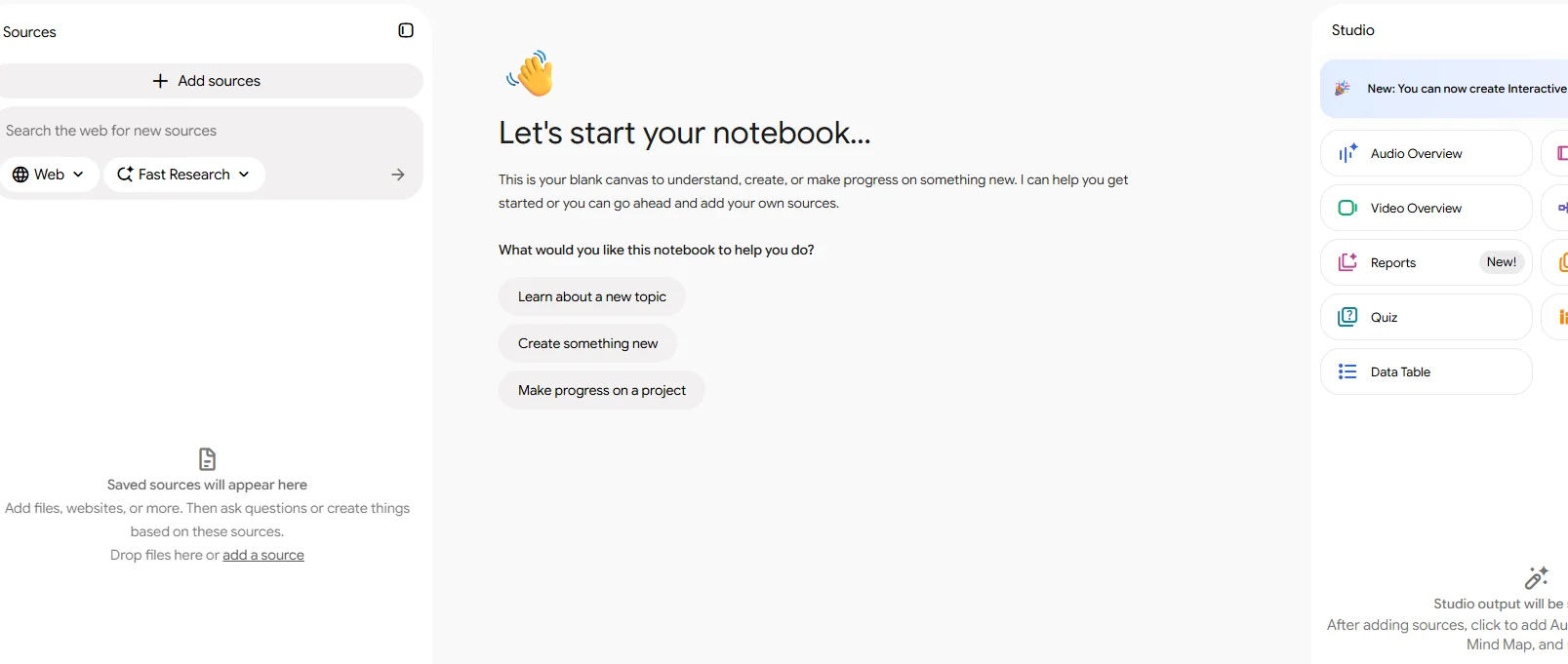
If your team already works in Gmail, Google Docs, Drive, and Meet, Gemini is built right into those apps. You don't have to copy content into a separate AI tool and back again.
It can draft in Docs, pull context from files in Drive, and, on higher Workspace tiers, work across more of the suite, including Meet. There's also the standalone Gemini app for general questions.
Outside Google's ecosystem, it's just another general-purpose AI assistant, and ChatGPT or Claude will serve you just as well.
Best for: teams already paying for Google Workspace.
Look elsewhere if: your work runs on Microsoft 365 or tools outside Google.
Pricing: Business Starter costs $7/user/month with an annual commitment and includes Gemini in Gmail plus the Gemini app. Business Standard is $14/user/month annually and adds Gemini across Gmail, Docs, Meet, and more.
Best AI productivity tools for research
Research tools help when a quick chatbot answer isn’t enough. They make it easier to work with sources directly and keep track of where the useful information came from, especially once the topic gets too big for a simple search.
7. Perplexity — best for web research
Perplexity is what I'd use when the first step is finding information on the web.
It searches as it answers and puts citations next to individual claims. Checking the source takes seconds, instead of working backward from a regular chatbot response.
For bigger questions, Research mode works through a topic in several steps and writes a longer, detailed report. Projects keep files and related searches together.
The catch: the answer isn't the source. Perplexity gives you a head start and the references to check, and the checking is still your job.
Best for: research that starts with "what's out there on this?"
Look elsewhere if: you already have the material and need to work through it (see NotebookLM below).
Pricing: The free plan covers basic search, with limited access to Pro Search and file uploads. Perplexity Pro costs $20/month and adds much higher limits, Research access, Projects, file analysis, and advanced AI models.
8. Gemini Notebook (formerly NotebookLM) — best for working with your own sources
Gemini Notebook works best when you already have the material and need help making sense of it. Google renamed NotebookLM in July 2026, but the tool works the same way.
You upload documents, add links and notes, then ask questions against that set instead of the whole web. Answers stay grounded in your sources, with citations back to each one.
That makes it good for internal research, interview notes, and reports: anything where your sources matter more than a broad search.
It now does more than summarize, too. On supported paid plans, Gemini Notebook can also use a secure cloud computer to write and run code for deeper analysis, including working with data files and charts.
Remember that if you need fresh information, you’ll have to add or discover new sources first.
I'd pick Perplexity when I need to find something, and Gemini Notebook when I already have the sources and need to work through them.
Best for: researchers, analysts, and anyone working through a large set of documents.
Look elsewhere if: finding fresh information from the web is the main part of the job.
Pricing: Gemini Notebook has a free Standard tier. Google AI Plus costs $9.99/month and raises Notebook limits, while Google AI Pro costs $19.99/month and includes expanded access.
Best AI tools for email productivity
If you spend a lot of time in your inbox, AI can save more than a few minutes on writing replies. Some tools can search old threads, sort incoming mail, and help you figure out what actually needs a response.
9. Shortwave — best dedicated AI email assistant
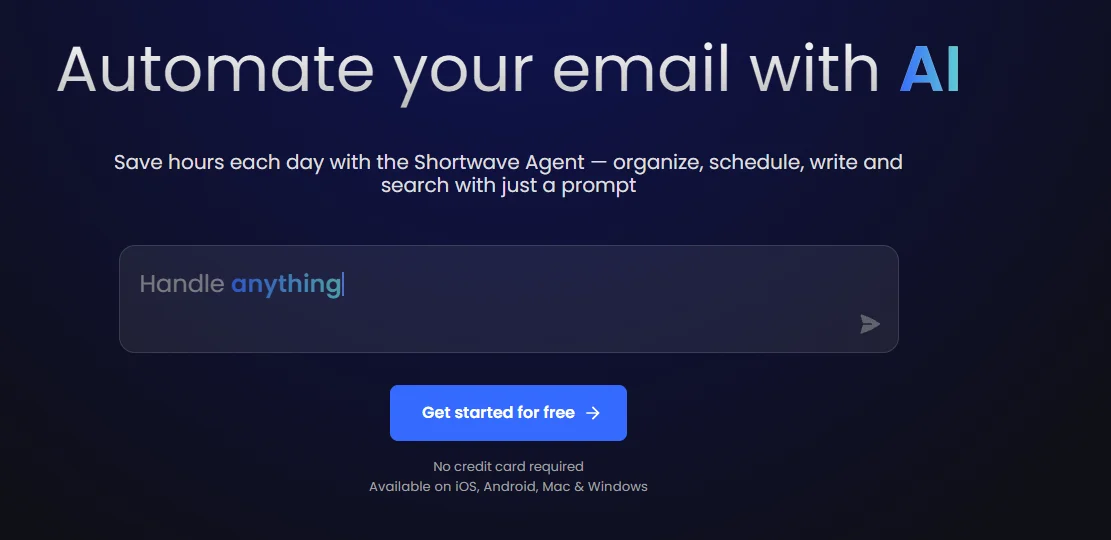
Shortwave is basically Gmail rebuilt around AI.
It summarizes long threads, drafts replies, and sorts incoming mail. You don't have to dig through folders or remember exact keywords.
Natural-language search is the feature I'd use most. Ask "which customers haven't replied this week?" or "what did we agree on with this client?" and Shortwave pulls the answer from your email history.
It also works with your calendar and connects to Slack, Notion, Asana, and HubSpot.
For now, it only works with Gmail and Google Workspace accounts. And if you only want help with the occasional reply, it's more than you need.
Best for: people who spend a big part of the day in their inbox.
Look elsewhere if: you're on Outlook, or you'd rather keep your current email app.
Pricing: Shortwave has a free plan, but AI-assisted search and full email history require a paid plan. Business costs $30/seat/month and includes five years of AI search history. Premier costs $45/seat/month and removes that limit.
10. Gemini in Gmail or Copilot in Outlook — best if you don't want a new email app
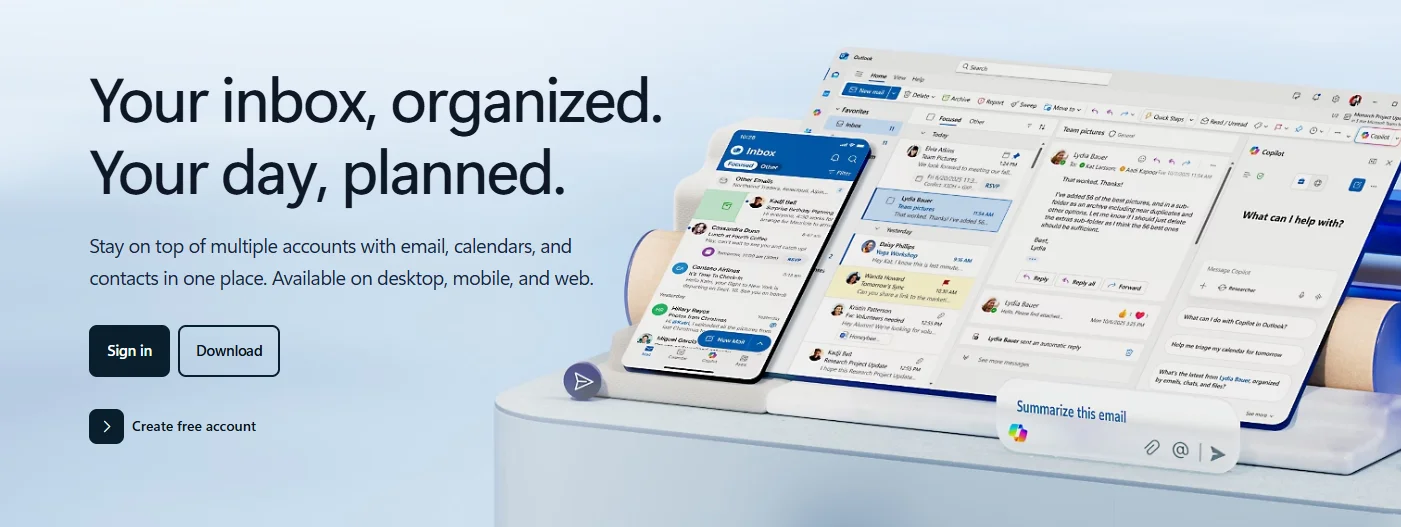
If your company already pays for Google Workspace or Microsoft 365, you may already have an AI email assistant.
Both do the basics well. They summarize long threads, draft replies, and answer questions about your inbox, so you don't have to guess keywords or open five old threads.
Gemini in Gmail pulls in context from Drive and suggests meeting times from Google Calendar. That's handy when scheduling usually starts in email.
Copilot in Outlook goes further with a Copilot work license. It draws on your calendar, Teams chats, and documents, so you can ask which unread emails matter most. It can also turn a thread into a meeting invite with a drafted agenda.
Neither option changes how your inbox works, though. Shortwave gives you a more opinionated, AI-first inbox, while these are the low-friction options.
Best for: teams that want better email help without switching tools.
Look elsewhere if: you want your inbox organized around AI, not just AI added to it.
Pricing: Gemini in Gmail is included with Google Workspace Business Starter from $7/user/month annually, though some AI features require higher tiers. Microsoft 365 Copilot Business currently starts at $18/user/month with an annual commitment; enterprise Copilot costs $30/user/month on top of an eligible Microsoft 365 plan.
Best AI productivity apps for scheduling
AI calendar tools are worth using when your week changes too often for static time blocks to survive. Reclaim and Motion both move work around automatically, but they approach the problem differently.
11. Reclaim — best for protecting time on your calendar
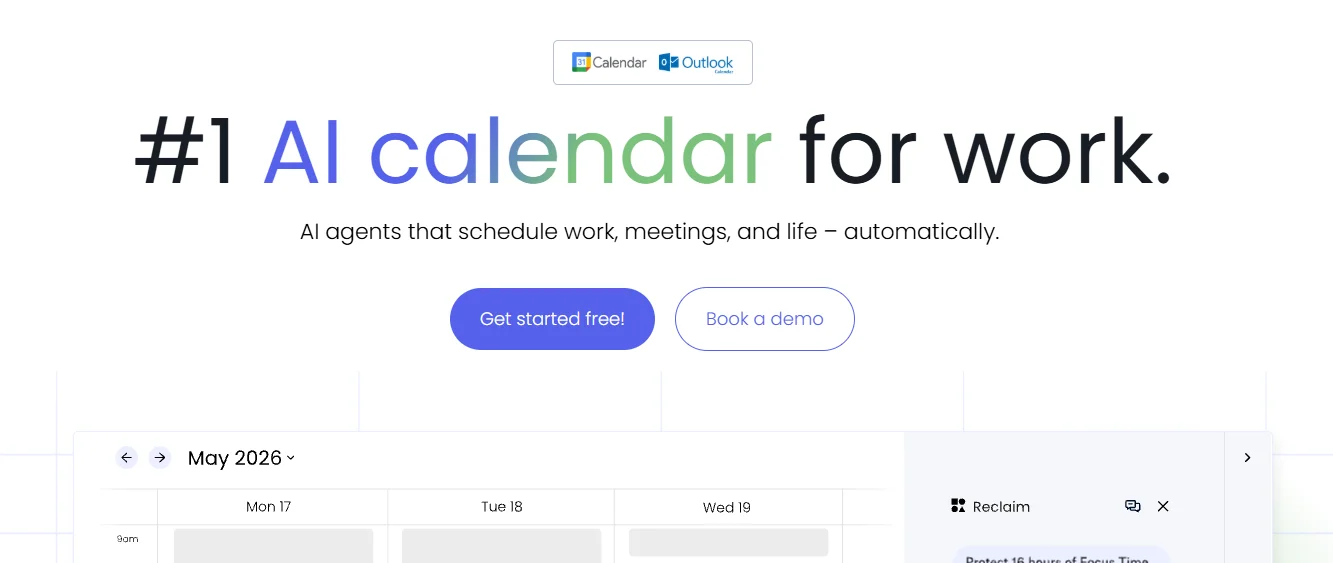
Reclaim is an AI scheduling assistant for when your calendar fills up before you get to the work you planned.
You tell it what to protect (focus time, habits, recurring meetings, buffers), and it keeps finding space for them as the week shifts.
In Reclaim 2.0, AI agents handle most of this in the background. It rebalances the calendar and flags conflicts before they become problems. Tasks work differently now too: instead of each task getting its own calendar slot, Reclaim decides what to tackle during your protected focus time.
The catch: it's only as good as your setup. You'll spend some time defining priorities and habits. And if most of your calendar is other people's meetings, there's not much left for it to move.
Best for: people whose deep work keeps getting squeezed out by meetings.
Look elsewhere if: you want a full AI task manager instead of a layer on top of your calendar.
Pricing: There’s a free Lite plan. Starter costs $10/seat/month annually, and Business costs $15/seat/month annually.
12. Motion — best for planning your day around tasks
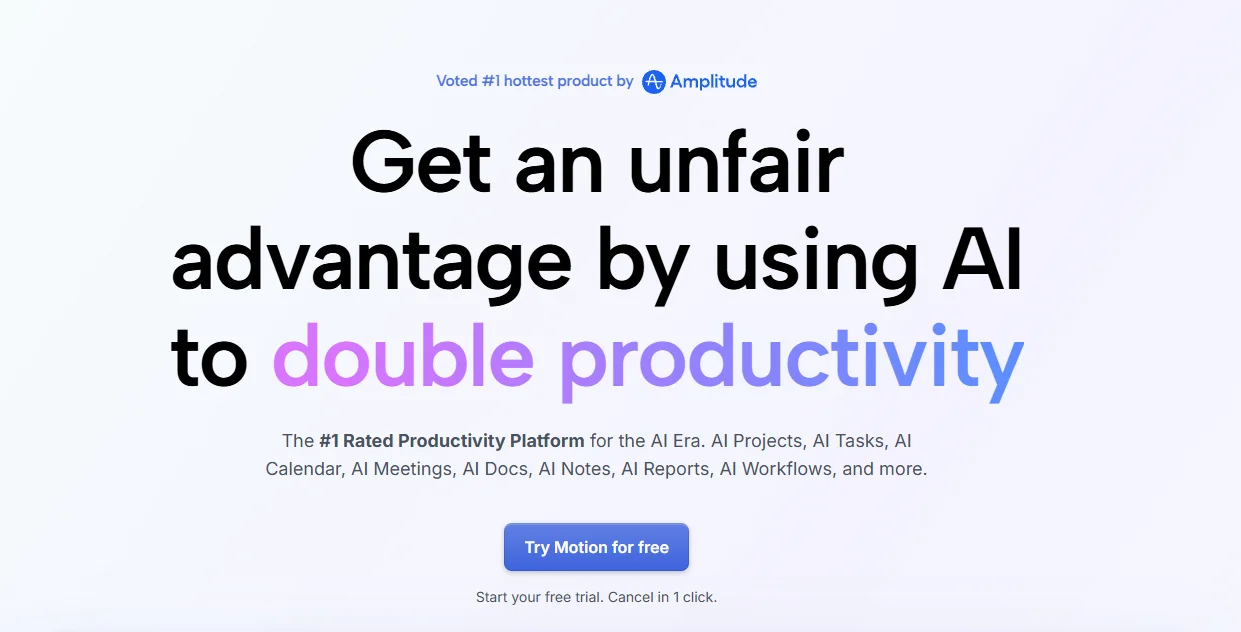
Motion is for people who want their task list to actually make it onto the calendar.
Add a task, how long it takes, when it's due, and Motion finds the time.
The schedule also adjusts itself. When a new meeting or an overdue task throws off your day, Motion reshuffles everything, so your calendar still makes sense by lunchtime.
Just note that Motion wants to run both your tasks and your schedule. If you already have a task manager you like, that's a lot to give up. And there's no free plan, only a trial.
Reclaim guards the time you already have. Motion decides how all of it gets spent.
Best for: people who want one app deciding when the work gets done.
Look elsewhere if: you only need to keep focus time open (Reclaim is simpler), or you're attached to your current task manager.
Pricing: There’s no free plan, but Motion offers a free trial. Pro AI starts at $19/seat/month when billed annually, while Business AI costs $29/seat/month.
Best AI tools for tasks and knowledge management
Most teams have the answer somewhere. It's just buried in a doc from last spring or a task comment nobody remembers. Notion AI and ClickUp Brain dig it out, as long as your work already lives in their apps.
13. Notion AI — best for workspace knowledge
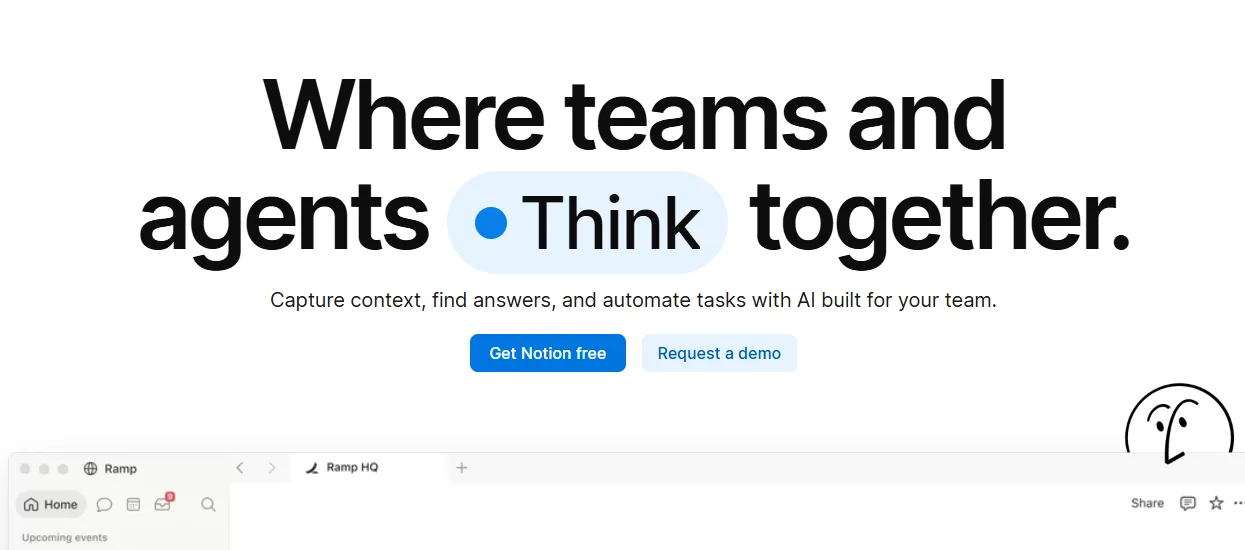
Notion AI gets better the more of your work is in Notion.
Ask a question, and it searches pages, databases, uploaded files, and connected apps. That's a lot faster than trying to remember where someone documented something six months ago.
Answers include citations back to the source, which is great for large workspaces.
Research Mode goes further, pulling from your workspace, connected tools, and the web to build a longer report. It works well for project updates and internal research, where you'd otherwise waste time gathering context before writing.
This tool is only as useful as the information it can access. If your workspace is outdated or your connected sources are messy, the answers will be too.
Best for: teams whose docs, project notes, and knowledge already live in Notion.
Look elsewhere if: you'd have to move to Notion to use it. The AI alone probably isn't a reason to switch.
Pricing: Free and Plus plans include a limited trial of AI features. The Business plan at $20/user/month includes the full set of capabilities.
14. ClickUp Brain — best for task-heavy teams
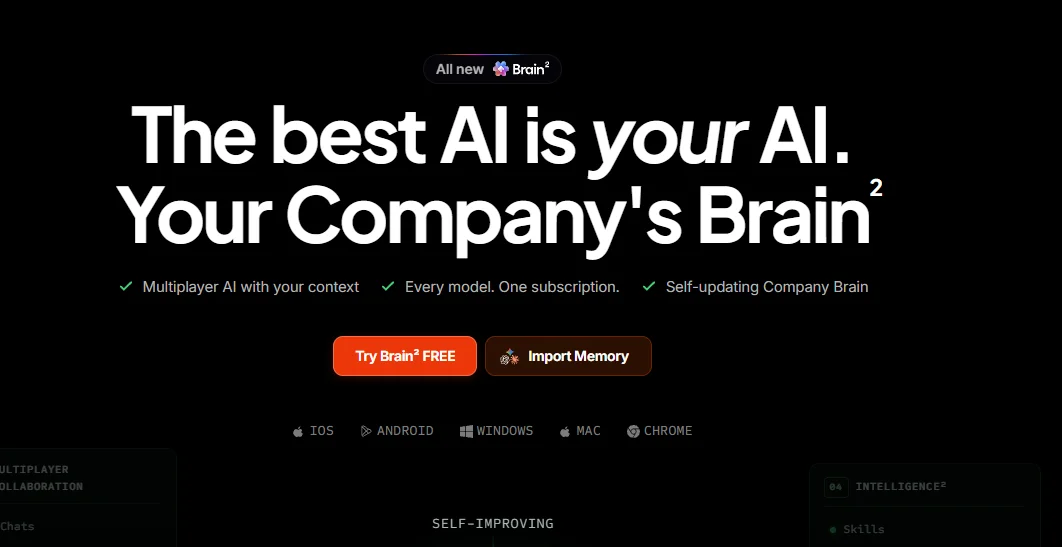
ClickUp Brain is built for teams already running project management in ClickUp.
It pulls context from tasks, Docs, comments, and chats. So you can ask what's blocked, what changed, or what needs attention without opening half the workspace.
It works right where the work happens. You can mention Brain in a comment, use it inside tasks and Docs, or ask it to summarize a project's latest updates.
Brain works best when ClickUp is already your main workspace. It can search connected apps and the web, but the real value comes from having your project context in ClickUp.
Best for: teams juggling lots of projects who want AI that knows what's going on in them.
Look elsewhere if: you want a standalone AI assistant, or your projects live in another tool.
Pricing: Brain AI costs $9/user/month. Everything AI is $28/user/month and includes higher AI limits plus more agent and automation features.
Best AI productivity tools for writing and dictation
An AI writing assistant is most useful when you forget it’s there. Grammarly cleans up what you've already written. Wispr Flow gets it written faster in the first place.
15. Grammarly — best AI writing assistant for editing as you write
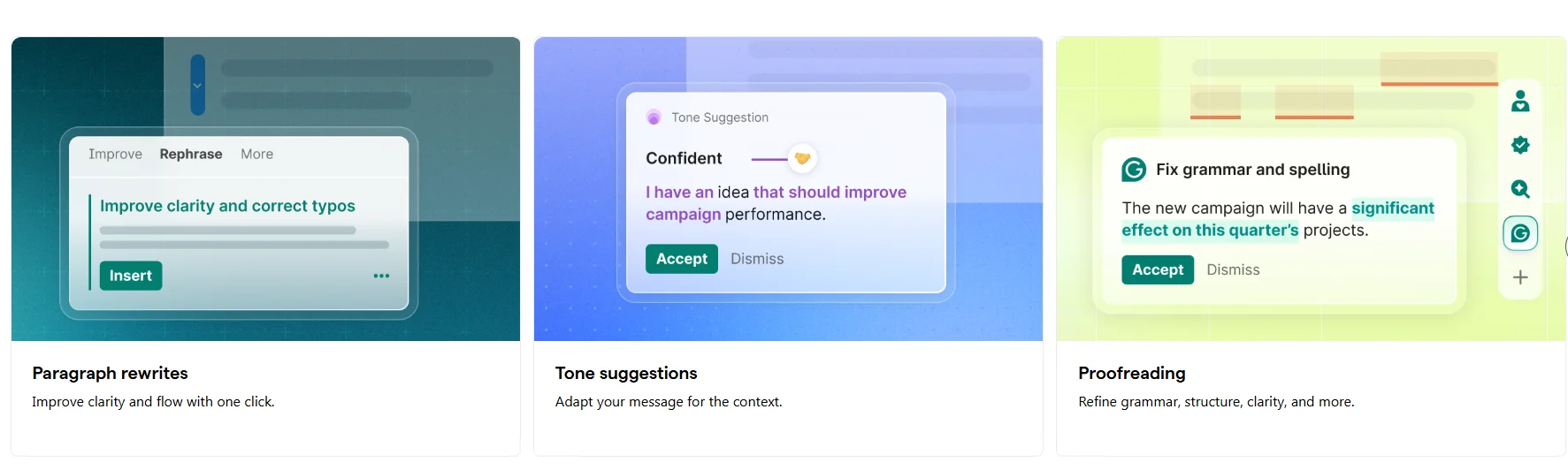
Grammarly's real strength is editing: it cleans up whatever you're writing, wherever you're writing it.
It works across browsers and desktop apps. It catches awkward phrasing, grammar, and tone right inside the email, doc, or message you're already writing. There's no extra step and no separate editor.
It does a lot more with AI now. Pro includes full-sentence rewrites, tone adjustments, and 2,000 AI prompts a month. Grammarly is also available inside Superhuman Go, where it can work alongside other AI agents.
Just don't accept every suggestion on autopilot, or your writing will start to sound a bit generic.
Best for: anyone who writes a lot of email and docs and wants a second pair of eyes built in.
Look elsewhere if: you want an AI to draft for you from scratch. ChatGPT or Claude do that better.
Pricing: The free plan covers basic grammar checks and 100 AI prompts a month. Pro costs $12/month billed annually ($144 upfront) or $30 month-to-month.
16. Wispr Flow — best for writing by voice
Wispr Flow is for people who talk faster than they type.
You speak naturally, and it turns that into clean text in email, docs, chat, or anywhere else you'd type.
It doesn't just dump raw speech onto the page. It removes filler words, fixes punctuation, and tidies sentences as you go. That's what makes it practical for real work, unlike standard dictation.
I'd use it for first drafts, quick replies, and getting ideas out without stopping to type every sentence.
The catch: if you already type fast and edit as you go, it won't save you much.
Best for: first drafts and quick replies when your thoughts move faster than your fingers.
Look elsewhere if: you prefer shaping sentences as you type them.
Pricing: The free plan comes with weekly dictation limits. Pro removes the cap and costs $15/user/month, or $12/user/month when billed annually.
More AI productivity tools that can save you time
Not every useful AI tool needs its own category. These three are more specialized, but they can still take a decent amount of routine work off your plate.
17. Zapier — best for automating repetitive workflows
A new lead comes in, someone fills out a form, a deal changes stage. Zapier moves the data and triggers the next step, so nobody has to do it by hand. It connects with 9,000+ apps, with your tools probably covered.
AI comes in where plain if-then rules fall short. You can add steps that summarize text, classify requests, draft a reply, or make a decision before the automation continues.
Watch your usage, though. Zapier bills by tasks, and AI steps can use several tasks per run depending on the model and tools involved.
Best for: teams moving the same data between the same apps every day.
Look elsewhere if: your "automated workflow" is really one task a week. It's quicker to just do it.
Pricing: The free plan includes 100 tasks a month. Professional starts at $19.99/month.
18. Gamma — best for making presentations quickly

Gamma is handy when you need a decent-looking deck but don't want to spend an hour fixing layouts in PowerPoint.
Give it a prompt, paste in an outline, or upload a document, and it builds the first version. You can present inside Gamma or export to PowerPoint, PDF, PNG, or Google Slides.
I'd still expect to edit the result. What you get is a fast jump from a blank page to something usable, and that's enough for internal decks, proposals, and anything where design isn't the point.
Best for: internal decks and proposals on a deadline.
Look elsewhere if: you need pixel-level control over every slide and layout.
Pricing: The free plan comes with 400 one-time AI credits and lets you generate up to 10 slides per prompt. Plus costs $9/seat/month billed annually, adds 1,000 monthly credits, and removes Gamma branding.
19. Loom — best for async video updates
Loom is useful when a meeting would be overkill but a Slack message won't explain enough. Record your screen, talk through the problem, send the link.
The AI features handle what happens after you stop recording. Loom can automatically title a recording for you. Business + AI goes further with summaries, chapters, tasks, and automatic cleanup for filler words and silences.
I'd use it for walkthroughs, handoffs, bug reports, and project updates, where showing the screen beats writing it all out. If your updates already fit in a short message, you don't need it.
Best for: teams that explain things better on screen than in writing.
Look elsewhere if: you'd rather have the live conversation. For recording and summarizing actual meetings, see the meeting tools above.
Pricing: The free Starter plan includes up to 25 videos per person, with a 5-minute limit on screen recordings. Business costs $18/user/month, and Business + AI is $24/user/month when billed monthly.
How to choose the best AI productivity tools for your workflow
The easiest way to waste money on AI productivity tools is to start with the app instead of the problem. Figure out which part of your week is actually slowing you down, then match it:
- If meetings eat your week, start with an AI meeting assistant. Bluedot if you want every meeting recorded without a bot; Granola if you'd rather keep typing your own notes.
- If your company already pays for Google Workspace or Microsoft 365, try the AI you already have (Gemini or Copilot) before adding new subscriptions.
- If you're a solo user on a budget, a free ChatGPT or Claude plan plus one specialized tool for your biggest time sink covers most of it.
- If the problem is handoffs between apps, that's Zapier's job, not a chatbot's.
Also think about what happens when the AI gets it wrong. A messy meeting summary takes a minute to fix. A bad automation or a wrong research answer can create more work than it saves.
Are AI productivity tools actually worth it?
For work you do every day, yes. A tool that handles your meeting notes, keeps your calendar under control, or saves you from digging through old emails pays for itself quickly.
For occasional tasks, probably not. ChatGPT, Claude, or Gemini already cover most one-off work, so specialized AI tools for business productivity only make sense for a problem you hit often.
I'd also avoid stacking tools that do roughly the same thing. One good tool for your biggest time sink beats three overlapping ones.
If meetings are that time sink, try Bluedot. The free plan gives you five recordings, enough to test it on a few real calls before you decide on a paid plan.
Frequently asked questions
What are the best AI productivity tools?
It depends on the job. ChatGPT is the most flexible all-purpose assistant. Bluedot is built for meeting notes, Perplexity for web research, Reclaim for scheduling, and Zapier for automating work between apps.
What are AI productivity tools?
Apps that use AI to take work off your plate, like writing, research, meetings, scheduling, email, and task management. Some are general-purpose assistants, and others are built for one specific job.
How can AI tools boost your productivity?
Mostly by cutting repetitive work. They take notes during meetings, find information faster, draft routine messages, reshuffle your calendar, and move data between apps so nobody has to copy it by hand.
How much do AI productivity tools cost?
Most paid plans start around $10–20 per user per month. ChatGPT Plus and Claude Pro cost $20/month, Grammarly Pro is $12/month billed annually, Reclaim starts at $10/seat/month, and Bluedot starts at $14/user/month billed annually. Team features, analytics, and higher usage limits cost more.
Are there free AI productivity tools?
Yes, most tools on this list have a free plan, but check what it limits. Bluedot's free plan gives you five recordings for the life of the account, Zapier includes 100 tasks a month, and Granola keeps only 30 days of history. Motion has no free plan, just a trial.
Which AI productivity tools protect my privacy?
Look for tools that tell you where your data is stored, whether it trains AI, and how to delete it. Bluedot lets you choose EU or US storage, never trains AI on your meetings, and lets you set custom retention on the Business plan. Granola deletes audio after transcription, but stores data in the US only. For email and knowledge tools like Shortwave, Notion AI, or Gemini, check the data settings before connecting your inbox or workspace, since they read everything you give them access to.
How do you choose AI tools for team productivity?
Start with the part of the workflow that takes the most time. Then check three things: whether the tool fits the apps your team already uses, how much setup it needs, and whether the paid plan makes sense at your team size. If a general assistant like ChatGPT still leaves a lot of manual work, that's when a specialized AI for productivity pays off.