With Teams Facilitator, you don't have to assign someone to take notes during a meeting. Facilitator is Microsoft's built-in AI agent (not a person leading the discussion) that creates shared notes as people talk and helps keep the agenda on track.
If you organize or present meetings in Microsoft Teams, you'll need the right Copilot license to use Facilitator. We'll walk through how to turn it on before or during a meeting, where to find the notes afterward, and what to check if the option doesn't appear.
What Is Teams Facilitator?
The Teams Facilitator agent (sometimes called Copilot Facilitator) handles real-time note-taking during Microsoft Teams meetings, tracks the agenda, and reminds participants when it's time to move on.
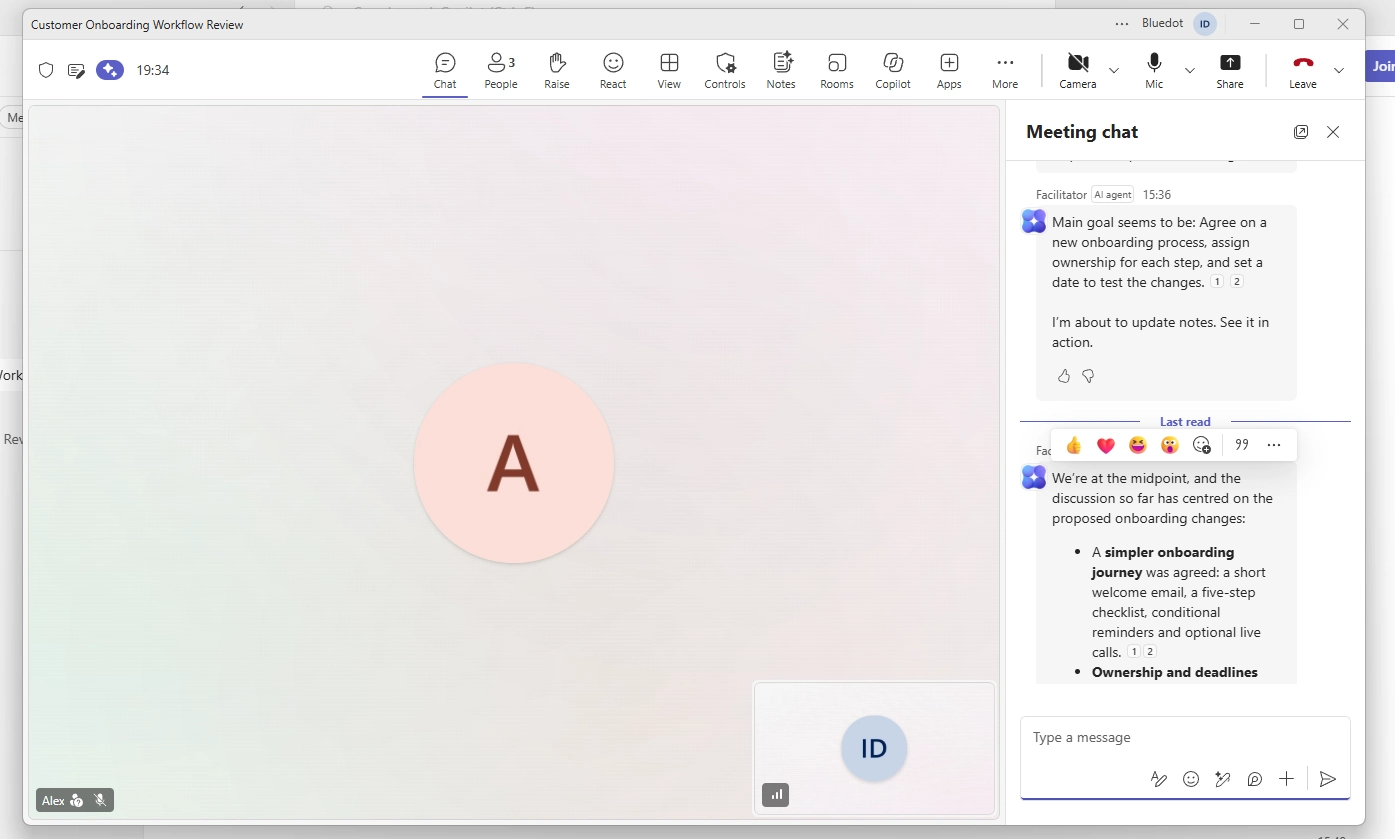
Unlike regular Copilot in Teams, which answers in a private pane, Facilitator posts updates in the meeting chat for everyone. The notes live in a Microsoft Loop component that team members can co-author.
Since it's built into Teams, there's no separate Facilitator app in Teams to install. It only works within Microsoft's meeting environment, so if your team also uses Zoom or Google Meet, dedicated AI note takers can cover those meetings alongside Teams.
What Can Teams Facilitator Do?
Here's how to use Facilitator in Teams once it's running.
Take Live AI Meeting Notes
Facilitator records decisions and action items as people speak. Notes appear in the Teams Notes panel after a few minutes and in Microsoft Loop, where colleagues can correct or expand them.
Facilitator can take notes without saving a transcript when Copilot is set to Only during the meeting. But if you want to ask Copilot about the discussion afterward, you'll usually need to enable Microsoft Teams transcription.
Follow Agendas and Manage Time
If your meeting has an agenda, Facilitator can follow it and remind everyone when it's time to move on. You can also set a timer directly from the meeting chat. Just type: "@Facilitator, add a timer for five minutes."
You can stop or reset the timer, and Facilitator may suggest a follow-up meeting when the scheduled time runs out.
Capture Tasks and Create Documents
When someone mentions a task, Facilitator can add it to Follow-up tasks. You can review the suggestions and accept the ones you want to sync with Microsoft Planner.
There's also a public preview feature that lets you create, update, and assign Planner tasks by mentioning @Facilitator in the chat.
It can also answer questions about shared files, search the web, and create Word documents from the discussion. For example, ask "@Facilitator, create a project brief based on this meeting." The document is then saved to OneDrive, where you can review or edit it.
Teams Facilitator License Requirements and Pricing
Facilitator requires a Microsoft 365 Copilot license on top of a qualifying Microsoft 365 plan with Teams. Free Copilot Chat and Teams Premium aren't enough. Here's the standard Copilot pricing in the US:
Not everyone in the meeting needs a Copilot license, though:
- A licensed organizer or presenter can turn on Facilitator.
- Colleagues without Copilot can still read the shared notes.
- Only licensed meeting participants can ask Facilitator questions.
- External attendees can't access Facilitator's AI notes.
Your IT admin also needs to enable Facilitator and Microsoft Loop for your organization.
How to Turn On Facilitator in Teams
Here's how to enable Facilitator in Teams before or during a scheduled meeting.
Option 1: Add Facilitator Before a Meeting
- Open Microsoft Teams and go to Calendar.
- Select New to schedule a meeting.
- Enable the Teams meeting toggle.
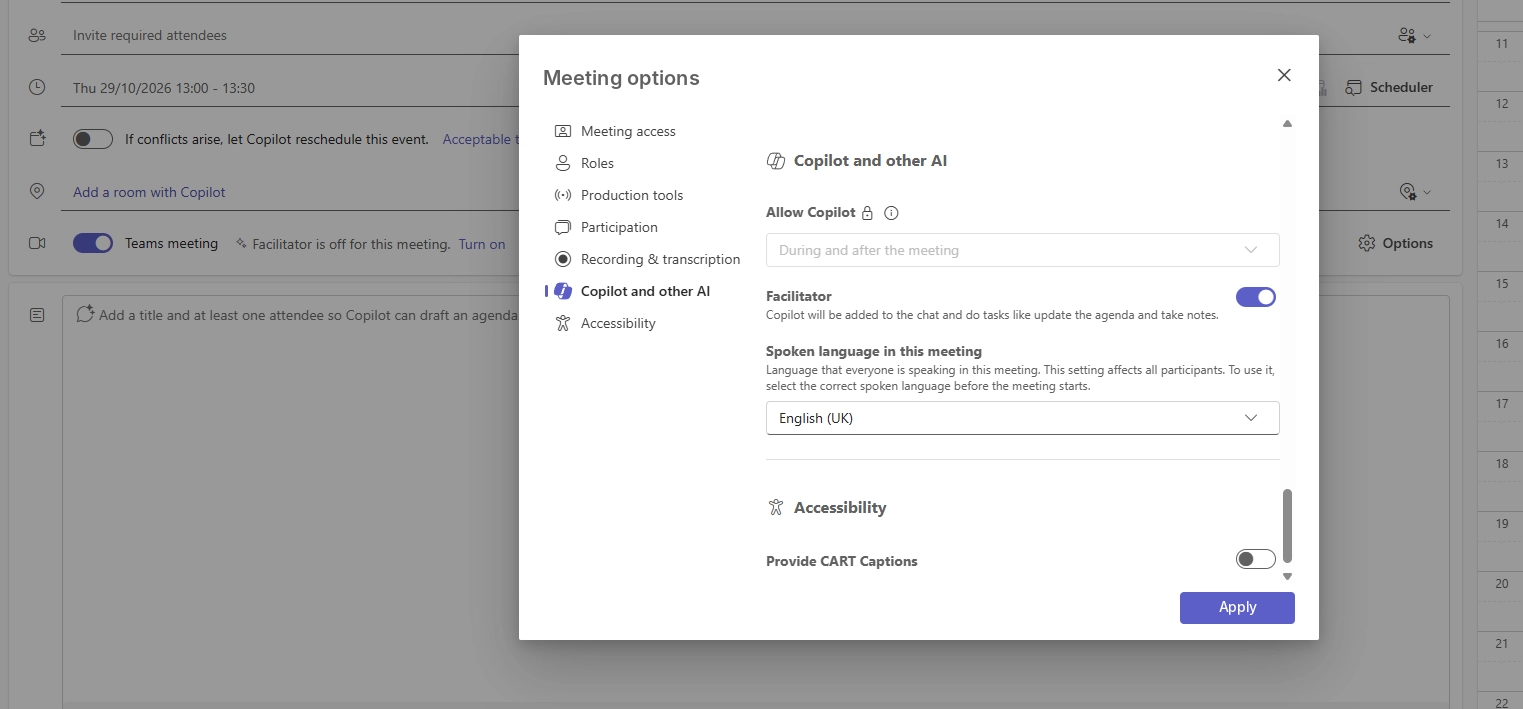
- Open Options > Copilot and other AI.
- Make sure Allow Copilot and Facilitator is set to Only during the meeting or During and after the meeting. Your IT admin may lock this setting.
- Turn on Facilitator.
- Select Apply and finish scheduling.
Add your agenda items to the meeting description or Loop notes if you want Facilitator to track it.
If you need to ask about the discussion afterward, enable Microsoft Teams transcription before or during the meeting.
Option 2: Turn On Facilitator During a Meeting
- Join using Teams on desktop or web.
- Select More actions (three dots).
- Choose Turn on Facilitator.
- Select the spoken language if prompted.
- Open Notes to follow the AI-generated notes.
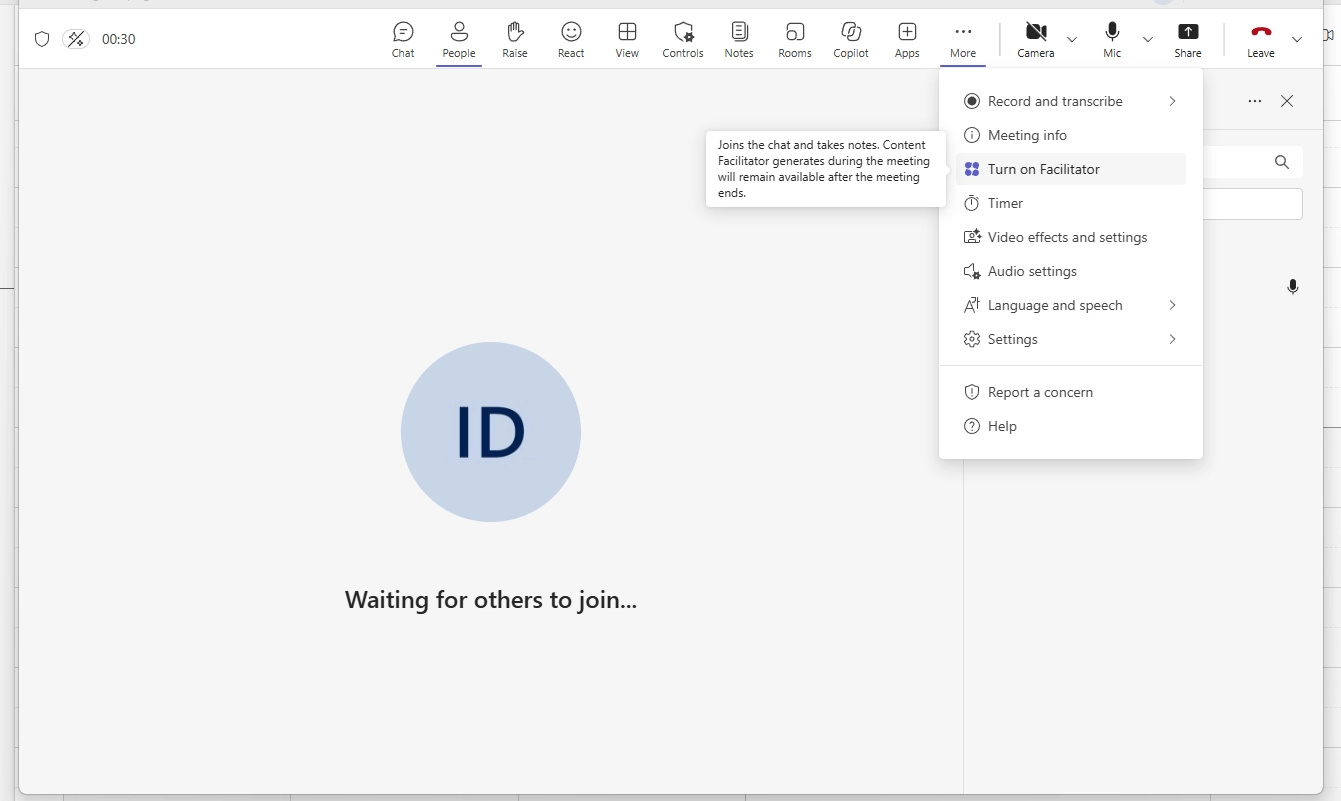
Only organizers and presenters with a Copilot license can turn Facilitator on or off. If you're joining from your phone, you can still see the notes, but you won't be able to change these settings.
You can also ask it questions by typing @Facilitator in the meeting chat.
Where to Find Facilitator Notes After a Meeting
Facilitator saves its notes in a Microsoft Loop page linked to the meeting. To find them:
- Open Chat in Teams.
- Select the meeting conversation.
- Open Recap.
- Select Notes.
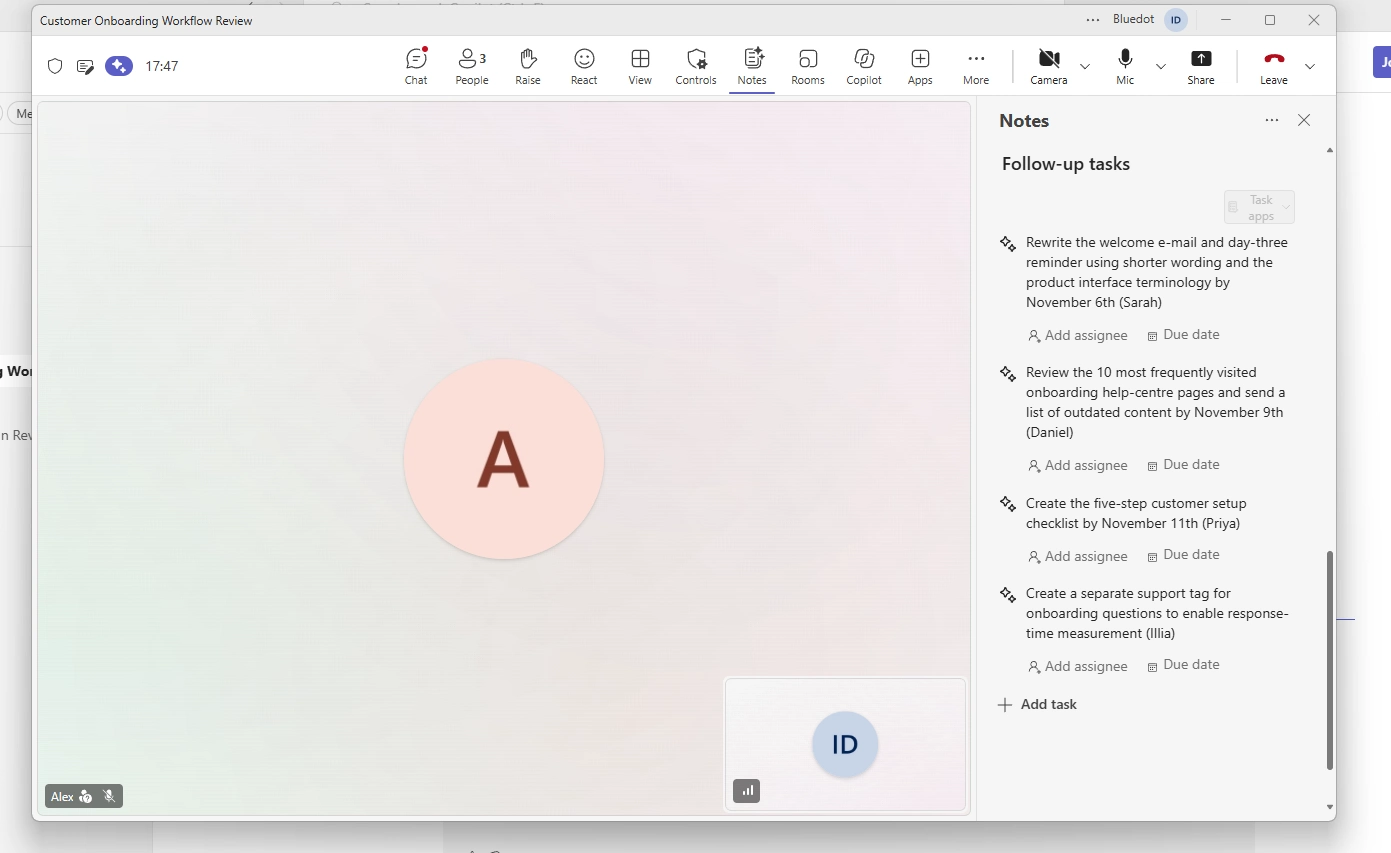
You can edit the notes, correct tasks, or add missing information.
For regular Teams meetings, Facilitator saves the notes in the Meetings folder of the OneDrive account of whoever turned it on. If you want to delete them, you can remove the Loop file, as long as you have permission. Just make sure nobody else still needs the notes.
Before sharing, double-check who agreed to do what. Facilitator can get assignments wrong, especially when several people speak at once.
Why Is Teams Facilitator Not Working?
Can't find Facilitator, or it's not taking notes? Start with these checks.
Facilitator currently takes notes in one selected spoken language. If participants switch languages, parts of the discussion may be missed.
Administrators can check access under Teams admin center > Teams apps > Manage apps.
Facilitator vs Copilot vs Intelligent Recap
The short answer to "can Copilot take meeting notes?" is yes, but you generally need to ask for a summary. Facilitator creates shared notes during the call without waiting for a prompt.
Facilitator is designed for shared note-taking during calls. Copilot handles individual questions, while Intelligent Recap focuses on reviewing meetings afterward.
If you only need Microsoft Teams AI meeting notes after the call, Intelligent Recap may be enough. You can also use regular collaborative notes and transcription without Copilot.
Does Facilitator Work in In-Person Meetings?
Yes. You can use Microsoft Facilitator for in-person conversations through the Teams mobile app or supported Microsoft Teams Rooms.
On iOS or Android, open Teams > Calendar > Meeting > Take notes with Facilitator. For unscheduled meetings in Teams Rooms on Windows, there's also a QR-code option in public preview. It requires a Teams Rooms Pro license and admin setup. Teams Rooms on Windows can also display Facilitator's notes during scheduled meetings.
Room audio matters, though. In QR-code sessions, Facilitator names only people who add their name at the start (with an enrolled voice profile) but may label everyone else Speaker 1 or Speaker 2. It's something to watch for with AI note takers for in-person meetings, especially when several people share one microphone.
What to Use When Teams Facilitator Can't Help
Facilitator is useful if your meetings stay in Teams. But what happens when a client sends a Zoom link, or you need notes from an in-person conversation?
Some Microsoft Teams AI note takers join calls as bots, while others record directly from your device, which can be useful for client meetings where you don't want another participant appearing in the call.
Bluedot records meetings and creates AI notes without a Copilot license. Unlike Facilitator, Bluedot saves the original recording alongside your notes. You can keep the audio or video to revisit later.
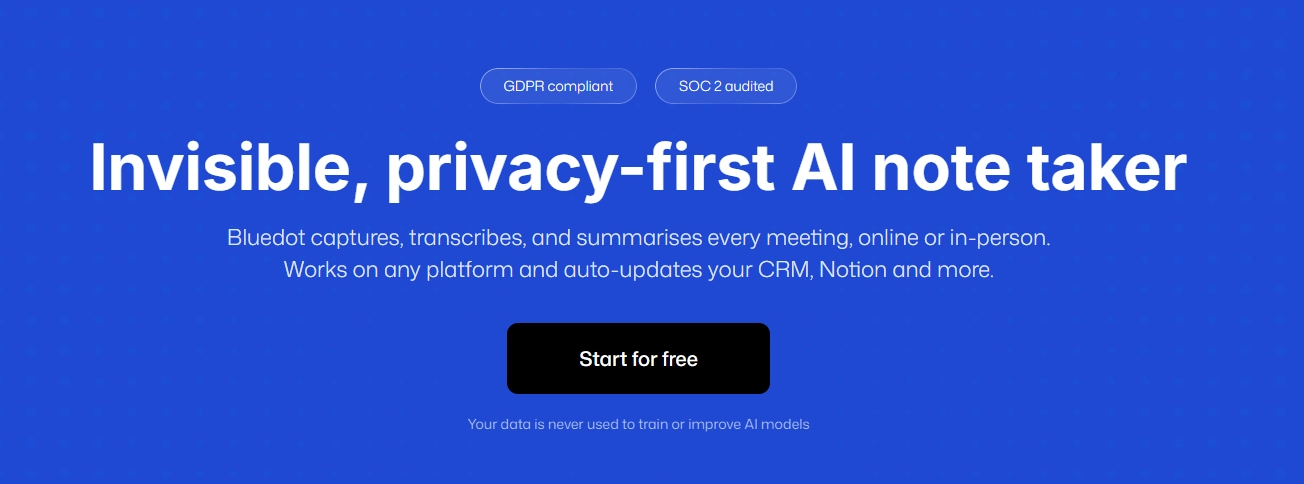
As a Microsoft Teams AI note taker, Bluedot records without adding a bot. You can use its Chrome extension for Teams meetings in your browser, or the desktop app on Mac and Windows to detect meetings and record them automatically. It also supports Zoom and Google Meet.
It also records in-person conversations through its mobile app or Apple Watch, so you don't need separate AI note takers for in-person meetings.
Bluedot is SOC 2 Type II audited and supports EU data residency. It also doesn't use customer meetings to train AI models.
Bluedot runs separately from Teams, so you can't co-author its notes live in Microsoft Loop. But if you need recordings you can replay across different platforms, that separate workflow gives you more flexibility.
Bluedot's free plan includes five meetings total, so you can try it without paying for Copilot.
Is Teams Facilitator Worth Using?
If your company already pays for Microsoft 365 Copilot and most meetings happen in Teams, Facilitator is a good option. You get shared notes without assigning someone to write them.
But it won't save a replayable recording or work in every meeting. For conversations across different platforms, Bluedot is the best pick. It keeps the recording, transcript, and AI notes together without requiring Copilot.
Frequently Asked Questions
Is Microsoft Teams facilitator free?
No. Facilitator requires a paid Microsoft 365 Copilot license. Teams Premium and free Copilot Chat don't include it.
What's the difference between Copilot and facilitator?
Copilot answers questions privately. Facilitator creates shared notes, follows agendas, and responds in meeting chat. Both require a Copilot license.
Why can't I see the facilitator in Teams?
Check your Copilot license, meeting type, and administrator permissions. Microsoft Loop must also be enabled.
Does Teams facilitator record the meeting?
No. Facilitator can use Microsoft Teams transcription to create notes, but it doesn't save audio or video. You'll need a separate recording option to replay the meeting.
Can you turn off Facilitator in Teams?
Yes. Select More actions > Turn off Facilitator during the meeting. This stops new AI notes without deleting those already created.
Can Facilitator be turned on by default?
Microsoft doesn't currently document a universal setting that enables Facilitator for every meeting. You generally turn it on when scheduling or during a call.
Does Facilitator work in in-person meetings?
Yes. It supports in-person note-taking through the Teams mobile app and compatible Teams Rooms, with additional setup for unscheduled room meetings.
Can external attendees see Facilitator notes?
No. External attendees don't have access to Facilitator's shared AI notes. Internal participants can read them without their own Copilot licenses.