Every Microsoft Teams AI note taker has a catch, including the one Microsoft built in.
Facilitator writes live notes during your call, and Copilot recaps the conversation afterward. Both need a Microsoft 365 Copilot license: at least $21 per user per month, on top of your Microsoft 365 plan.
And neither does anything when a client sends you a Zoom link.
Third-party tools fill that gap, but most of them send a bot into your call as an extra participant. Your client sees "AI Notetaker" in the participant list, and the conversation gets a little less natural.
Here you'll learn which AI note takers actually make sense for Microsoft Teams, and where each one falls short.
Key Takeaways
- Bluedot is the top pick for Microsoft Teams. It records bot-free through a Chrome extension or desktop app, also covers Zoom, Google Meet, and in-person meetings, and stores your data in the EU or US without training AI on it.
- Microsoft 365 Copilot + Facilitator lives inside Teams, but you pay $21+/user/month on top of Microsoft 365. Even then, Facilitator skips channel meetings, instant meetings, and Teams calls.
- Otter joins your Teams calls as a bot by default, and its free plan cuts every meeting off at 30 minutes.
- Fireflies auto-joins every meeting on your calendar unless you change the settings. Its bot-free mode drops speaker names, and AI features cost extra credits.
- Fathom has a generous free plan, but on Teams it can only record with a bot, and that bot may show up as "Unverified" to your attendees.
- Krisp records bot-free, but there's no free plan, and it names speakers automatically only in one-on-one calls.
- Fellow is built around agendas, instead of recording. The $7 Team plan stops at 10 recordings per user a month.
Quick Overview: Best AI Note Takers for Microsoft Teams
Does Microsoft Teams have an AI note taker?
Yes, three of them, and all three cost extra.
Teams' built-in AI note-taking is split across Copilot, Facilitator, and Intelligent Recap. They overlap, they're licensed differently, and Microsoft doesn't make the difference obvious.
Here's the short version:
Microsoft 365 Copilot
Can Copilot take meeting notes? Yes, but only when you ask it to.
Copilot is a private chat pane. You prompt it ("What did we decide about pricing?"), and it answers. Other attendees can't see your conversation.
With During and after the meeting, Copilot needs live transcription, so turn on Teams transcription first. If someone stops the transcript, Copilot stops too.
With Only during the meeting, Copilot works without recording or transcribing anything. The conversation disappears when the call ends. Copy anything useful before you leave, because it won't show up in the Recap tab.
Facilitator
Facilitator is the closest thing Teams has to an actual AI note taker.
Turn it on, and it writes live notes in a Loop page that every participant can edit. It follows the agenda from your invite, recaps decisions and open questions halfway through and again before the end, and captures follow-up tasks you can sync to Planner.
It has limits, though:
- Only someone with a Microsoft 365 Copilot license can turn it on.
- It works in scheduled meetings only, not in channel meetings, instant meetings, or Teams calls.
- The notes are saved as a Loop file in the OneDrive of whoever started Facilitator, and external guests can't open them.
If you just want shared notes without the AI, we've covered how Teams meeting notes work on their own.
Intelligent Recap
Intelligent Recap takes over after the meeting. Open the Recap tab in the meeting chat, and you'll find an AI summary of what was discussed.
It's the one native option you can get without Copilot: Teams Premium includes it, at about $10/user/month. Audio recaps still need a Copilot license.
The recap sits next to the meeting's recording and transcript, so it helps to know where Teams recordings go when you need the original.
So yes, Microsoft Teams has native AI note-taking. But every version costs extra on top of Microsoft 365, and it all works only inside Teams.
What Copilot can't record
Copilot works well as long as the meeting stays inside Teams. The moment a client sends you a Zoom or Google Meet link, it drops out of the workflow. Facilitator and Intelligent Recap have the same limitation.
In-person meetings are an even bigger gap. No Teams meeting means no transcript for Copilot or Intelligent Recap to work from.
Bot-based note takers don't automatically solve this either. If the tool needs a meeting link and a bot to join, there's nothing to join when everyone is sitting in the same room.
Bluedot covers both cases. It records Teams, Zoom, and Google Meet, and can also capture in-person conversations from an iPhone, Apple Watch, or desktop. You still get a transcript and AI summary afterward.
7 best AI note takers for Microsoft Teams
For each tool below, I checked how it gets into your Teams call (bot, desktop app, or browser extension), what it captures, how far the free plan gets you, and whether it works outside Teams. If you aren't tied to Teams, our broader guide to the best AI note takers covers more options.
#1. Bluedot — top choice for bot-free Teams notes
Bluedot is a secure, privacy-first AI note-taker that records, transcribes, and summarizes online and in-person meetings without sending a bot into your calls. It captures audio directly from your device and supports audio and video recording across Chrome, macOS, Windows, iOS, Android, and Apple Watch.
Bluedot is GDPR-compliant, SOC 2 Type II audited, and never uses customer data to train AI models.
It records your Teams meetings without adding a bot to the call. Nothing extra appears in the participant list, so your client sees the same meeting they would without it.
That matters more in Teams than on most platforms. Bots from outside your organization often wait in the lobby until someone admits them, and plenty of IT teams block them altogether.
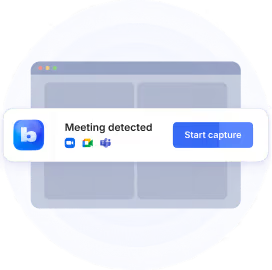
Bluedot avoids both problems. If you use Teams in the browser, you record with the Chrome extension. If you use the desktop app on Mac or Windows, it detects the meeting and can start recording automatically, if you want it to.
For in-person meetings, you can record from your iPhone, Apple Watch, or desktop and get the same transcript and AI summary afterward.
Either way, Bluedot names speakers from your calendar and the Teams participant list, so your transcript says "Anna" and "Mark," not "Speaker 1."
After the call, you get a transcript, an AI summary from one of 50 templates (or your own), and a drafted follow-up email. The same account also records Zoom, Google Meet, and in-person meetings, so your notes don't end up split across tools.
Prefer to record more visibly? There's an optional bot too, and you can rename it and change its avatar. See how Bluedot for Microsoft Teams works.
Best for: if you want AI meeting notes without adding another participant to Teams calls, especially calls with clients.
Key features
- Bot-free Teams recording: works in the browser (Chrome extension) or the desktop app (Mac and Windows).
- Named speakers: pulled from your calendar and Teams participant data.
- Video, audio, or transcript only: choose what you capture, up to 1080p.
- In-person recording: iPhone, Apple Watch, or desktop, with the same transcript and summary as a Teams call.
- Breakout room detection: the desktop app stops recording when you move into a breakout room.
- 100+ languages: with a custom vocabulary for names, acronyms, and jargon.
- Sync to your tools: HubSpot, Salesforce, Slack, Notion, and Zapier.
What Bluedot does well
✅ No bot in the participant list, and no lobby to get stuck in
✅ One account for Teams, Zoom, Meet, phone, and in-person meetings
✅ Data stays in the EU (Frankfurt) or US, your choice, and is never used to train AI
✅ SOC 2 Type II, GDPR, and custom retention policies
What users say:
"No bots — which is critical when meeting with hospital leadership." — healthcare founder, G2
Drawbacks of using Bluedot
❌ The free plan includes only 5 recordings, for the life of the account
❌ Basic ($14) is audio-only and caps recordings at one hour
💡 BLUEDOT PRO TIP
Recording a client call on Mac? Turn on Notify participants in the desktop app, and Bluedot can post a message in the meeting chat letting everyone know the call is being transcribed.
Bluedot pricing
- Free — $0: 5 recordings for the lifetime of the account.
- Basic — $14/user/month billed annually ($18 monthly): unlimited audio recordings, up to 1 hour each.
- Pro — $20/user/month billed annually ($25 monthly): adds video recording, unlimited recording length, and custom note templates.
- Business — $32/user/month billed annually ($39 monthly): adds CRM and ATS integrations, SSO, SCIM, custom retention, and advanced admin controls.
- Flat rate — custom pricing: one fixed price for the company, regardless of how many people use Bluedot.
#2. Microsoft 365 Copilot + Facilitator — best native option
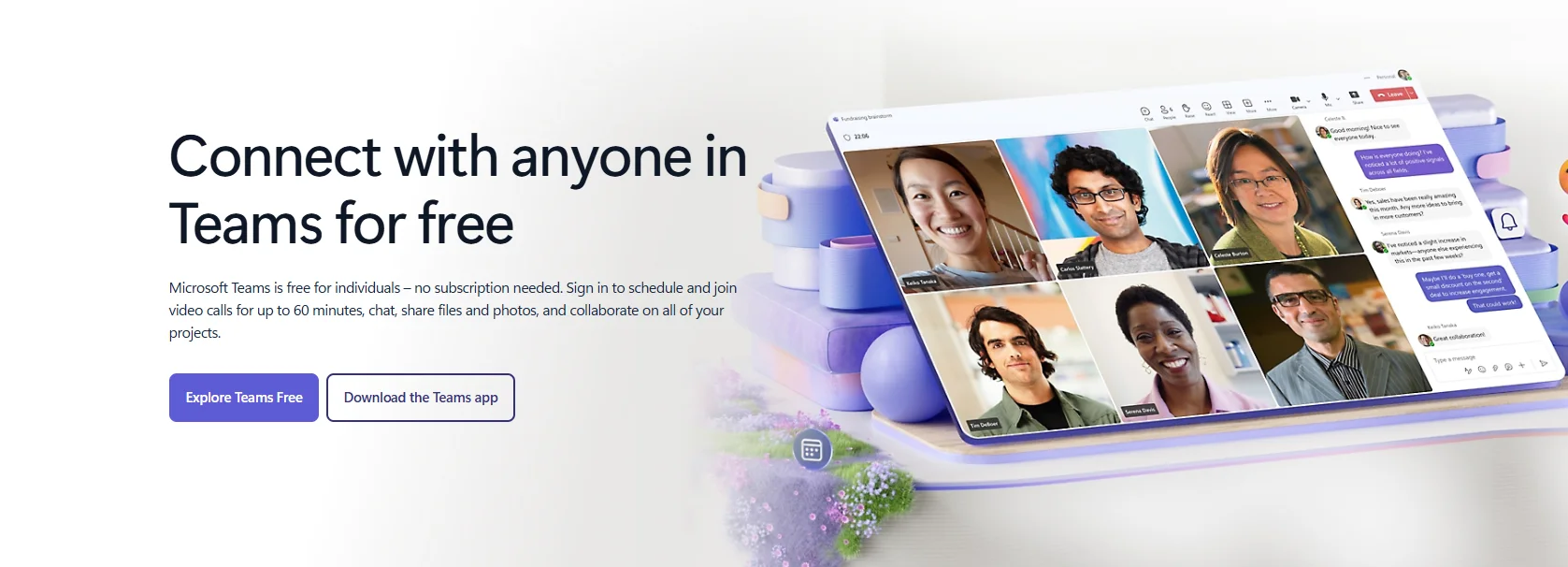
If your company already pays for Copilot, you have an AI note taker for Teams. You just have to turn it on.
Facilitator is built into Teams, so there's no bot, no extra app, and no new vendor for IT to approve. Live notes land in a Loop page, tasks sync to Planner, and everything stays inside your Microsoft 365 setup.
Copilot is an add-on of $21–30 per user per month on top of your Microsoft 365 plan, and for that price you get only one meeting platform. Zoom calls, Google Meet calls, and in-person meetings aren't covered.
Facilitator is also pickier than it looks. It works in scheduled meetings only, so you won't get notes from a quick "Meet now" call or a Teams call.
Best for: companies already standardized on Microsoft 365, where most meetings are internal and scheduled in Teams.
Key features
- Facilitator: live Copilot meeting notes everyone can edit, agenda tracking, and recaps of decisions and open questions.
- Copilot chat: ask questions about the meeting while it's happening, or afterward if it was transcribed.
- Planner sync: follow-up tasks go straight into Microsoft Planner.
- Copilot across Microsoft 365: the same license works in Outlook, Word, Excel and PowerPoint.
What Copilot does well
✅ Nothing to install, and no bot joins your call
✅ No new vendor to clear with IT and security
✅ Good value if you'd buy Copilot for the rest of Microsoft 365 anyway
Drawbacks of using Copilot
❌ $21–30/user/month on top of your Microsoft 365 plan
❌ Teams only: no Zoom, Google Meet, phone calls, or in-person meetings
❌ Facilitator skips channel meetings, instant meetings, and Teams calls
❌ AI-generated notes don't work in meetings with external guests
Copilot pricing
- Microsoft 365 Copilot Business — $21/user/month: for organizations with up to 300 users.
- Microsoft 365 Copilot — $30/user/month: for enterprise plans.
- Teams Premium — about $10/user/mo: Intelligent Recap only, without Facilitator or Copilot chat.
Remember that all three are add-ons, so your Microsoft 365 subscription comes on top.
#3. Otter — best for live transcription and searchable history
Otter connects to Microsoft Teams in two ways. Its note-taker bot auto-joins your Teams meetings from your Google or Outlook calendar, and its desktop app for Mac and Windows records Teams calls without a bot.
The bot is the default: it transcribes the meeting in real time and can post the live transcript and summary straight into the Teams meeting chat.
After the call, everything goes into a searchable library. Otter AI Chat answers questions across your whole meeting history.
The catch is the bot that auto-joins every meeting on your calendar unless you change the settings, and users report it showing up in calls they never meant to record. Reviewers also complain about Otter creating accounts for colleagues and marketing to them without asking.
Best for: teams that care most about live transcripts and searching past conversations.
Key features
- Notetaker bot: joins Teams, Zoom, and Google Meet from your calendar.
- Bot-free desktop app: records Teams on macOS 12.3+ and Windows 10+.
- Live transcript in Teams chat: attendees can follow along during the call.
- Otter AI Chat: search and query your entire meeting history.
What Otter does well
✅ Real-time transcription you can read as people talk
✅ Chat across all your past meetings, not one transcript at a time
✅ Integrations with Salesforce, HubSpot, Slack, and Notion
Drawbacks of using Otter
❌ The bot auto-joins meetings by default
❌ Transcribes only six languages
❌ The free plan caps every meeting at 30 minutes, and Pro at 90
❌ A 2025 class-action lawsuit alleges recording-consent issues
What users say:
"Invades every meeting I have access to on my calendar." — Verified User, G2
Otter pricing
- Basic — $0: 300 transcription minutes per month, up to 30 minutes per meeting, and 3 lifetime file imports.
- Pro — $8.33/user/month billed annually ($16.99 monthly): 1,200 transcription minutes per month, up to 90 minutes per meeting, and 10 file imports per month.
- Business — $19.99/user/month billed annually ($30 monthly): unlimited meeting transcription, up to 4 hours per meeting, and unlimited file imports subject to a separate transcription limit.
- Enterprise — custom pricing: adds SSO, SCIM, Domain Capture, HIPAA compliance as an add-on, and advanced Teams recording-permission controls.
If your Teams meetings regularly run past 30 minutes, the Basic plan's per-meeting limit will push you toward Pro.
#4. Fireflies — best for meeting automations and integrations
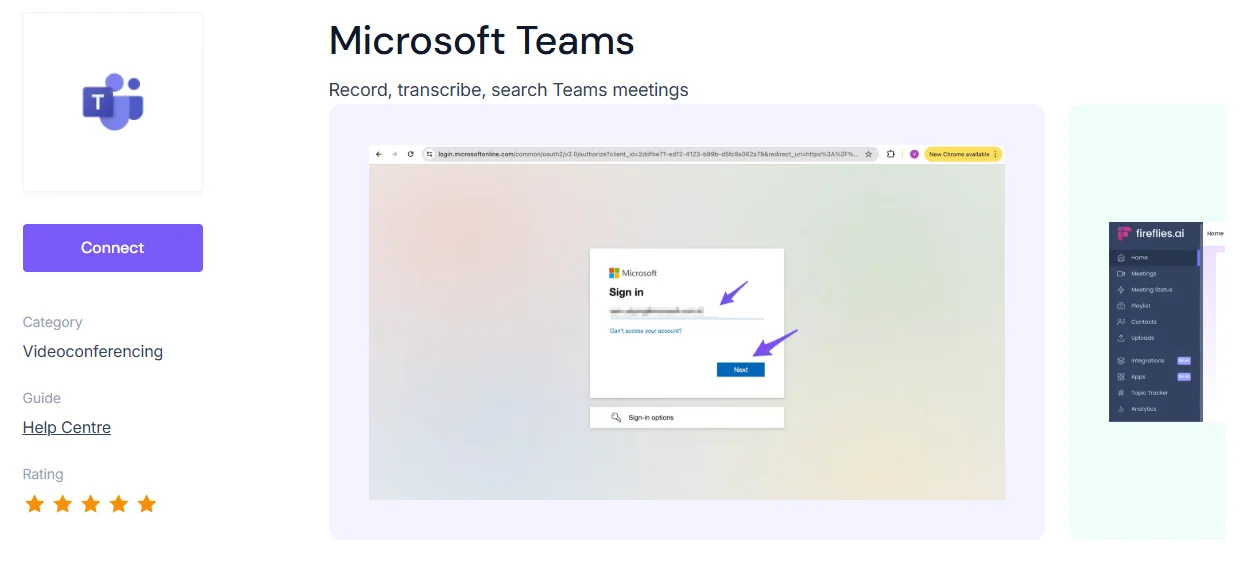
Fireflies joins Microsoft Teams through its bot, Fred. Connect your calendar, and Fred can automatically join your Teams meetings. You can also invite fred@fireflies.ai to a specific call.
There’s a bot-free option too. The desktop app’s Take Notes mode captures audio from your computer and gives you a transcript and Microsoft Teams AI meeting notes without adding Fred to the call. The trade-off is that it doesn’t save an audio or video file, and speakers appear as “Speaker 1” and “Speaker 2.”
Fireflies gets more interesting after the meeting. It can send meeting data to CRMs such as Salesforce, HubSpot, Pipedrive, and Dynamics 365, and automatically post notes and summaries to a Teams channel.
Transcription and standard meeting summaries are included in the plan. Some of the extra AI features, including AskFred, AI Skills, and custom summaries, use separate credits. If you use those a lot, you'll need an extra credit pack.
Best for: teams that want meeting notes to trigger workflows in other tools.
Key features
- Fred bot: joins Teams, Zoom, and Google Meet from your calendar.
- Take Notes mode: bot-free transcription and notes from the desktop app.
- CRM and workflow integrations: including Salesforce, HubSpot, Pipedrive, Dynamics 365, Slack, Notion, and Microsoft Teams.
- AskFred: ask questions about past meetings and live ones.
What Fireflies does well
✅ More integrations than the majority of tools on this list
✅ Summaries can go straight into a Teams channel
✅ Transcribes 100+ languages
Drawbacks of using Fireflies
❌ Bot-free mode doesn’t save an audio or video file
❌ Speakers aren’t named automatically in bot-free mode
❌ Some advanced AI features use separate credits
❌ Meeting recap emails go to everyone on the invite by default unless you change the setting
What users say:
A G2 reviewer in IT warns that the default settings invite Fred to every meeting and email notes to all attendees, calling it "a virality tactic… very obnoxious."
Fireflies pricing
- Free — $0: unlimited transcription and AI summaries, with 400 minutes of meeting storage.
- Pro — $10/user/month billed annually ($18 monthly): adds video recording, downloads, 8,000 minutes of storage per user, and unlimited integrations.
- Business — $19/user/month billed annually ($29 monthly): adds unlimited storage, Multi-Language Mode, conversation intelligence, and team analytics.
- Enterprise — $39/user/month billed annually: adds SSO and SCIM, audit logs, private storage, and custom data retention.
Advanced AI features can use separate AI credits. Additional credits start at $5/month for 50 credits, or $4/month with annual billing.
#5. Fathom — best free AI note taker for Microsoft Teams
Fathom records Microsoft Teams meetings with its Fathom Notetaker bot. You launch it from the desktop app or your calendar, and it joins the call as a participant.
That's the only option on Teams. Fathom's bot-free recording, still in beta, works on Zoom and Google Meet, but Teams isn't supported yet. In some Teams meetings, the bot may even show up to attendees as "Unverified."
Why is it on this list? Because of the free plan: unlimited recordings and unlimited transcription.
If you want Teams notes without paying anything, that's hard to beat. Just know where the free plan stops. Advanced AI summaries are capped at 5 a month.
Best for: individuals and small teams that want useful Teams notes without paying right away.
Key features
- Fathom Notetaker: joins Teams, Zoom, and Google Meet calls.
- Unlimited free recording: no monthly minutes, no per-meeting cap.
- 15+ summary templates: including sales frameworks like MEDDPICC and BANT.
- Ask Fathom: AI chat across your recent meetings.
What Fathom does well
✅ The most generous free plan on this list
✅ Unlimited recording and transcription, even for long Teams meetings
✅ A 90-day money-back guarantee on Team and Business plans
Drawbacks of using Fathom
❌ On Teams, it only records with a bot
❌ The bot sometimes fails to join, without any warning
❌ The mobile app is currently iOS-only
❌ Only 5 advanced AI summaries a month on the free plan
What users say:
"The bot joins visibly as 'Fathom Notetaker' which can be awkward on first calls with new clients." — Reddit, r/ArtificialInteligence
Fathom pricing
- Free — $0: unlimited recordings and transcription, with limited use of advanced AI features.
- Premium — $16/user/month billed annually ($20 monthly): adds unlimited advanced summaries, AI action items, Ask Fathom, and a custom meeting bot.
- Team — $15/user/month billed annually ($19 monthly): adds shared team features, global search, playlists, folders, and collaboration tools; 2-user minimum.
- Business — $25/user/month billed annually ($34 monthly): adds CRM field sync, Deal View, coaching metrics, AI scorecards, and custom summaries; 2-user minimum.
- Enterprise — custom pricing: adds SSO, SCIM, custom data retention, organization-wide security controls, and dedicated support.
#6. Krisp — best for bot-free notes in noisy Teams meetings
Krisp started as a noise-cancellation app, and that's still the main reason to pick it.
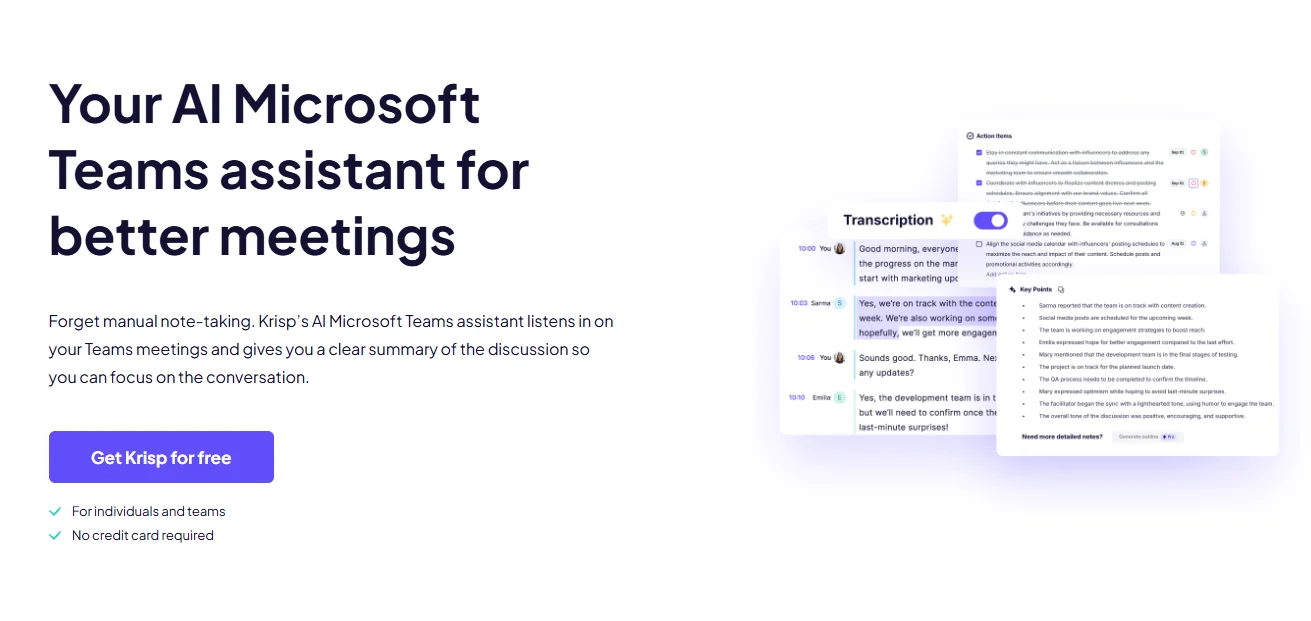
Its AI meeting assistant runs on your desktop and captures audio straight from your computer, so it works with Microsoft Teams and any other call app, without a bot. If you'd rather have a visible participant, an optional bot can join Teams on the Core plan and above.
While it takes notes, Krisp also strips background noise from your microphone. Barking dogs, keyboard clatter, and open-office chatter get filtered out before anyone else in the call hears them.
The weak spot is speaker names. Krisp labels speakers automatically only in one-on-one meetings with a connected calendar. In group calls, you assign speakers yourself, which can become a real chore for team meetings.
Best for: people who want meeting notes and audio cleanup in one desktop app.
Key features
- Bot-free desktop capture: records Teams, Zoom, Google Meet, and any other call app.
- Optional meeting bot: available on Core and above.
- Noise cancellation: removes background noise from your mic in real time.
- Transcripts and AI summaries: with action items after each meeting.
What Krisp does well
✅ No bot by default
✅ Built-in noise cancellation
✅ Low entry price for a bot-free tool
Drawbacks of using Krisp
❌ No free plan, just a 7-day trial
❌ Automatic speaker names only in one-on-one meetings
❌ Noise cancellation isn't available in the mobile app
What users say:
One G2 reviewer recorded a six-person meeting, and Krisp recognized only two speakers.
Krisp pricing
- Free trial — $0: 7 days with unlimited transcription, noise cancellation, recording, AI notes, and action items.
- Core — $8/user/month billed annually ($16 monthly): unlimited AI note-taking, transcription, noise cancellation, integrations, AI Chat, and 10 GB of storage.
- Advanced — $15/user/month billed annually ($30 monthly): adds advanced integrations and admin controls, expanded accent conversion, and 60 GB of storage.
- Enterprise — custom pricing: adds SSO and SCIM, advanced security controls, private transcription and recordings, data center selection, and unlimited storage.
#7. Fellow — best for structured team meeting workflows
Fellow is a meeting-management platform first, with an AI note taker built in.
It connects to Microsoft Teams in three ways. It has a bot that joins your calls, a bot-free desktop app for Mac and Windows, and a native Teams app where you can work on agendas and notes without leaving Teams.
The real value is everything around the recording. Every meeting gets a shared agenda that attendees can fill in beforehand. Action items carry forward to the next meeting until someone closes them, and Fellow reminds people of their follow-ups before the call.
After the meeting, you get a transcript and an AI recap with decisions, follow-ups, and action items.
The recording side is weaker compared to Fellow alternatives. Reviewers report meetings that never show up in Fellow, and the cheaper plans ration recordings. The $7 Team plan stops at 10 per user a month.
Best for: teams that want AI notes combined with recurring agendas, meeting processes, and action items.
Key features
- Three ways into Teams: a bot, a bot-free desktop app, and a native Teams app.
- Collaborative agendas: attendees add topics and prep before each meeting.
- Action items that carry forward: open tasks follow you to the next meeting.
- Ask Fellow: AI chat across your meeting history, on every plan.
What Fellow does well
✅ The best agenda and meeting-prep tools on this list
✅ A native app inside Teams
✅ Bot-free recording on every plan
Drawbacks of using Fellow
❌ Recorded meetings sometimes fail to appear
❌ The Team plan caps you at 10 recordings per user a month
❌ Compliance features like redaction and SSO are Enterprise-only
What users say:
"Meetings don't show up on Fellow and you're left in the dust." — Verified User, G2
Fellow pricing
- Free — $0: 5 AI notes and 5 AI recordings per user for the lifetime of the account.
- Team — $7/user/month billed annually ($11 monthly): 10 AI notes and 10 AI recordings per user each month, plus meeting automations and project management integrations.
- Business — $15/user/month billed annually ($23 monthly): unlimited AI notes and recordings, plus Salesforce and HubSpot integrations, org-wide templates, and sales recap templates.
- Enterprise — $25/user/month billed annually: unlimited recording plus advanced recording permissions, SSO, SCIM/user provisioning, transcript redaction, and additional security/admin controls; starts at 10 users.
How to choose an AI note taker for Microsoft Teams
Every tool on this list records, transcribes, and summarizes your meetings. The differences are in how they get into your Teams calls and what they do with the notes afterward.
Work through these six questions before you pay for any Microsoft Teams note taker.
#1. Decide whether you want a meeting bot
A bot joins your Teams call as an extra participant. Everyone sees it in the participant list, and some people talk less freely once they know a bot is listening, especially clients.
In Teams, bots also run into practical problems. Bots from outside your organization often wait in the lobby until someone admits them, and many IT teams block third-party bots altogether.
The alternative is bot-free capture, where a browser extension or desktop app records the meeting from your own computer. Nothing joins the call.
#2. Check what Teams features you already pay for
If your company already has Microsoft 365 Copilot licenses, try Facilitator before buying anything else. If you have Teams Premium, you already get Intelligent Recap.
Ask IT before you add a new vendor. Paying twice for Microsoft Teams meeting notes is a common and avoidable mistake.
#3. Look beyond Microsoft Teams
Count how many of your meetings actually happen in Teams.
If clients send you Zoom links, partners use Google Meet, or you meet people in person, a Teams-only tool will leave gaps. A third-party Microsoft Teams note taker that works everywhere keeps all your notes in one place.
#4. Compare what happens after the meeting
A transcript is only the start. Look at what each AI meeting note taker for Teams does with it:
- Summaries and action items that fit how your team works
- Searchable history, so you can find what someone said three months ago
- CRM sync, which matters for sales teams logging calls in HubSpot or Salesforce
- Integrations with Slack, Notion, Planner, or wherever your team works
Our guide to AI note takers for sales compares CRM integrations in more depth.
#5. Check recording, transcription, and privacy requirements
Before you record anyone, check three things.
Company policy: your IT team may restrict recording, transcription, or third-party apps in Teams.
Consent: depending on where you and your attendees are, you may need everyone's permission to record. Check the rules for your state or country.
Data handling: find out where the vendor stores recordings, how long it keeps them, and whether it trains AI on your meetings.
#6. Compare the free plan, not just the price
"Free AI note taker for Teams" means something different for every tool on this list:
- Lifetime limits: Bluedot and Fellow give you 5 recordings, total.
- Monthly minutes: Otter gives you 300 minutes a month, capped at 30 per meeting.
- Unlimited recording, limited AI: Fathom records everything but caps advanced summaries.
- Trial only: Krisp gives you 7 days.
Test any tool on a real Teams meeting before you trust it with a client call.
How to add an AI note taker to Microsoft Teams
There are three ways to get automatic meeting notes in Teams. Which one you use depends on your license and whether you're OK with a bot.
Option 1: Turn on Microsoft's built-in AI
If you have a Microsoft 365 Copilot license:
- Open a scheduled meeting in your Teams calendar.
- Turn on Facilitator next to the Teams meeting toggle, or start it during the meeting from the meeting controls.
- To use Copilot afterward, start transcription when the meeting begins.
Your notes appear in the meeting's Recap tab once the call ends.
Option 2: Let a third-party bot join
This is how Otter, Fireflies, and Fathom work by default:
- Sign up and connect your Google or Outlook calendar.
- Turn on auto-join, or invite the bot to a specific meeting.
- Admit the bot from the lobby if your Teams settings hold it there.
If the bot never shows up, your IT admin may be blocking third-party apps. Ask them before troubleshooting further.
Option 3: Record Teams without a bot
This is how Bluedot and Krisp work, along with the desktop modes of Otter, Fireflies, and Fellow:
- Install the desktop app or Chrome extension.
- Allow microphone and system audio access when your computer asks.
- Start recording, or let the app detect the Teams meeting and start for you.
Nothing joins the call, and your notes appear in the app after the meeting.
Take better Teams notes with Bluedot
Microsoft built AI notes into Teams, but it charges extra for them, and they stop at the edge of Teams.
A lot of third-party tools solve the second problem by adding a bot to your call. Bluedot doesn't.
It records Teams from your browser or desktop app, names speakers automatically, and gives you a transcript, summary, and follow-up email after every call. The same account covers Zoom, Google Meet, and in-person meetings, so there's no second tool and no bot in the participant list.
Your recordings stay private: stored in the EU or US, and never used to train AI.
If you want one secure AI note taker for Microsoft Teams and every other meeting you take, start with Bluedot's free plan.
Frequently asked questions
Does Microsoft Teams have a built-in AI notetaker?
Yes. Teams has three built-in AI note-taking features.
- Facilitator writes live notes that everyone can edit.
- Copilot answers questions about the meeting during the call and afterward, if the meeting was transcribed.
- Intelligent Recap summarizes the meeting once it's over.
None of them come free. Facilitator and Copilot need a Microsoft 365 Copilot license, and Intelligent Recap needs Copilot or Teams Premium.
Can I use a third-party AI notetaker with Microsoft Teams?
Yes. Most third-party tools connect in one of three ways:
- A bot that joins your meeting from your calendar, like Otter, Fireflies, or Fathom.
- A native Teams app, like Fellow's.
- Bot-free capture through a desktop app or browser extension, like Bluedot or Krisp.
Your IT admin's settings can block bots or third-party apps. If one doesn't work, check with them first.
Is it safe to use an AI notetaker in Microsoft Teams?
It depends on the tool and your company's requirements. Check where the vendor stores your data, how long it keeps recordings, whether it uses meeting data to train AI models, and what security or compliance standards it supports, such as SOC 2 Type II or GDPR.
Also check the consent rules where you and your attendees are. A bot-free tool isn't a way to record people secretly, so tell everyone when a meeting is being recorded.
Do I need a Copilot license for AI notes in Teams?
For most of Microsoft's AI notes, yes.
- Facilitator: needs a Microsoft 365 Copilot license.
- Copilot in meetings: needs a Microsoft 365 Copilot license.
- Intelligent Recap: needs Copilot or Teams Premium, and audio recaps need Copilot.
- Third-party note takers: don't need any Microsoft add-on. They work with a standard Teams account.
What's the best free AI note taker for Microsoft Teams?
Fathom has the strongest free plan, with unlimited recordings and transcription. On Teams, though, it only records with a bot.
If staying bot-free matters more, Bluedot offers a limited free plan instead: 5 recordings, with no bot in the call. Otter's free plan also works, but it cuts every meeting off at 30 minutes.
Can you take AI notes in Teams without a bot joining?
Yes.
- Third-party tools: Bluedot and Krisp record Teams from your computer, with nothing joining the call. Otter, Fireflies, and Fellow also have bot-free desktop modes.
- Microsoft's own features: these don't use a bot either, but they need a Copilot license.
If you want a transcript without keeping a recording, here's how to transcribe without recording in Teams.
Why isn't the Teams Facilitator taking notes?
The usual causes:
- No Copilot license: only Copilot-licensed users can turn Facilitator on.
- Wrong meeting type: Facilitator works in scheduled meetings only. It doesn't work in channel meetings, instant meetings, or Teams calls.
- Loop is turned off: Facilitator's notes are built on Loop, which your admin has to enable.
- It's not on: someone has to turn on Facilitator before or during the meeting.
If none of these apply, ask your IT admin to check your organization's Copilot and Teams settings.
Can Copilot take notes in an in-person meeting?
No. Copilot, Facilitator, and Intelligent Recap only work inside Microsoft Teams meetings. For an in-person conversation, you need a note taker that can record directly from your phone, computer, or another device.
Is there a Copilot alternative for Microsoft Teams meeting notes?
Yes. Third-party tools like Bluedot can record and summarize Teams meetings without a Microsoft 365 Copilot license. Bluedot can record Teams without a bot through its desktop app or Chrome extension, while tools like Otter, Fireflies, Fathom, Krisp, and Fellow offer their own Teams workflows.
Which Teams note taker also covers Zoom and in-person meetings?
Bluedot works across Microsoft Teams, Zoom, and Google Meet, and it can also capture in-person conversations from an iPhone, Apple Watch, or desktop. That makes it useful if your meetings happen across different platforms and formats, but you still want all your notes in one place.
Otter, Fireflies, Fathom, Krisp, and Fellow also work with Zoom and Google Meet, although their support for in-person meetings varies by tool and device.