Read.ai meeting notes in Teams come from a third-party AI note taker, not a built-in Microsoft feature. It joins meetings as a participant and generates transcripts, summaries, and action items.
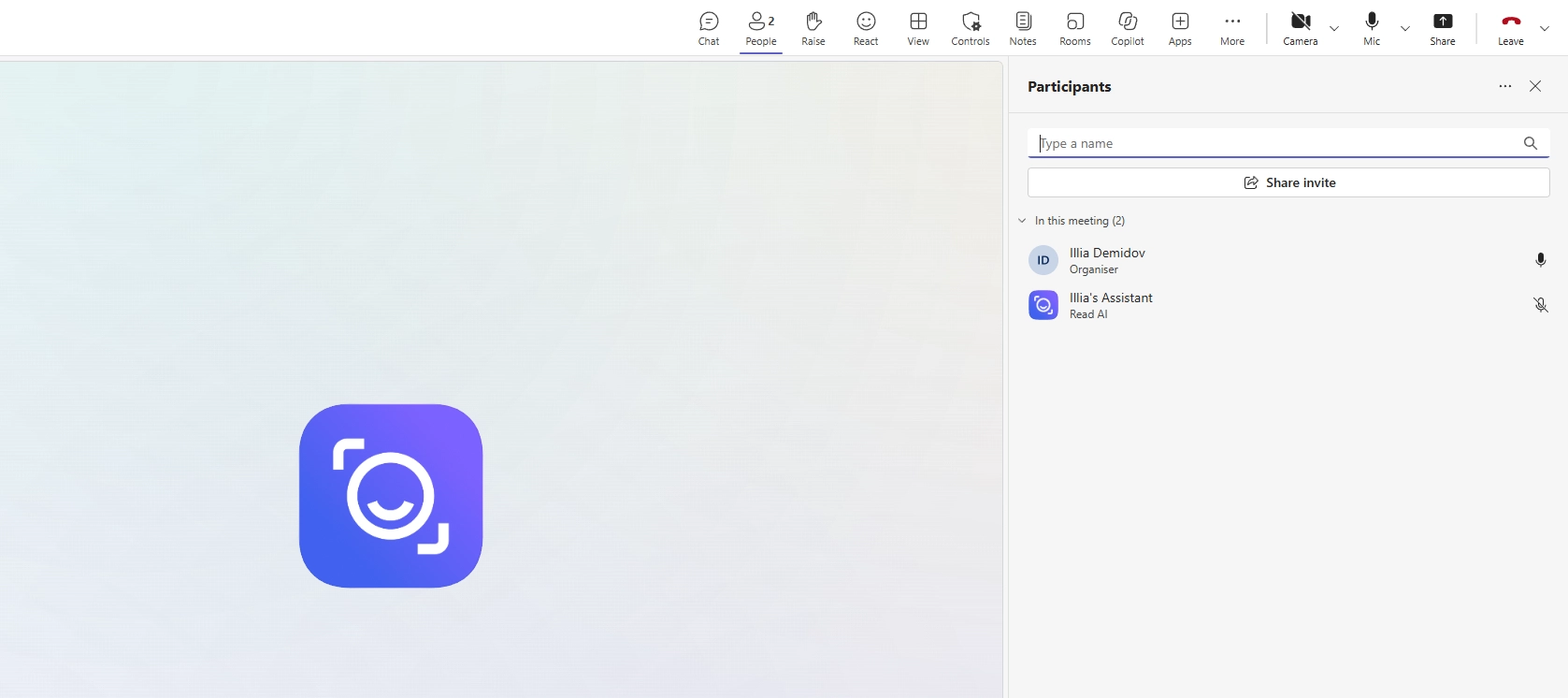
Someone invited it without realizing. Or you connected your calendar to Read a while ago. Maybe a colleague did, or a client brought their own note taker. It shows up as "read.ai meeting notes" or "Read AI Assistant," sometimes with an "Unverified" label.
If the assistant appeared unexpectedly, you can stop it, disable auto-join, or remove its Microsoft access. The fix depends on who invited it.
What Is Read.ai Meeting Notes in Teams?
Read AI is an AI note taker for Microsoft Teams, Zoom, and Google Meet. It generates meeting reports that can include:
- A summary organized by topic
- A full transcript with identified speakers
- Action items and key questions
- Talk-time analytics and engagement scores
- Recordings and highlights, depending on the plan
In Teams, the Read AI meeting assistant appears under different names like "Read.ai meeting notes" or "Read AI Assistant." You can find reports in Read's platform, though summaries may also arrive by email or through Teams integrations.
Read also offers bot-free desktop recording, but here we focus on its meeting bot.
Why Is Read AI Joining My Teams Meeting?
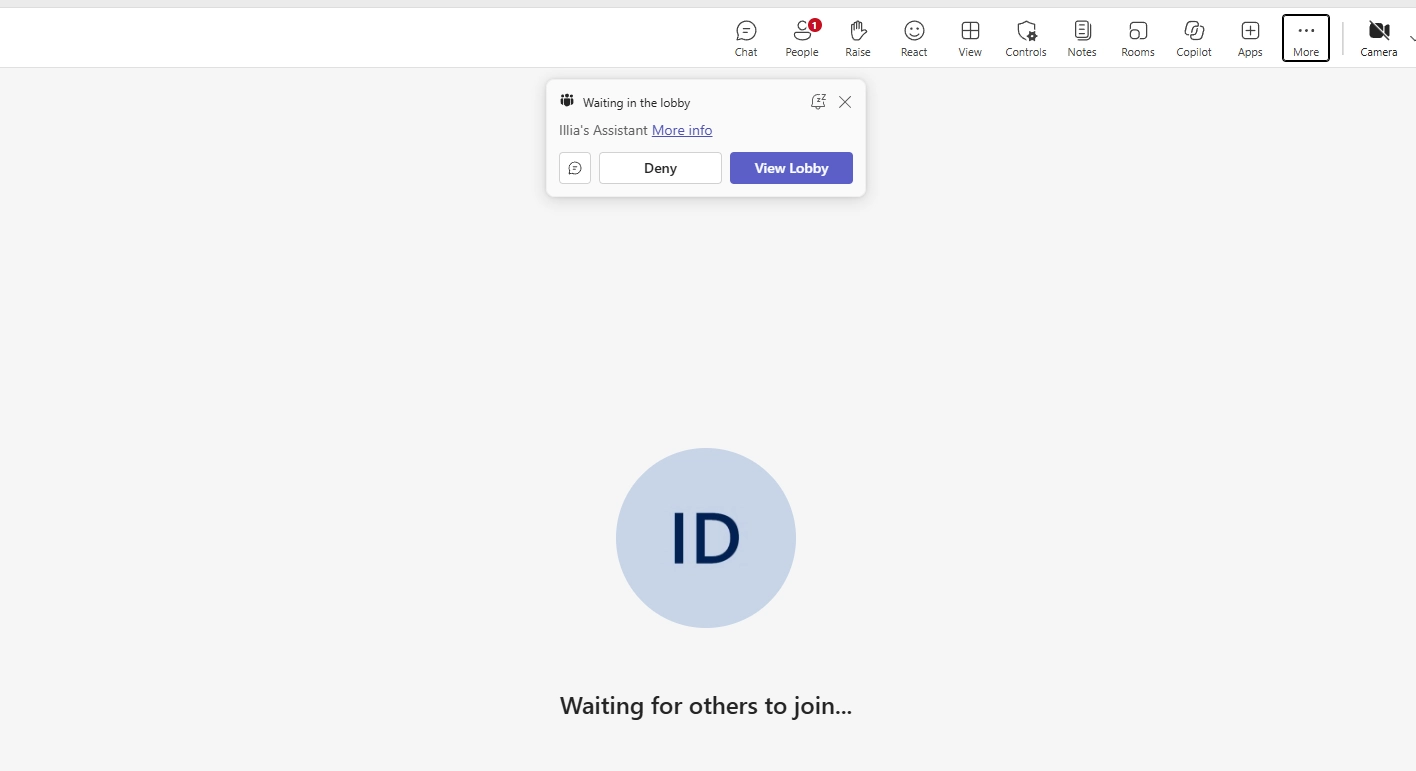
Usually, someone connected their Outlook or another calendar to Read and turned on auto-join. Or they invited Read manually. This person could be you, a colleague, or an external guest.
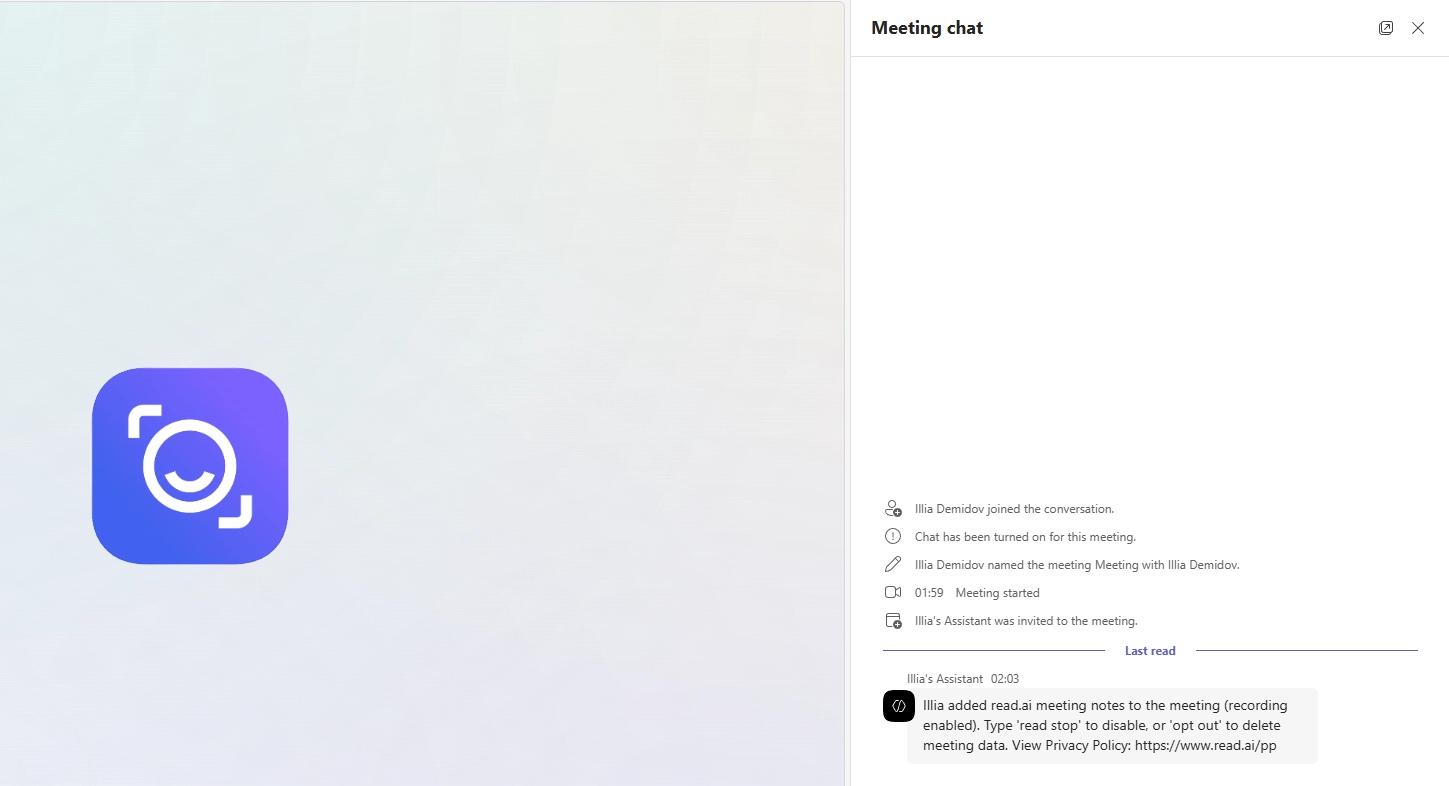
Check the meeting chat first. Read may post a message in the meeting chat showing who invited it, whether recording is enabled, and how to stop it. If you don't see one, check the participant list or ask the organizer.
Removing Read doesn't affect Teams calls recorded with Microsoft's built-in tools.
How to Add Read AI to Teams and Access Meeting Notes
Here is how to add Read to scheduled calls:
- Sign in to Read AI and connect your Microsoft or Outlook calendar.
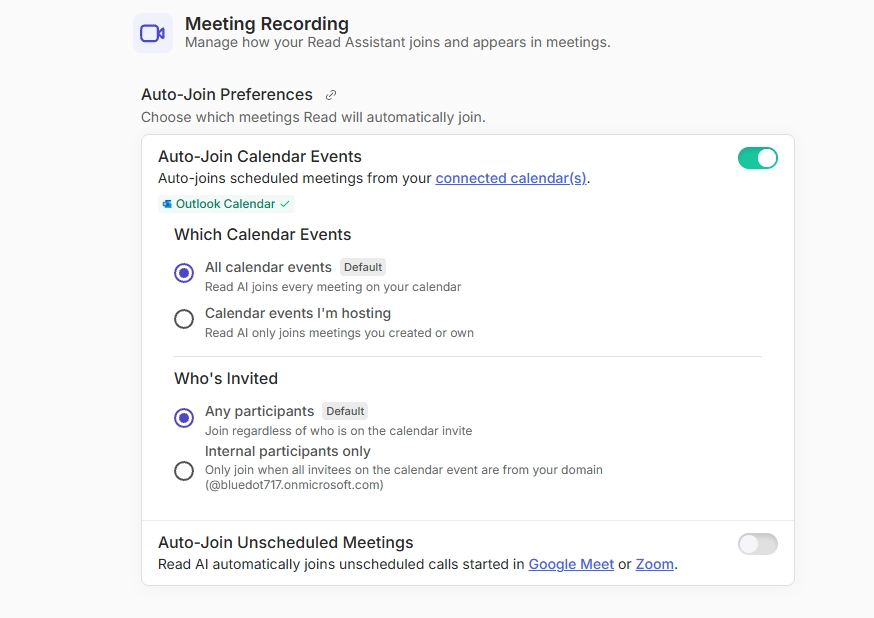
- Open Account Settings > Meeting Recording > Auto-Join Preferences.
- Choose which meetings Read should join, or leave auto-join disabled.
- In Read's Calendar, turn on Add Read? for a specific meeting.
- The organizer may need to admit Read from the Teams lobby.
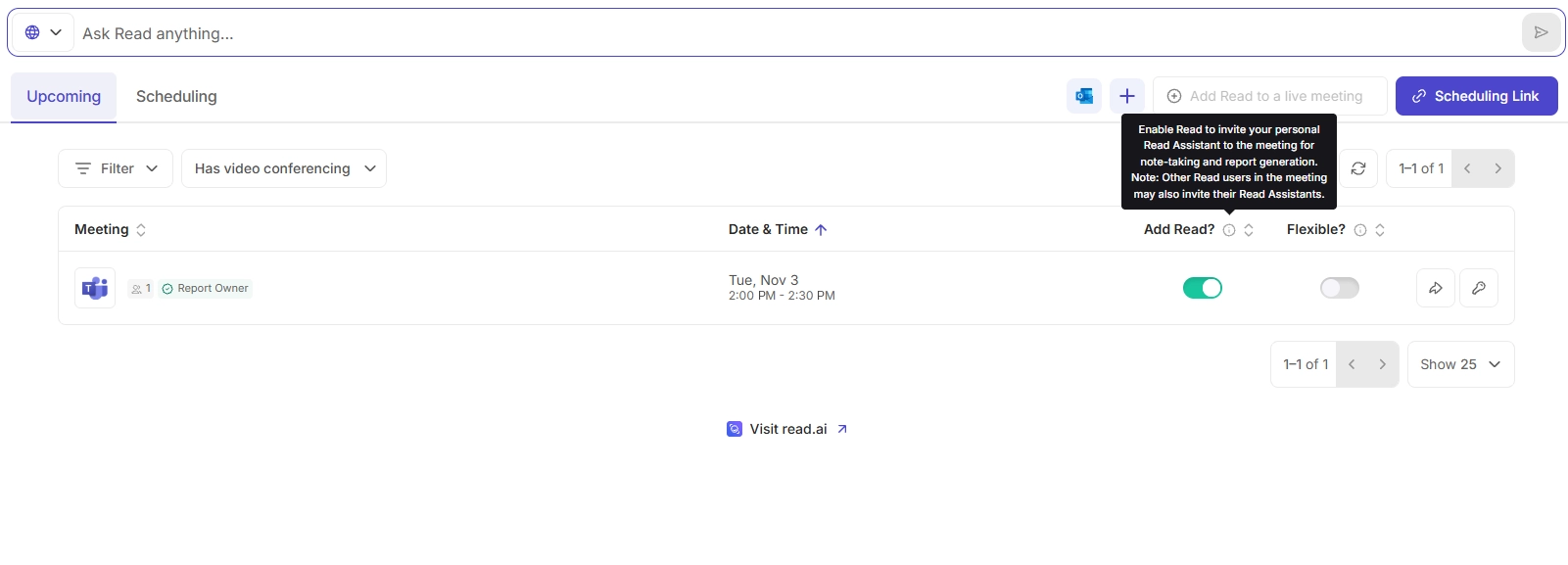
You can also install the Read AI app directly from Teams > Apps. Search for Read AI in the Apps section, add the app, and invite the assistant to an ongoing meeting. The Teams integration is available to Read users with Microsoft work or school accounts, but some permissions may need to be approved by an admin.
To access notes after the call, open the Reports page and select the meeting. You'll find the available summary, transcript, and action items there. If someone else invited Read, they control report access. Recaps can also arrive by email or Teams message.
With the Teams integration enabled, Read can automatically post meeting summaries to selected Teams chats or channels.
If you're looking for Microsoft Teams AI meeting notes, those are separate features found within Teams, subject to your organization's licenses.
How to Turn Off Read AI in Teams
You can stop the assistant in one call without disconnecting your account, or disable auto-join for future meetings.
Stop Read AI in Teams During a Meeting
- Open the Teams Chat panel and find Read's recording message.
- If it contains an opt-out link, select that link to stop the assistant and delete the recording from that session.
- If there's no link, send opt out in the meeting chat.
You can also type read stop, but that command keeps the content already captured and can generate a report. Sending opt out stops Read and deletes captured data without creating a report. If Read posts an opt-out link, use it instead of chat commands.
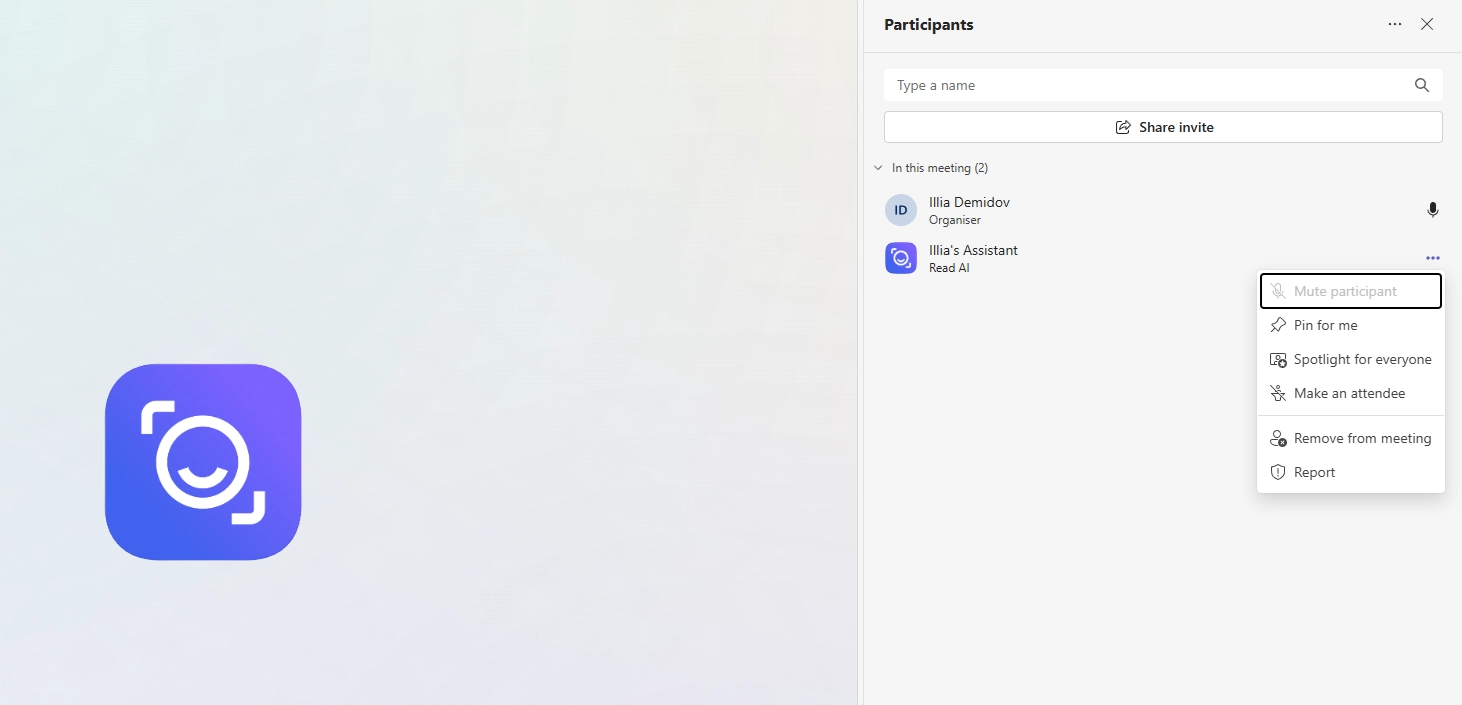
Meeting organizers can open People > More options (···) > Remove from meeting next to Read. That removes the participant, but anything recorded earlier remains.
Turn Off Auto-Join for Future Meetings
- Sign in to Read and open Account Settings.
- Go to Meeting Recording > Auto-Join Preferences.
- Turn off Auto-Join Calendar Events.
- Check Read's Calendar for individual meetings where Add Read? remains enabled.
Disable Add Read? at least 15 minutes before your meeting starts. Remember, if Read is added by someone else, changing the settings doesn't remove Read from your call.
If you only need a written record, Teams transcription without recording lets you capture the conversation without saving a video.
How to Remove Read.ai from Teams
Turning off auto-join is not enough to get rid of Read AI on Teams entirely. If Read is connected to your Microsoft account, you'll need these additional steps.
Revoke Microsoft Account Permissions
- Sign in to Microsoft My Apps.
- Find Read Meeting Navigator or another Read AI entry.
- Open its menu and choose Manage your application.
- Select Revoke consent or the equivalent option.
- Remove the app entry if the option is available.
If an admin granted access on your behalf, there is nothing you can do, so ask IT to remove that consent.
Uninstall Read from Teams
- Open Teams > Apps > Manage your apps.
- Find Read AI and expand the entry.
- Choose Remove in each place it's installed, where permitted.
Important note: an app can be added in multiple chats, channels, or meetings. Uninstalling it here doesn't automatically revoke calendar permissions.
You can also disconnect Outlook and other services in Read's settings or delete your Read account if you no longer need it. Deleting your account won't stop another attendee's assistant from joining your future calls.
How IT Admins Can Block Read.ai from Teams
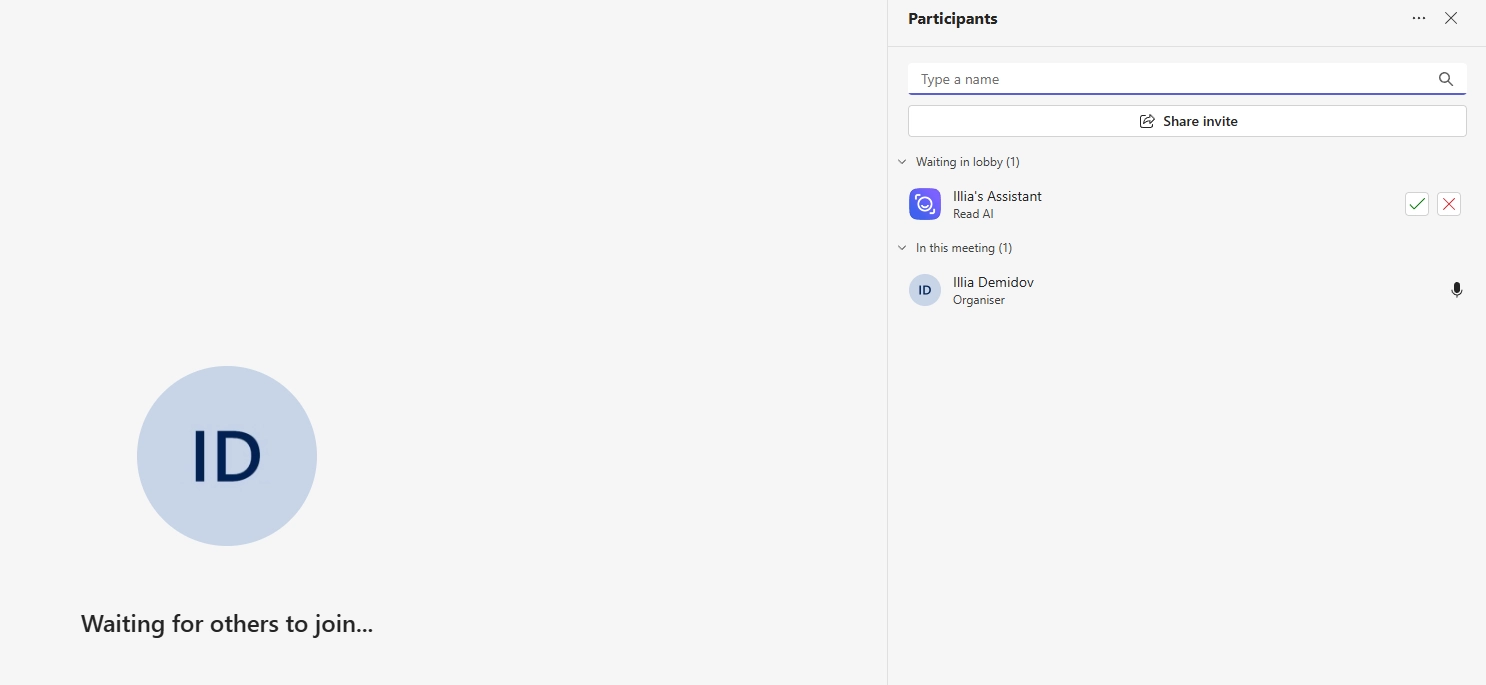
IT admins can block the Read AI app for employees and apply separate controls to external meeting bots.
Block the Read AI App Across Your Organization
- Open the Teams admin center.
- Go to Teams apps > Manage apps.
- Search for the Read AI app.
- Open its details and set its availability to Blocked.
- Review the organization's Microsoft 365 app permissions and existing Read AI integrations.
This prevents users from accessing the blocked Teams app through their organization. External participants can still invite Read as a meeting guest, though.
Restrict External Meeting Bots
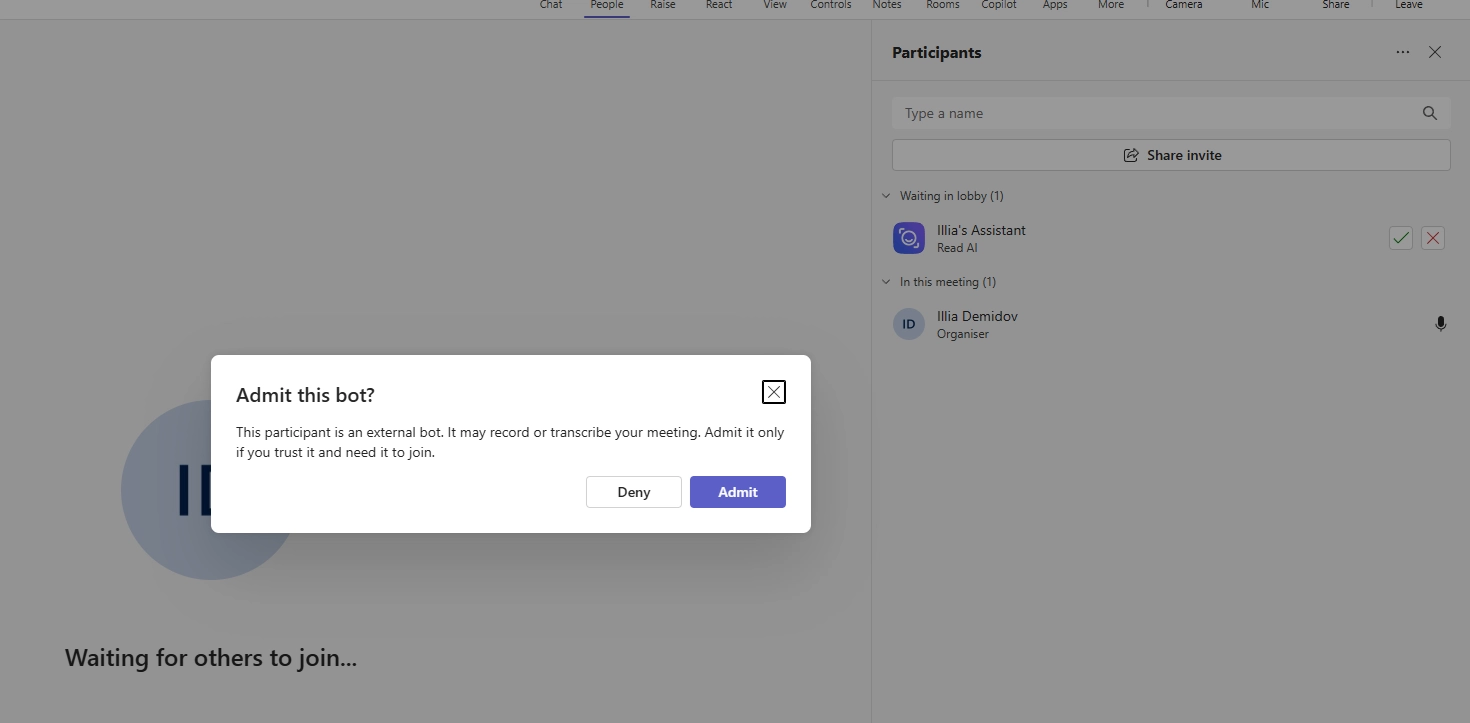
Microsoft also provides bot detection controls in Teams meeting policies.
- Open Meetings > Meeting policies in the Teams admin center.
- Select the relevant policy.
- Under Meeting join and lobby, find Manage external bots and their access to meetings.
- Configure detected bots to require explicit approval before joining.
Microsoft's PowerShell documentation also lists BlockDetectedBots as an option for the ExternalBotAccessMode meeting policy setting. Check availability and configuration against your tenant's current controls.
These restrictions aren't foolproof. Teams may fail to identify some external bots, and a meeting organizer can still admit a bot when approval is permitted.
For sensitive meetings, limit lobby admission to organizers and co-organizers, and review third-party app permissions regularly.
Is Read AI Safe to Use in Teams?
It's not like Read is some dangerous bot. It follows common security practices, such as encryption and role-based controls, but it still accesses meeting audio, video, transcripts, participant names, and engagement data. Even more importantly, it processes this data outside Microsoft's built-in note-taking tools.
Before using it, check who can access the reports, what permissions it has to your calendar and Outlook, and whether participants have consented to recording. Review Read's Report Sharing settings and your organization's policies. A bot joining visibly doesn't replace the need to notify participants.
What to Use Instead of Read AI in Teams
If you want notes without a separate assistant appearing in the call, there are two routes among AI note takers for Microsoft Teams.
Microsoft's built-in features: Intelligent Recap is available through Teams Premium or Microsoft 365 Copilot for supported meetings. Teams Facilitator, available with Microsoft 365 Copilot, creates collaborative notes and tracks tasks without adding Read as an external participant. Features depend on meeting type and license.
If you're considering Read AI alternatives, Bluedot is a secure, bot-free AI note taker with video that lets you record Teams meetings, so you don't have to admit a recording bot from the lobby or worry about Teams blocking it as an external assistant.
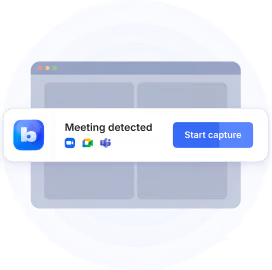
The Bluedot desktop app asks if you want to start recording; the Microsoft Teams Chrome extension supports browser-based audio and video recording. You get playable recordings, transcripts with speaker labels, and AI-generated summaries and action items.
This Microsoft Teams AI note taker also works alongside Bluedot's Zoom and Google Meet support. In-person conversations can be recorded with Bluedot's mobile app or Apple Watch. You can review and share recordings from your workspace. Follow recording and consent rules.
Bluedot is SOC 2 Type II compliant, supports GDPR, stores EU data in Frankfurt, and doesn't use customer recordings to train AI models.

Keep Your Teams Meetings Free of Unwanted Bots
Read AI can be useful for meeting summaries, but you don't have to keep it connected to Teams. You can stop it during a call, disable auto-join, or revoke Microsoft permissions.
If you still need AI meeting notes, Microsoft offers built-in recap features, while Bluedot lets you record and summarize Teams calls without adding a bot.
Frequently Asked Questions
How do I turn on Read AI meeting notes in Teams?
Connect your calendar to Read AI and enable auto-join, or use Add Read? for a specific meeting.
How do I turn off Read AI meeting notes in Teams?
To disable Read AI in Teams, turn off auto-join in Read's settings. During a meeting, use the opt-out link or type opt out in the chat if no link is provided.
What do Read AI's meeting notes mean?
A third-party AI assistant is recording the meeting to create a transcript, summary, and action items.
Why is Read AI joining my meeting?
You or another participant connected Read to a calendar or invited the assistant manually.
Where do I find the AI notes from a Teams meeting?
Open Reports in Read AI. If someone else invited the assistant, they may need to share the report with you.
How do I remove Read.ai from Teams?
Disable auto-join, revoke Read's permissions through Microsoft My Apps, and uninstall the Teams app if installed.
Is Read AI part of Microsoft Teams?
No. It's a third-party service that integrates with Teams.
Is Read AI free with Teams?
Read has its own free plan with five meeting reports per month. It isn't included with Teams.
Is Read AI safe to use in Teams?
Read has security controls, but it processes meeting data externally. Check your organization's policies and sharing permissions.
Can I stop someone else's Read AI from joining my Teams meeting?
Yes. Organizers can deny or remove the bot. Participants can also use Read's opt-out option when available.