Finding the best AI note taker for Zoom depends on more than just summary quality. AI note takers transcribe and summarize meetings automatically, but they capture calls in different ways. Some join Zoom as visible bots, while bot-free tools capture audio or captions from your device without appearing in the participant list.
I compared eight popular options for Zoom users who want better notes and a reliable record of what happened without spending the meeting typing. The main differences are what each tool records, whether you can replay the call later, and how much you get before you have to pay.
Key takeaways
- Bluedot — best for bot-free Zoom recording, with video you can replay and AI notes that also work in Meet, Teams, and in person.
- Zoom My Notes — best if you only need text notes and already pay for Zoom Workplace.
- Fathom — best free plan for heavy recorders, with unlimited recordings and transcriptions.
- Otter — a good fit for a monthly allowance of transcription minutes, with or without a bot.
- Fireflies — best if a bot is fine and you want video on an entry-level paid plan.
- Krisp — best for bot-free audio and screen recording on a low-cost annual plan.
- Jamie — best if you want notes without any stored recording.
- Tactiq — best for quick, bot-free transcripts built from Zoom's own captions.
AI note takers for Zoom compared
All eight tools also work in Google Meet and Microsoft Teams. Prices are per user per month, billed annually.
Does Zoom have an AI note taker built in?
Yes. Zoom's built-in note taker is called My Notes, and it now runs outside Zoom too. Inside a Zoom call, it uses the meeting audio; in Teams, Google Meet, or an in-person conversation, the Zoom Workplace app captures audio from your device instead.
If you're looking for "Zoom AI Companion", that name was retired in June 2026. The features stayed and now go by their own names, like Meeting Summary and My Notes. ZoomMate, launched the same month, is a separate paid AI suite.
So, here is what you get, and what you don't:
- Transcript and notes, no recording. My Notes uses the audio to build a transcript and AI summary, but it doesn't save audio files.
- Fewer languages outside Zoom. It transcribes 46 languages in Zoom Meetings and 12 in third-party and in-person meetings.
- A small free tier. My Notes Basic includes three AI note-taking uses a month.
- Paid options. A standalone My Notes plan starts at $8.33 per user per month billed annually, and paid Zoom Workplace plans from $14.16 include it.
Zoom also says it doesn't use customer audio, video, chat, or transcripts to train its AI models.
My Notes is a sensible default if text notes are all you need. If you want a recording you can replay, video, or a single library for every call, you need a dedicated Zoom AI assistant.
How AI note takers join Zoom: bots, bot-free apps and Zoom itself
How a Zoom note taker captures your call affects more than the recording itself. A bot is visible to everyone and may need to be admitted, while a desktop app stays out of the participant list. It also affects what you can replay later: some bot-free modes keep audio or video, while others leave you with just a transcript.
If you're comparing tools beyond Zoom, our guide to the best AI note takers covers the broader category.
1. A bot joins the call
The note taker appears as a named participant, and the host can admit or remove it. Otter and Fireflies work this way by default; Fathom uses a bot unless you're on its Mac bot-free mode, and Bluedot and Krisp are bot-free by default, but offer an optional bot if you prefer one.
Do meeting bots actually bother people? In many cases, yes. A Bluedot 2026 survey of 2,000+ workers found that:
- 10% don't speak as freely when a notetaker bot joins.
- 13% say bots make meetings feel less natural.
- 9% have asked for a bot to be removed.
Going bot-free doesn't remove the need for transparency, though. In the same survey, 65% said participants should be told when AI records or transcribes a meeting. Whatever tool you use, it's better to let everyone know.
Bots can interrupt the meeting before it even starts. Some need the host's approval to join, which can delay recording or leave you without notes if the request is denied. A visible bot can also make clients or interview candidates uncomfortable, especially during sensitive conversations. And if the bot disconnects or gets removed, you may lose part of the recording.
2. A bot-free app captures audio from your device
Nothing shows up in the participant list. The trade-off is that many bot-free modes are limited in what they record:
- Fireflies' bot-free desktop recording saves no audio or video files.
- Jamie deletes the audio once the transcript is done.
- Tactiq keeps a text transcript only.
- Fathom's bot-free Zoom video is in limited beta, on Mac only.
- Krisp records your screen and meeting audio bot-free; meeting video needs its bot.
Bluedot's desktop app records Zoom without a bot, with video, audio, and an accurate transcript. You keep everything, unlike with other AI note takers with limited bot-free modes.
3. Zoom does it natively
Zoom My Notes works right inside Zoom Workplace, so there's no extra bot joining your call. You can jot down notes during the meeting while Zoom transcribes the conversation in the background. Once the call ends, AI can fill in the gaps using the transcript, including details you might have missed.
Your Zoom AI meeting notes stay private until you decide to share them, and you can always find them later in Zoom Workplace. My Notes isn't limited to Zoom calls, either. It also supports meetings on other platforms and in-person conversations, though availability depends on your device.
What you won't get is a video to watch back. My Notes gives you written notes and a transcript, but if you need to revisit a screen share or replay a particular moment, you'll have to record the meeting separately.
The 8 best AI note takers for Zoom
Two tools can give you similar-looking notes and still work very differently on Zoom. One might put a bot in every call, while another leaves you without a recording to replay. Pricing can change the picture too. Here's what I compared:
- How it captures Zoom: bot, bot-free app, or native.
- What you get: transcript only, audio, or video.
- Free plan: the limits that apply to the free plan.
- Price: the cheapest paid plan, with its billing terms.
- Privacy: where data is stored and whether it's used to train AI.
1. Bluedot
Best for: bot-free Zoom recording with video.
Bluedot is a secure, privacy-first AI note-taker that records, transcribes, and summarizes online and in-person meetings without sending a bot into your calls. It captures audio directly from your device and supports audio and video recording across Chrome, macOS, Windows, iOS, Android, and Apple Watch.
Bluedot is GDPR-compliant, SOC 2 Type II audited, and never uses customer data to train AI models.
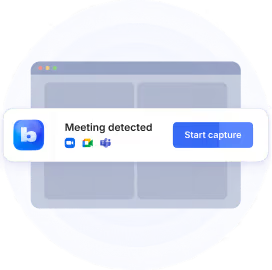
Bluedot records audio and video on Zoom without sending a bot into the meeting. Its desktop app detects when a call starts and asks if you want to record. No extra participants, no waiting for the host to let a bot in. You can also enable recording notifications to keep everyone informed, or use Bluedot's optional meeting bot with a customizable name and avatar.
Once the meeting ends, you get a full Zoom transcript, AI notes, and action items. Bluedot labels speakers automatically, and you can add custom vocabulary to help it recognize names, acronyms, and company-specific terms.
For the notes themselves, you can use one of 50 pre-built templates or make your own. Bluedot also lets you choose between GPT-5 and Claude 4.6 Sonnet. With AI chat, you can ask questions about a meeting, pull out specific details, or find decisions and action items without digging through the transcript. You can also search across your meeting history to find information from past conversations.
Bluedot isn't limited to Zoom. It also records Google Meet and Microsoft Teams calls, and you can use screen recording to capture meetings on virtually any other platform. For conversations outside your usual video calls, there's in-person recording on iOS, Android, and Apple Watch. Bluedot also connects with HubSpot, Salesforce, Slack, and Notion.
On the privacy side, meeting data is stored primarily on AWS in Frankfurt. See Bluedot for Zoom for the setup.
What users say: "The audio recording feature and the option to capture videos enhance the experience significantly." — Paul M., G2
Pricing: the free plan includes 5 recorded meetings. Basic tier costs $14 per user/month billed annually and is audio-only. Pro plan is $20 and Business is $32, both billed annually.
Watch out for: Video recording is only available on Pro and higher plans.
2. Zoom My Notes
Best for: taking Zoom meeting notes without adding another app or bot.
My Notes is built into Zoom, so there’s nothing extra to install or invite to the call. It handles the transcript, summary, and action items, then saves everything in Zoom Hub.
It’s not limited to Zoom meetings either. Through the Zoom Workplace app, My Notes also works with Microsoft Teams, Google Meet, and in-person conversations.
Pricing: My Notes Basic is free for three AI note-taking sessions a month. The standalone plan starts at $8.33 per user/month billed annually, while paid Zoom Workplace plans from $14.16 include it.
Watch out for: My Notes doesn’t save the recording, so there’s nothing to replay later. It also supports fewer transcription languages outside Zoom — 12 versus 46 in Zoom Meetings.
3. Fathom
Best for: recording lots of Zoom calls without paying for every meeting.
Fathom has one of the more generous free plans here: recordings and transcripts are unlimited. By default, it can join Zoom as a bot and record the full call, including video.
There’s a bot-free option too, although it’s more limited. On Mac, you can record audio or capture the transcript without adding Fathom to the participant list. Bot-free Zoom video is also available, but only as a limited beta for now. Fathom also gives you ways to let participants know the meeting is being recorded, which is useful for client calls where consent needs to be clear.
Fathom can also connect your meeting history to ChatGPT and Claude. Its bot-free mode works with Slack Huddles too.
What users say: One reviewer's most important meeting of the year went unrecorded, with no alert: "a warning stating... it was not recording would have been useful." — Verified User, G2
Pricing: the free plan includes unlimited recordings and transcriptions. Premium tier is $16 per user per month billed annually ($20 monthly), Team is $15 ($19 monthly), and Business is $25 ($34 monthly). Team and Business plans need at least two users.
Watch out for: bot-free recording is currently limited to Mac. On Windows, you'll still need the bot for Zoom. If recording without an extra participant is a priority, some Fathom alternatives offer bot-free capture across both platforms.
4. Otter
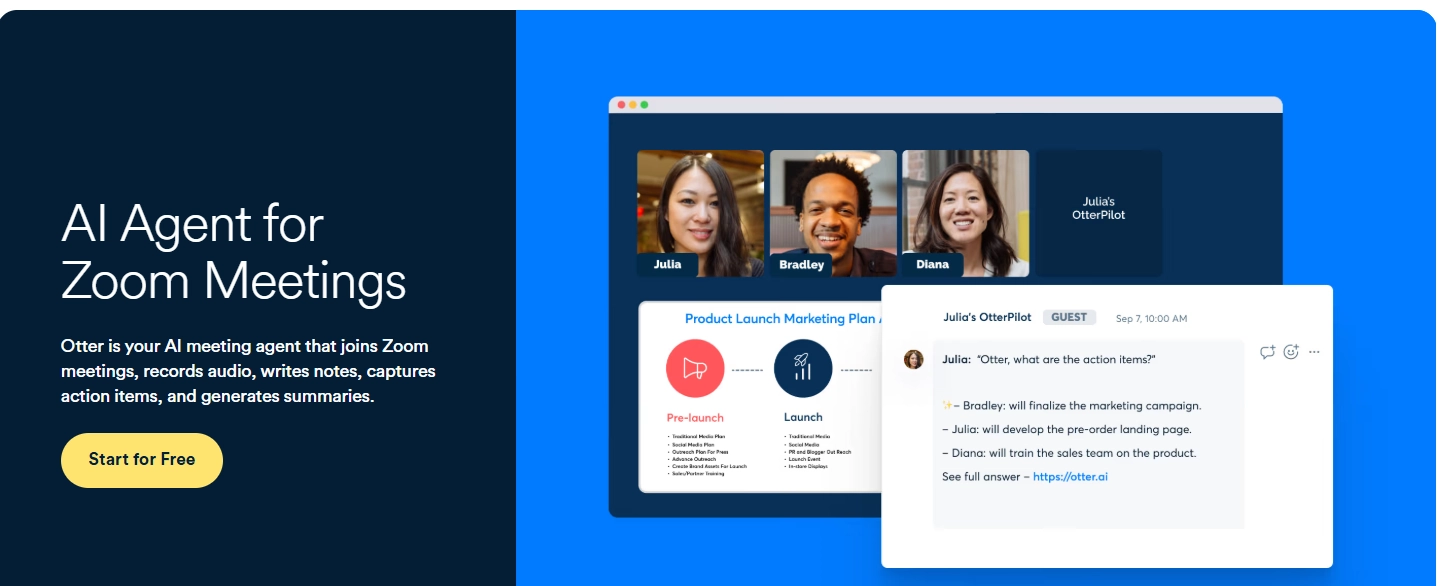
Best for: teams that want a free transcription allowance and don’t need video.
Otter is probably best known for its meeting bot. Connect your calendar, and Otter Notetaker can join scheduled Zoom calls automatically. It appears in the participant list like any other attendee. Otter also offers live transcription while the meeting is running.
You don't have to use the bot, though. Otter's desktop app can capture Zoom audio directly from your computer, so nothing joins the meeting. The downside is that this mode doesn't record video, leaving you with audio and a transcript but no footage to replay. If you already record meetings to Zoom's cloud, Otter's Business plan can also import those recordings and transcribe them.
What users say: "Max 30 minute recording on free plan - NOT STATED ANYWHERE CLEARLY!" — Gareth Marshall, Trustpilot
Pricing: Basic plan is free with 300 transcription minutes a month and a 30-minute limit per conversation. Pro subscription is $8.33 per user per month billed annually ($16.99 monthly) and raises that to 1,200 minutes. Business plan starts at $19.99 per user/month billed annually.
Watch out for: the free plan cuts off calls after 30 minutes. And if you want bot-free capture plus a video recording in the same workflow, look for Otter alternatives.
5. Fireflies
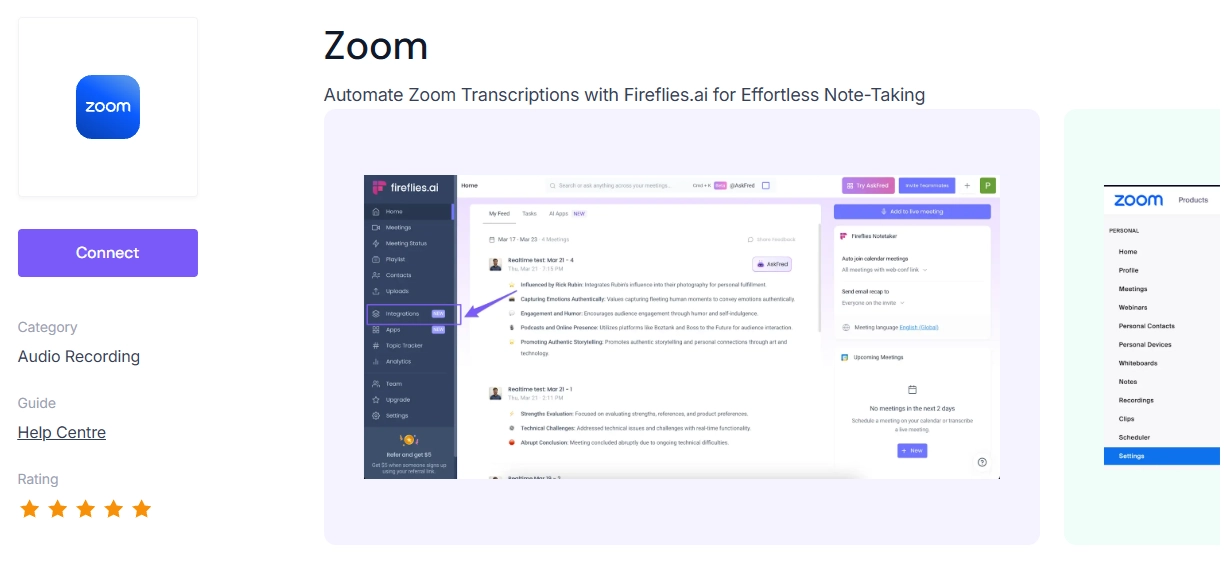
Best for: Zoom teams that want video recordings and don't mind a bot joining the call.
Fireflies usually records Zoom meetings through its Notetaker bot, which shows up as another participant. Connect your calendar, and it can join scheduled calls automatically. If you need video, that's available starting with the Pro plan.
There's also a desktop app if you'd rather keep the bot out of your meetings. It captures your computer's system audio and can detect calls in Zoom, Google Meet, and other apps. The downside is that this mode doesn't save audio or video files. Some features, including Sales Assist, also require the bot.
On Business plan and above, Fireflies also offers CRM sync, which is useful if meeting notes need to flow into sales teams’ workflows automatically.
What users say: After uninstalling, one reviewer found the notetaker kept joining calls, raising "major privacy concerns for other parties in your Zoom meetings." — Verified User, G2
Pricing: Fireflies has a free plan with 400 minutes of storage in total. Pro tier is $10 per seat per month billed annually ($18 monthly) and adds video recording and 8,000 storage minutes per seat. Business subscription is $19 billed annually ($29 monthly) with unlimited storage.
Watch out for: Fireflies doesn't save audio or video files in its bot-free desktop mode. If you want a recording you can replay without adding a bot to your Zoom call, some Fireflies alternatives offer both.
6. Krisp
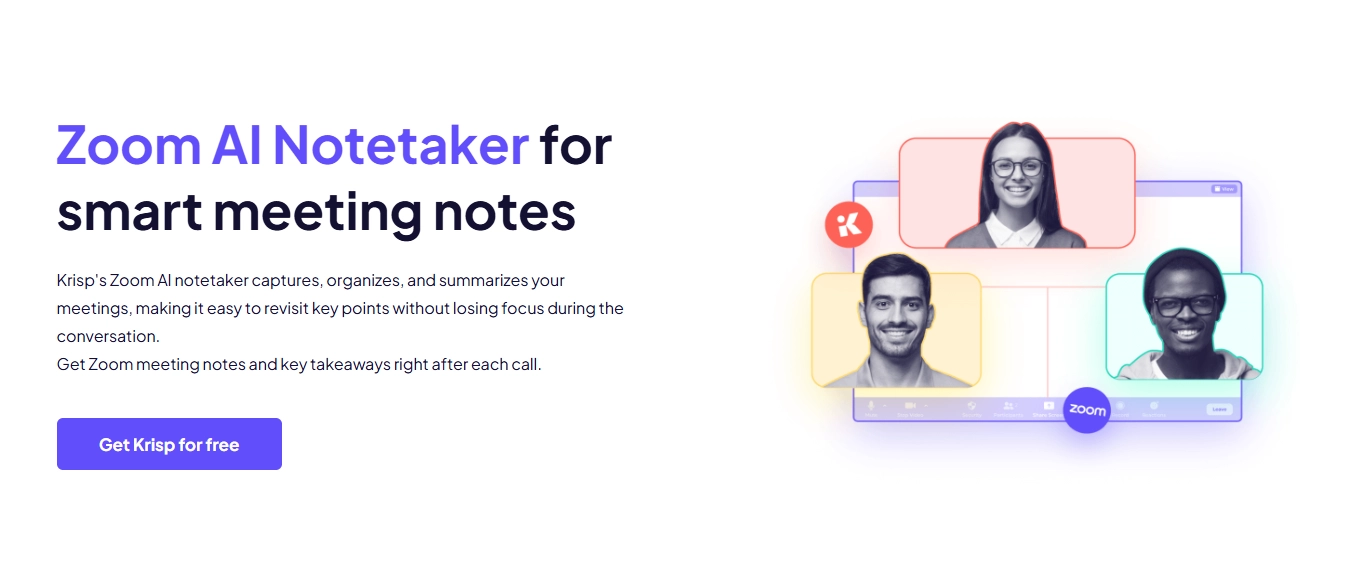
Best for: recording Zoom without a bot, especially if audio and screen capture are enough.
Krisp runs on your computer, so it can take notes in a Zoom meeting without joining the call as another participant. You can keep just the transcript, record the meeting audio, or capture a screen or app window along with the sound.
There’s an optional Krisp Bot too. That’s the route to use if you want the meeting video itself rather than a recording of your screen.
Core also includes AI notes, action items, and support for in-person meetings.
What users say: After Krisp removed its free tier, one longtime user wrote that they "no longer feel valued as a user." — Verified Reviewer, Capterra
Pricing: there's a 7-day free trial with no credit card, but no permanent free plan. Core tier is $8 per user per month billed annually ($16 monthly).
Watch out for: the bot-free video option is really screen recording. If you want to capture the meeting video itself, you'll need the bot. Krisp alternatives offer more flexible recording options, including bot-free video capture.
7. Jamie
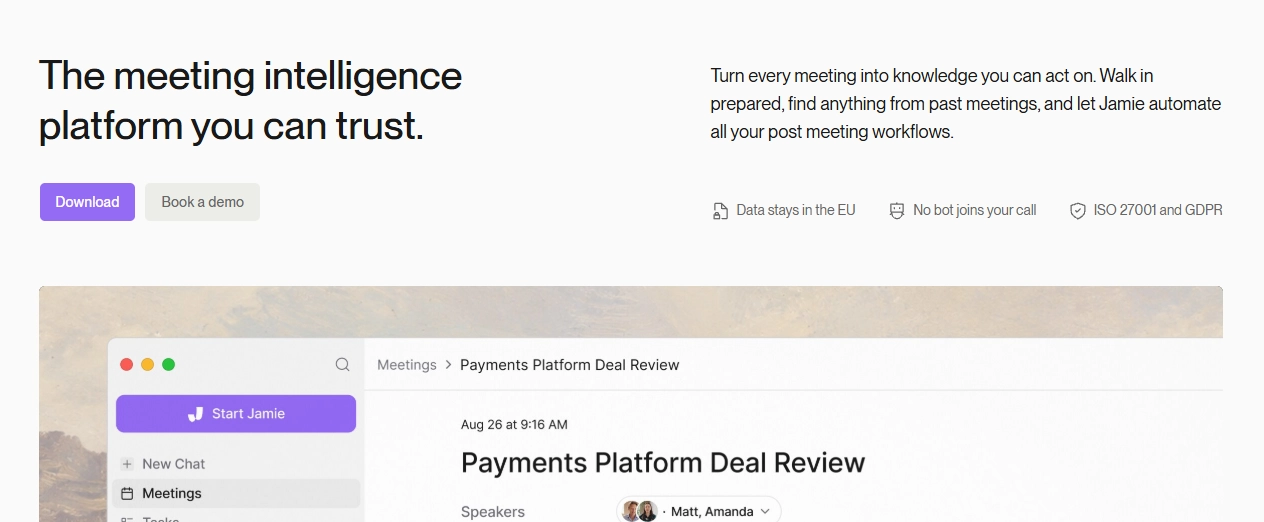
Best for: bot-free notes when you don’t want to keep the meeting recording.
Jamie captures meeting audio directly from your device, so no bot joins the Zoom call. It works the same way on other meeting platforms and for in-person conversations too.
Once the transcript is ready, Jamie deletes the audio. You keep the notes and transcript, but there’s no recording stored afterward.
What users say: "Jamie has major problems with locking up during processing." — Matt K., G2
Pricing: free with 10 AI notes a month and meetings up to 30 minutes. Plus plan is €21 per month billed annually (€25 monthly) with 20 notes and 2-hour meetings. Pro tier is €39 billed annually (€47 monthly) with unlimited notes and 5-hour meetings, and Team plan is €33 per seat billed annually (€39 monthly).
Watch out for: if something in the notes looks wrong, there's no audio or video to replay and check. Some Jamie alternatives keep the original recording, so you can go back and verify what was said.
8. Tactiq
Best for: bot-free Zoom transcripts when you don’t need a recording.
Tactiq works a little differently from most tools on this list. In Chrome or Edge, its extension picks up Zoom's live captions and turns them into a transcript. No bot joins the call, but you need to use Zoom in your browser with automated captions enabled.
If you use Zoom's desktop app on a Mac, Tactiq has a separate app that captures meeting audio and transcribes it without a bot. It also works with Microsoft Teams desktop calls and Slack Huddles. There's no Windows version yet.
What users say: Even a happy five-star reviewer noted that "live transcription sometimes has errors," especially with accents. — Anonymous User, Capterra
Pricing: The free plan includes 10 transcripts and 5 AI credits a month. Pro subscription is $8 per user per month billed annually ($12 monthly) with unlimited transcripts. Team plan is $16.67 billed annually ($20 monthly), and Business is $29.17 ($40 monthly).
Watch out for: Tactiq's browser extension relies on Zoom captions, while its desktop app is currently Mac-only. Neither gives you a recording to replay afterward. If you need to revisit the audio or video, look for Tactiq alternatives that offer both.
Free AI note takers for Zoom
Seven of the eight tools have a free plan, but the limits differ more than the word "free" suggests. Pick by how you'd actually use it:
- Record a lot of calls: Fathom, with unlimited recordings and transcriptions.
- Transcribe regularly: Otter, with 300 minutes a month, or Tactiq, with 10 transcripts a month.
- Just notes, occasionally: Jamie, with 10 AI notes a month, or Zoom My Notes, with three uses a month.
- Try a full recorder before paying: Bluedot (5 recorded meetings) or Fireflies (400 minutes of storage total).
Krisp is the exception: it offers a 7-day trial, with no free plan available. And if all you need is a transcript of a call you've already recorded, here's how to get free Zoom transcription.
How to set up an AI note taker on Zoom
There are three ways to add AI notes to Zoom, and the route decides who sees the note taker in the call.
Zoom's built-in notes. Turn on My Notes in the Zoom web portal under Settings → Notes → My Notes. In a meeting, click the My Notes icon in the Zoom window to start capturing.
A bot-free desktop app. Install the app, sign in, and grant the permissions it asks for. With Bluedot, the desktop app notices when a Zoom call starts and asks you to record, with no bot in the meeting.
A meeting bot. Connect your Google or Outlook calendar, then choose which meetings the bot should join. It appears as a participant, and the host may need to admit it.
If you also use Zoom's own recording, it helps to know where Zoom recordings go before you start mixing tools.
Use one AI note taker across Zoom, Teams, and Google Meet
Zoom My Notes works well if most of your meetings happen in Zoom. But chances are, not everyone you work with uses the same platform. A client might prefer Google Meet, while your team runs everything through Microsoft Teams.
And just because a note taker supports multiple platforms doesn't mean it works the same way on each. Some tools need a bot for certain calls, while others offer different recording options depending on the platform. You might need an AI note taker for Microsoft Teams in one meeting, and an AI note taker for Google Meet in another.
Best-case scenario: an AI meeting assistant for Zoom that also works with any other video conferencing platform.
With Bluedot, you can record and transcribe Zoom, Google Meet, and Microsoft Teams calls without juggling different tools. You get transcripts, AI summaries, and action items, all saved in one place. Need to find something from an older meeting? You can search your meeting history or ask AI chat instead of going through transcripts one by one.
Bluedot also works beyond the usual video conferencing apps. Screen recording lets you capture meetings on other platforms, and you can record in-person conversations using your phone or Apple Watch.
Want to stop worrying about how your next meeting gets recorded? Give Bluedot a try. You can start for free and see how it fits into your workflow.
Frequently asked questions
What is the best AI note taker for Zoom?
It depends on what you want to keep. Bluedot is the best AI notetaker for Zoom if you want to record without a bot, with video available on its Pro plan. Zoom's built-in My Notes is enough if you only need text notes and already pay for Zoom Workplace. Fathom has the most generous free plan for recording.
Does Zoom have an AI note taker built in?
Yes. The Zoom AI note taker is called My Notes, which transcribes and summarizes calls in Zoom and, through the Zoom Workplace app, in Teams, Google Meet, and in-person meetings. The old "AI Companion" name was retired in June 2026; the features now go by their own names.
Is Zoom AI note taker free?
Partly. My Notes Basic is free with three AI note-taking uses a month. Beyond that, a standalone My Notes plan starts at $8.33 per user per month billed annually, and paid Zoom Workplace plans from $14.16 include it.
Is there a free AI note taker for Zoom?
Yes, several. Fathom's free plan includes unlimited recordings and transcriptions. Otter gives 300 transcription minutes a month, Tactiq 10 transcripts, Jamie 10 AI notes, and Bluedot 5 recorded meetings. Krisp offers a 7-day trial rather than a free plan.
Can I use AI to take notes on Zoom?
Yes, in three ways: Zoom's built-in My Notes, a bot-free desktop app or extension that captures audio from your device, or a bot that joins the call as a participant. Each produces a transcript and summary; only some keep an audio or video recording. Depending on the tool, you can also turn the transcript into Zoom meeting minutes or a shorter meeting summary.
How to get an AI note taker on Zoom?
For Zoom's own option, turn on My Notes in the Zoom web portal under Settings → Notes → My Notes. For a third-party tool, install its desktop app or connect your calendar so its bot can join scheduled meetings. Bluedot's desktop app notices when a Zoom call starts and asks if you want to record.
Can ChatGPT take notes from a Zoom call?
The simplest route is to give ChatGPT a transcript from your note taker and ask it for notes, action items or a follow-up email. Some note takers also connect directly: Fathom links your meeting history to ChatGPT and Claude, and Bluedot connects to Claude through MCP.
Do AI note takers work across Zoom, Google Meet, and Microsoft Teams?
Most do, including all eight in this list. The capture method can change by platform, though. Bluedot's desktop app records Google Meet as audio only, for example, and Zoom My Notes supports fewer languages outside Zoom. If you use Microsoft Teams regularly, our guide to Teams meeting notes covers the native options there.
Can one AI note taker handle both Zoom and in-person meetings?
Yes. Bluedot works across Zoom, Google Meet, Microsoft Teams, and in-person conversations, so you can keep everything in one meeting library instead of switching tools. In-person capture works on mobile, desktop, browser, and Apple Watch, while your Zoom calls can include audio or video depending on the plan.
How accurate are AI note takers on Zoom calls?
Accuracy depends mostly on audio quality, crosstalk, accents, and specialist vocabulary. It can drop noticeably with background noise, poor microphones, or several people speaking at once. Clear audio and one speaker at a time help most. Tools with custom vocabulary, like Bluedot, let you add names and jargon so they're spelled correctly. If you're working from an existing recording, here's how to transcribe Zoom recordings.
Are AI notetakers illegal?
No, but recording a Zoom meeting without consent is illegal in some states and countries, and the rules differ by location. Tell participants before you record, whatever tool you use. In a Bluedot 2026 survey of 2,000+ workers, 65% said people should be told when AI records or transcribes a meeting. This isn't legal advice.
Are AI note takers safe for sensitive meetings?
They can be, if you check where data is stored, how long it's kept, and whether it's used to train AI. Bluedot stores data primarily in Frankfurt, is SOC 2 Type II audited and GDPR-compliant, offers custom retention, and never trains on customer meeting content. Jamie deletes audio after transcription.
How to get rid of AI note taker on Zoom?
To turn off or remove an AI notetaker from Zoom, the host can remove the bot from the participant list. Then turn off auto-join in the tool's settings so it doesn't come back. For Zoom's own My Notes, stop transcription in the meeting or change its settings under Settings → Notes → My Notes.