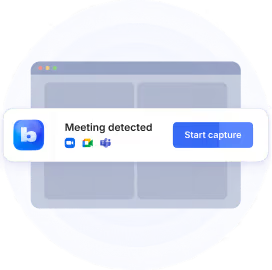
Finding an AI note taker for Google Meet is easy. Finding one that saves video without sending a bot into your call? That's where things can get tricky.
You already have Gemini's "Take notes for me" built into Google Meet, and it might be all you need. But what if you want to replay a conversation or check something someone shared on screen? Here, Gemini falls short.
You have plenty of third-party Google Meet AI note-taker options, but they come with trade-offs too. Some give you meeting notes without a recording, while others need a bot to capture video.
I've compared nine AI note takers for Google Meet to help you find one that fits how you actually work. We'll look at what each tool records, whether a bot joins your calls, and what you get for free.
Key takeaways
- Bluedot is our top pick for Google Meet. You can securely record video without adding a bot to the call, get AI notes and transcripts, and use the same tool across Zoom and Teams.
- Gemini is convenient if you already pay for Google Workspace. Its built-in Take notes for me handles summaries and action items, but you'll need Meet's separate recording feature to save video.
- Fathom and tl;dv offer unlimited free video recordings, but both need a visible bot to capture Google Meet video. The free plans also limit AI features: Fathom gives you 5 advanced AI summaries a month, while tl;dv includes 10 AI meeting notes.
- Jamie, Granola, and Tactiq work without adding a bot to your Google Meet call, but none of them saves a recording you can replay. If you need to listen to the conversation again or check what someone shared on screen, you'll need another tool.
Best AI note takers for Google Meet: quick comparison
Prices are per user per month with annual billing, unless noted otherwise.
How AI note takers record Google Meet: with or without a bot
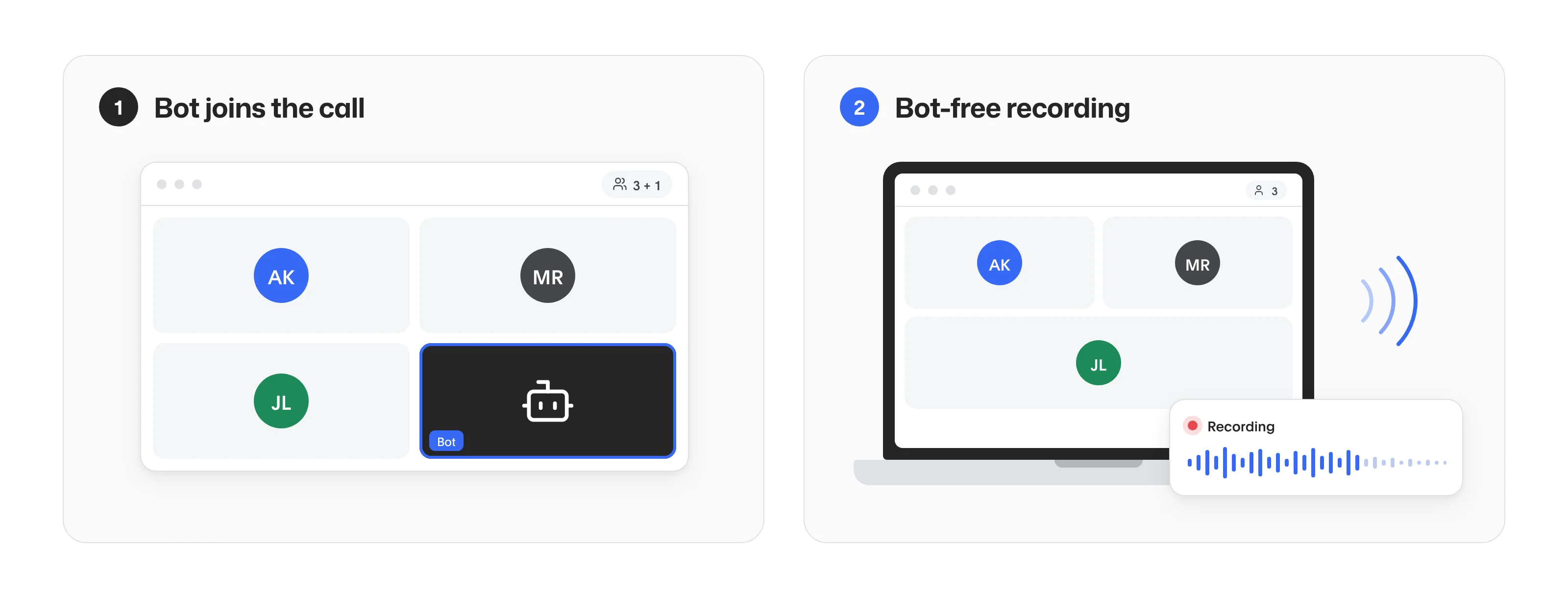
When you use an AI note taker in Google Meet, will everyone see an extra participant? And will you have an actual recording to go back to afterward?
That depends on how an AI note taker captures your meeting. There are three main options.
- A visible bot. When the bot joins, it shows up as another participant. Everyone can see it, and the host may need to let it in. The upside? You don't always have to attend the meeting yourself. Some bots can join scheduled calls and record them for you.
- A Chrome extension. It works inside your Meet tab, so no extra participant shows up. Some extensions capture audio directly, while others work with Meet's live captions. Either way, you'll need to join the meeting yourself.
- A desktop app. It captures audio from your microphone and computer without joining the call as a participant. You can usually use the same app across Meet, Zoom, and Teams, although what gets recorded depends on the tool.
A visible bot isn't always welcome, especially on client calls. In a 2026 Bluedot survey of 2,010 workers, respondents shared how they feel when an AI note taker joins a meeting as a separate participant:
- 13% said it makes the meeting feel less natural.
- 13% felt they were being monitored.
- 10% said they didn't speak as freely.
- 9% said they'd ask for the bot to be removed.
Recording without a bot doesn't mean you should keep it a secret, though. In the same survey, 65% said everyone should be informed when AI records or transcribes a meeting. Bluedot, for example, can post a recording notice in the Meet chat.
And there's another trade-off worth considering. Jamie and Granola don't keep recordings you can replay, while Fathom and tl;dv still need a bot to capture Google Meet video. Bluedot's Chrome extension lets you keep the video without adding another participant.
If you want to explore Google's built-in recording options, see our guide on how to record a Google Meet.
1. Bluedot
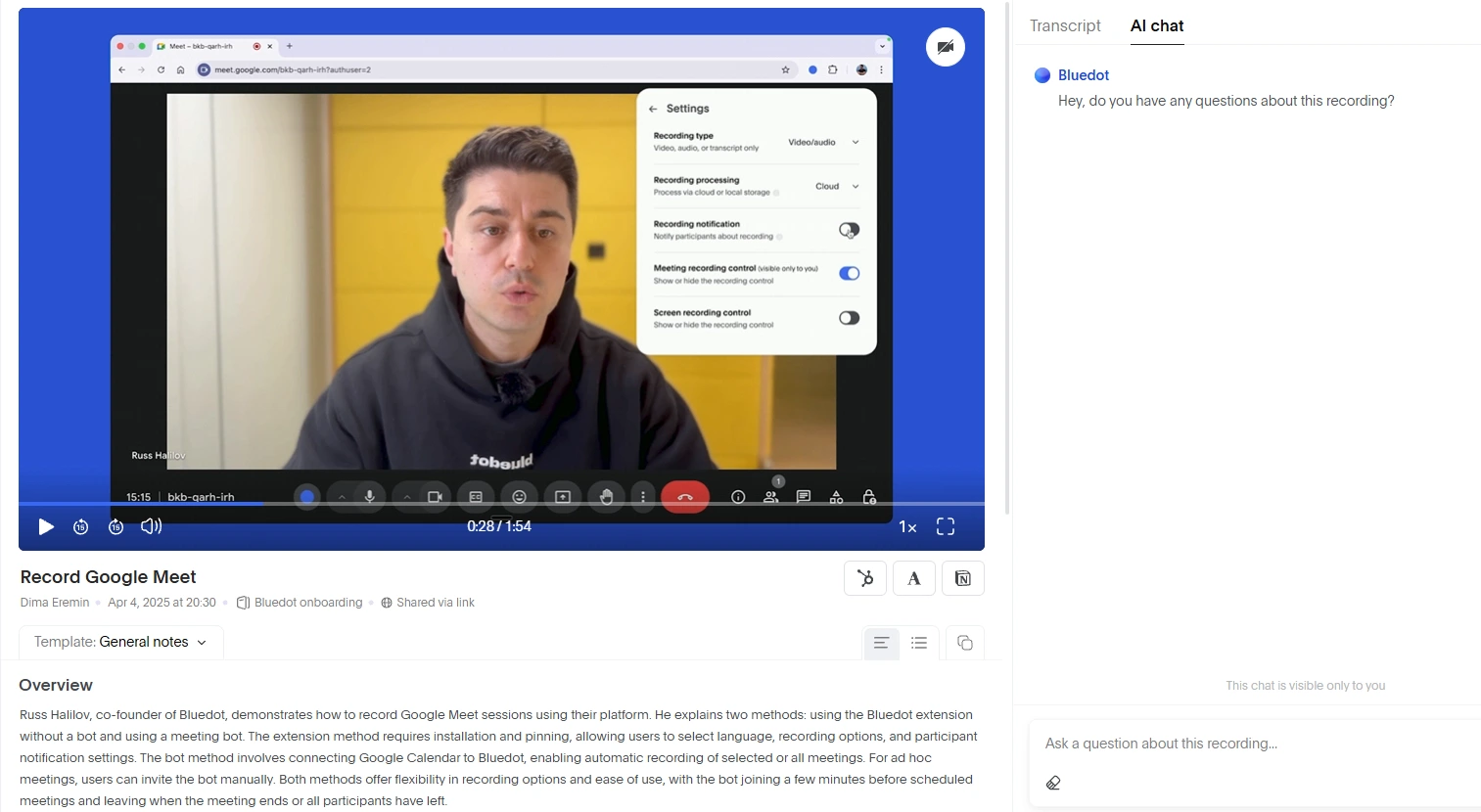
Best for: recording Google Meet with video and audio, without adding a bot to the call.
Bluedot is a secure, privacy-first AI note-taker that records, transcribes, and summarizes online and in-person meetings without sending a bot into your calls. It captures audio directly from your device and supports audio and video recording across Chrome, macOS, Windows, iOS, Android, and Apple Watch.
Bluedot is GDPR-compliant, SOC 2 Type II audited, and never uses customer data to train AI models.
It works great as an AI note taker for Google Meet, and records through its Chrome extension, so you can save video and audio without adding a bot to the call.
As a Google Meet note taker, it’s most useful for client demos, presentations, or training sessions. If someone walks you through a process or shares something important on screen, you can go back and watch it instead of relying on a transcript alone.
Bluedot supports Google Meet transcription in 100+ languages, giving you a full transcript, AI summary, and action items. It also identifies speakers by name using your calendar and Meet's participant list. You can click a line in your notes to jump straight to that moment in the recording.
And you're not stuck with generic summaries. Bluedot offers 50+ note templates, with custom templates available on the Pro plan. You can share meeting notes in Notion and Slack, while Business adds direct CRM sync with HubSpot and Salesforce.
Bluedot also works beyond Google Meet. Its desktop app covers Zoom, Microsoft Teams, and Slack huddles. You can capture in-person meetings on your phone, even offline, or record directly from an Apple Watch. And you can also have Bluedot post a recording notice in the Meet chat.
Limitation: the free plan includes 5 recorded meetings in total. Video recording requires Pro.
Pricing: Basic tier starts at $14, Pro at $20, and Business at $32 per member per month, billed annually.
2. Gemini "Take notes for me"
Best for: teams already paying for Google Workspace.
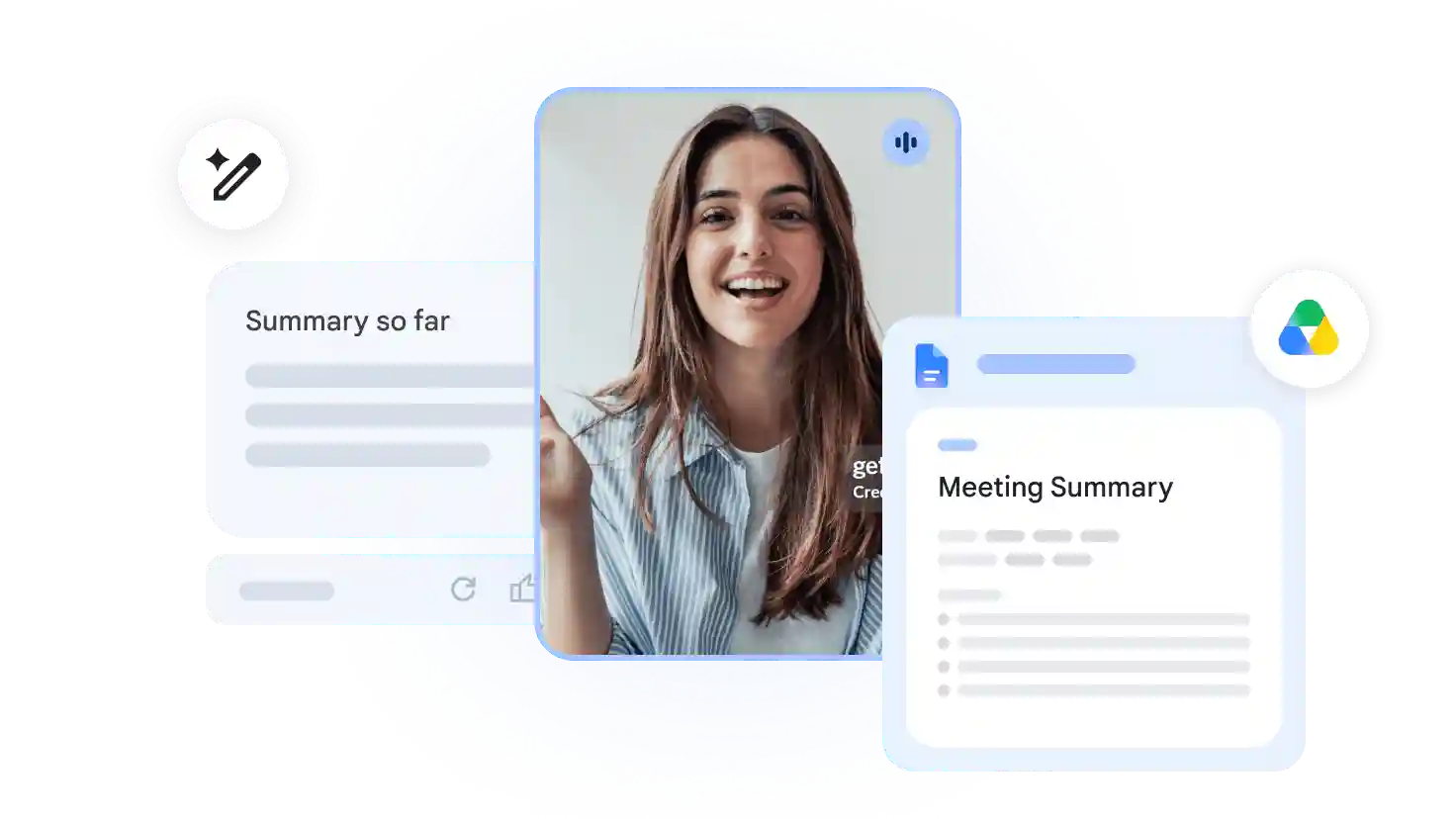
If your team already uses Google Workspace, this tool is an easy place to start. Gemini's "Take notes for me" is built right into Google Meet, and you can switch it on in Google Calendar before joining a call, or during the meeting itself. Everyone sees a pencil icon and a notice that notes are being taken.
After the meeting, Gemini’s note taker puts everything into a Google Doc. The Quick notes tab covers the main takeaways and action items, while Full notes goes deeper into decisions and next steps. It can even include screenshots of slides that stay on screen for at least 10 seconds.
You don't have to hunt for the document afterward. Gemini meeting notes are saved in the organizer's Google Drive, under a dedicated Google Meet folder, and attached to the Calendar event. The organizer also gets an email with the link.
Google has extended the feature beyond video calls, too. You can now use the Meet app on your phone to take notes during in-person conversations.
Limitation: whether you can use Gemini depends on the meeting organizer's plan, not just yours. If a client hosts the call without an eligible subscription, you can't turn it on yourself. Gemini also supports only eight languages, one per meeting. And while it can take notes, you'll need Meet's separate recording feature to save video. It won't follow you to Zoom or Teams, either. That’s why many teams look for Google Gemini meeting notes alternatives.
Pricing: no free tier. "Take notes for me" is included in Google Workspace Business Standard and Plus, Enterprise Standard and Plus, and Frontline Plus plans. Business Standard tier starts at $14 per user per month with a one-year commitment. Personal accounts need Google AI Pro or Ultra.
3. Jamie
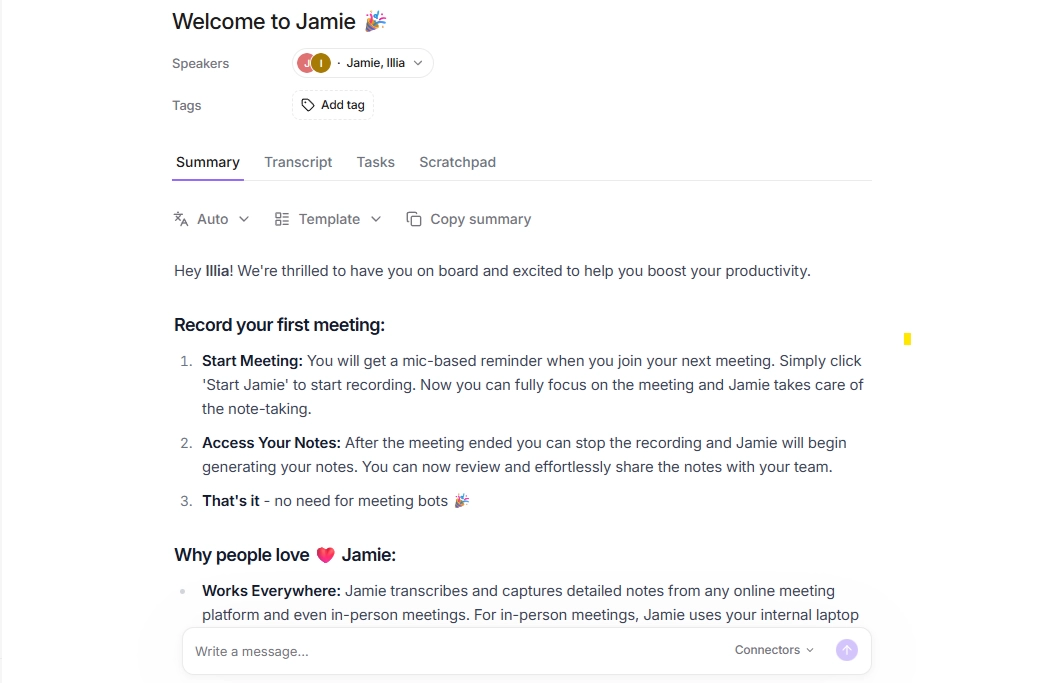
Best for: getting meeting notes without keeping audio or video recordings.
Jamie takes a different approach to Google Meet: you get notes without a bot or a saved recording. That works if you're happy relying on the transcript, but leaves you nothing to replay later.
Jamie runs on your Mac or Windows computer and captures the call's audio directly; no bot shows up in the meeting. When you're done, it turns the conversation into a transcript and notes with speaker names and tasks.
You're not limited to Google Meet, either. Jamie works across meeting platforms, and you can use its iOS app for in-person conversations. There’s also an Android app in beta. Jamie transcribes and takes meeting notes in 99+ languages.
If you want to move your notes somewhere else, paid plans connect with Notion, Google Docs, and OneNote. The Pro plan adds HubSpot, Salesforce, and Asana.
Privacy is a big part of Jamie's appeal. Your data is hosted in the EU, and Jamie doesn't use it to train AI models. Its pricing page lists ISO 27001, while SOC 2 Type II certification is still pending.
Limitation: Jamie deletes the audio after transcription and doesn't capture video. If the transcript misses something or someone shares an important slide, you won't have a recording to check. Some Jamie alternatives keep audio or video recordings, so you can revisit the conversation when needed.
Pricing: free plan with 10 AI notes per month, limited to 30 minutes each. Plus subscription costs $24/month, Pro $46/month, billed annually.
4. Granola
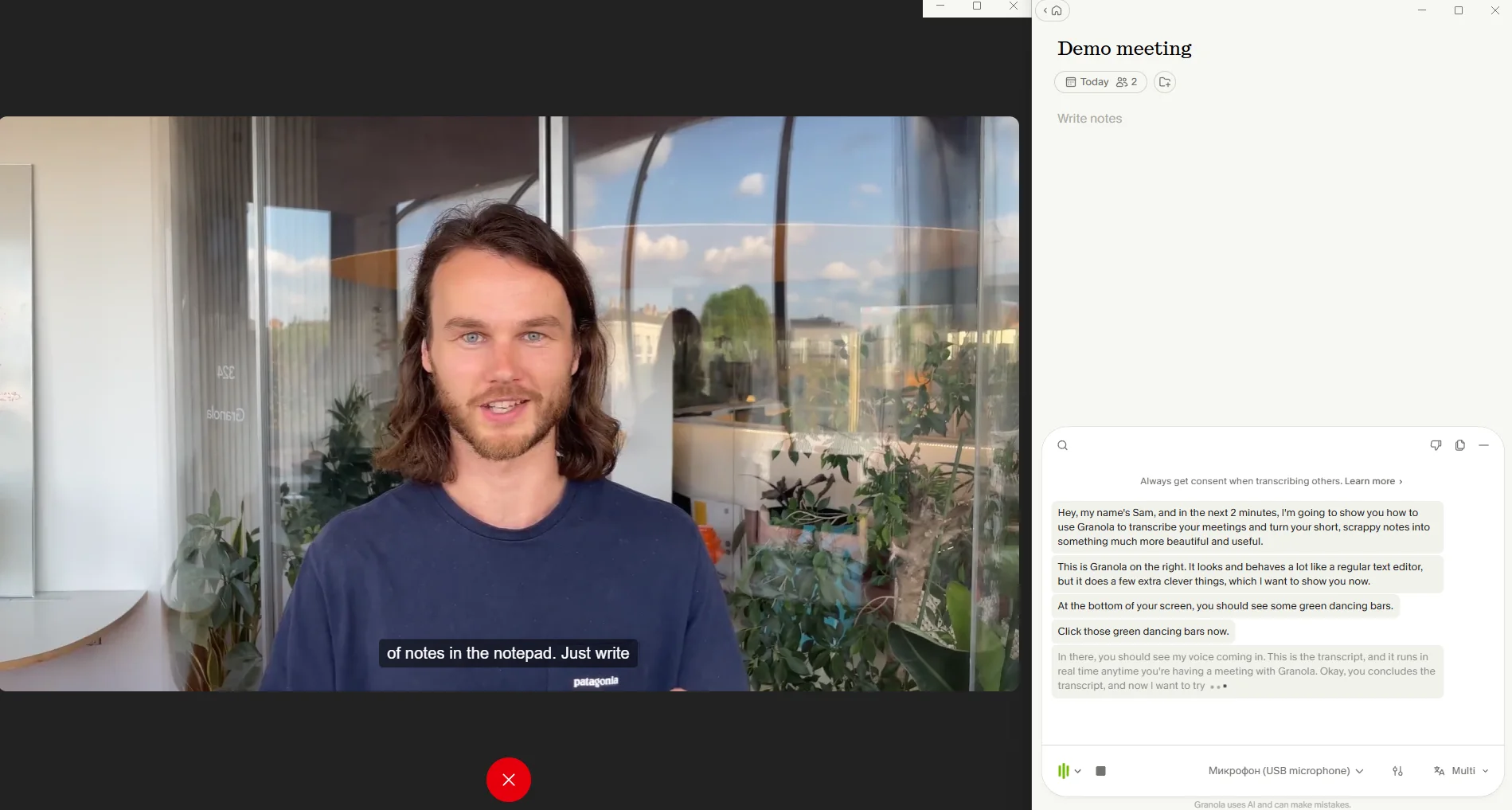
Best for: turning your rough meeting notes into detailed summaries.
Granola is built for people who still like taking their own notes. You jot down a few points during a call, and afterward Granola uses the transcript to turn them into a fuller summary.
The desktop app runs on Mac and Windows, capturing your microphone and system audio without adding a bot to Google Meet. There's also a free browser extension that identifies speakers by their Meet display names. Without it, your transcript labels everyone as either "Me" or "Them."
You can use Granola outside your laptop, too. Its free iPhone, Android, and Apple Watch apps let you capture in-person conversations.
If you work with other tools, Granola connects to Slack on every plan. Paid plans also let you send meeting notes to Notion, Zapier, Attio, HubSpot, and Affinity.
Limitation: Granola doesn't save audio or video, so there's nothing to replay if the notes miss something important. Your data is also stored in the US, and Granola may use anonymized meeting data to train its models unless you opt out. If either is a dealbreaker, some Granola AI alternatives offer replayable recordings and EU data storage.
Pricing: the free plan gives you unlimited notes, but you can only access the last 30 days. Business plan costs $14 per user per month, billed monthly, while the Enterprise tier starts at $35 per user per month.
5. Otter
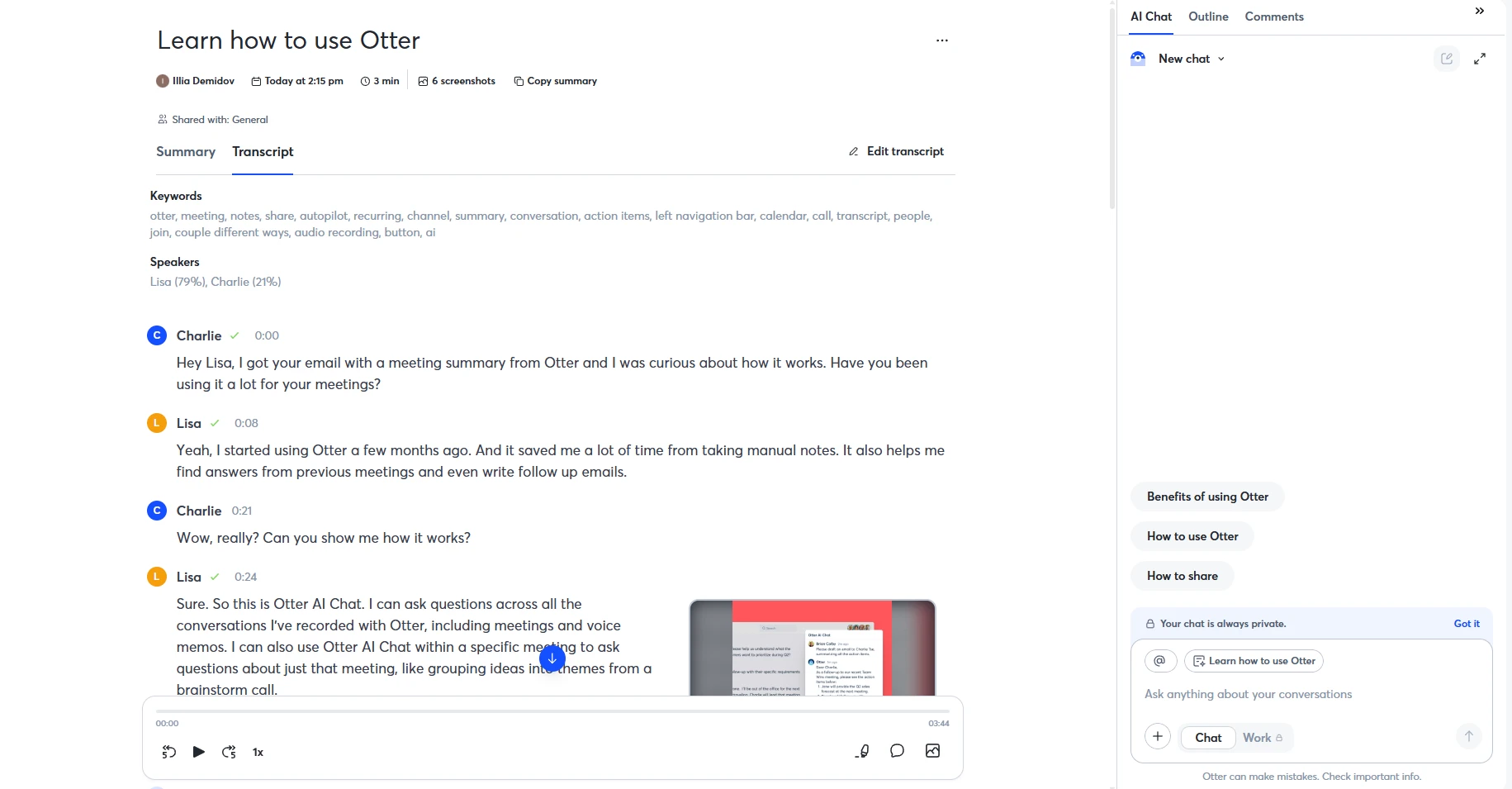
Best for: following a live transcript while your Google Meet call is still going.
Otter's main strength is live transcription. You can read the transcript as people speak, go back to something you missed, and capture slides shared during the meeting.
You have two ways to use it with Google Meet. Otter's note-taker bot can automatically join meetings from your calendar, even when you're not there. Or you can use its Chrome extension to capture the call from your device without adding another participant.
After the meeting, you can replay the audio on any plan. Otter also has mobile apps for iOS and Android.
Limitation: if auto-join is enabled, Otter's bot may show up in meetings you didn't intend to record. Check your calendar settings before your next call. Google Meet video playback requires the Enterprise subscription, and the free tier caps each conversation at 30 minutes. If you want video recording without a bot, some Otter alternatives offer that option.
Pricing: Pro subscription costs $8.33 per user per month with annual billing, or $16.99 monthly. Business plan costs $19.99 per user per month billed annually, or $30 monthly.
6. Fathom
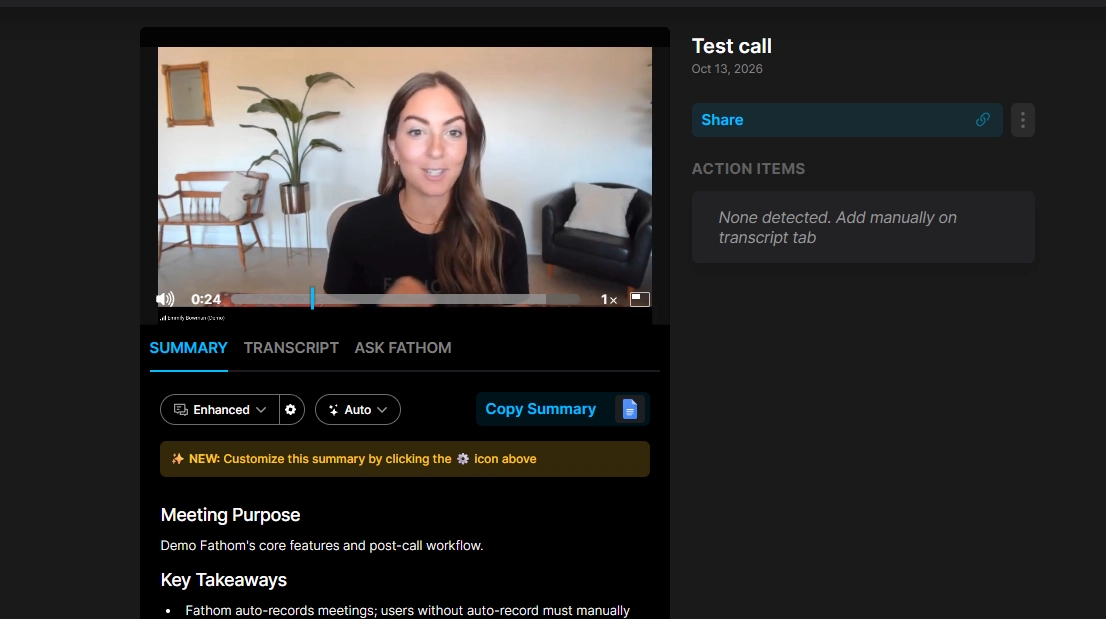
Best for: free Google Meet video recording if you don't mind a bot.
Fathom lets you record as many Google Meet calls as you want without paying a cent. You get video, audio, and unlimited storage. The catch? To save video, you need to let Fathom's bot join your meeting as another participant.
If you'd rather keep the bot out, Fathom has another option. Its newer Mac desktop app lets you choose between recording with a bot, capturing audio without one, or turning recording off. You can also save just the transcript.
Once your meeting ends, Fathom puts together notes with a summary and action items. Its CRM sync sends call details to HubSpot, Salesforce, or Close. And if you need to capture an in-person conversation, there's an iOS app for that.
Limitation: Fathom doesn't let you upload existing recordings, and bot-free capture is currently limited to Mac. Even with a paid subscription, you'll need the bot to record Google Meet video, while Fathom alternatives can capture video without adding another participant. The free tier also includes only 5 advanced AI summaries a month, while CRM field sync requires the Business subscription.
Pricing: Premium subscription costs $16/month annually or $20 monthly. Team plan starts at $15/user/month with a two-seat minimum, and Business tier costs $25/user/month, both billed annually.
7. Fireflies
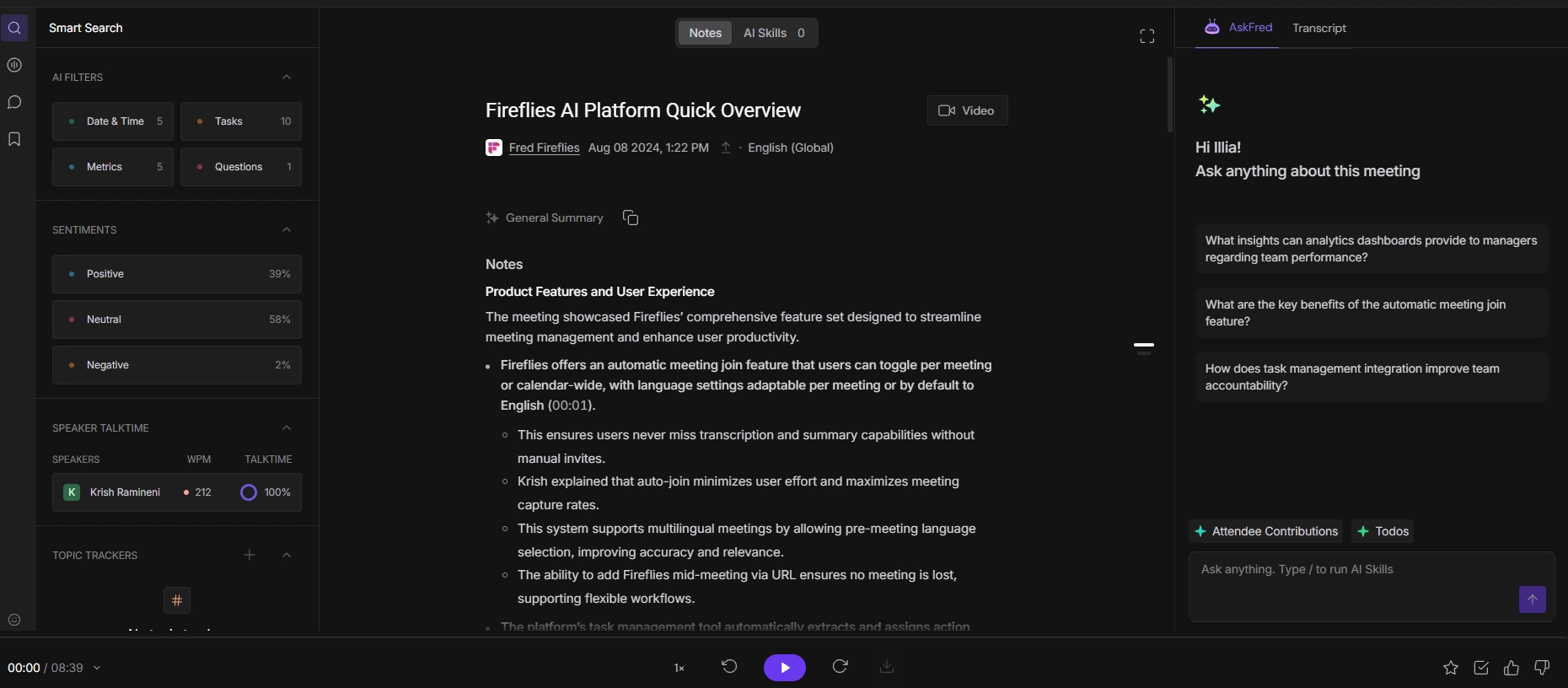
Best for: switching between a meeting bot and bot-free capture.
Fireflies gives you several ways to capture Google Meet, but only its bot can save video. You can invite Fireflies’ bot, Fred, as a visible participant or keep it out of the meeting entirely. For the latter, you have two options: a browser extension that works inside Meet and a desktop app for Mac and Windows that captures your computer's audio.
Each method saves something different. With Fred, you can record video with the Pro subscription or higher. The browser extension doesn't capture video, while the desktop app's bot-free mode doesn't save audio or video files at all. So if you need to replay what happened on screen, you'll have to use the bot, while some Fireflies alternatives can record Google Meet video without one.
Fireflies also connects with 100+ apps, including HubSpot, Salesforce, and Slack, so you can send meeting notes to the tools your team already uses.
You can search past meetings’ transcripts by keyword to find specific details without going through the whole recording.
Limitation: the free plan comes with an unusual restriction. For accounts created since September 1, 2026, unlimited transcription only works with auto-join enabled. Turn it off, and you're limited to three meetings. Free storage is also capped at 400 minutes.
Pricing: free plan available with the limits above. Pro tier costs $10 per user per month billed annually, or $18 monthly. Business subscription costs $19 per user per month billed annually, or $29 monthly.
8. Tactiq
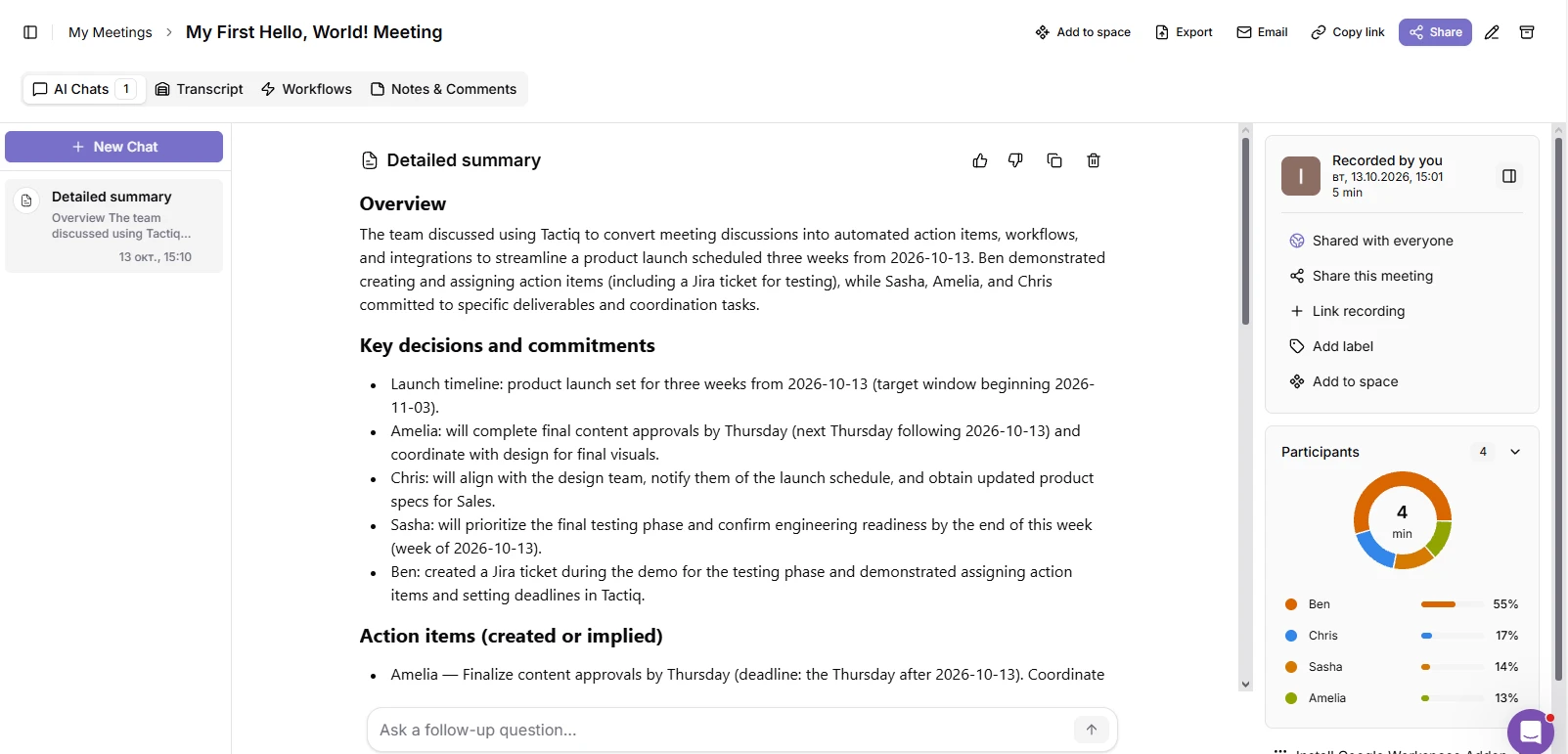
Best for: getting live Google Meet transcripts without a recording bot.
Tactiq keeps things simple. Install its Chrome extension and join Google Meet as usual. The live transcript appears in a side panel as people speak, without adding a bot to the call.
Once the meeting ends, you'll find the transcript in your Tactiq dashboard. You'll also get an email when it's ready. From there, you can use AI to summarize the discussion or pull out action items. Transcription works in 60+ languages.
Limitation: Tactiq only saves text, so you can't listen to the conversation again or replay anything shared on screen. If you need a recording to revisit later, some Tactiq alternatives offer audio and video capture. AI actions also use credits, which can run out quickly on the lower-tier plans.
Pricing: The free tier includes 10 meetings and 5 AI credits per month. Pro plan costs $8 per user per month billed annually, or $12 monthly. Team subscription costs $16.67 per user per month billed annually, or $20 monthly.
9. tl;dv
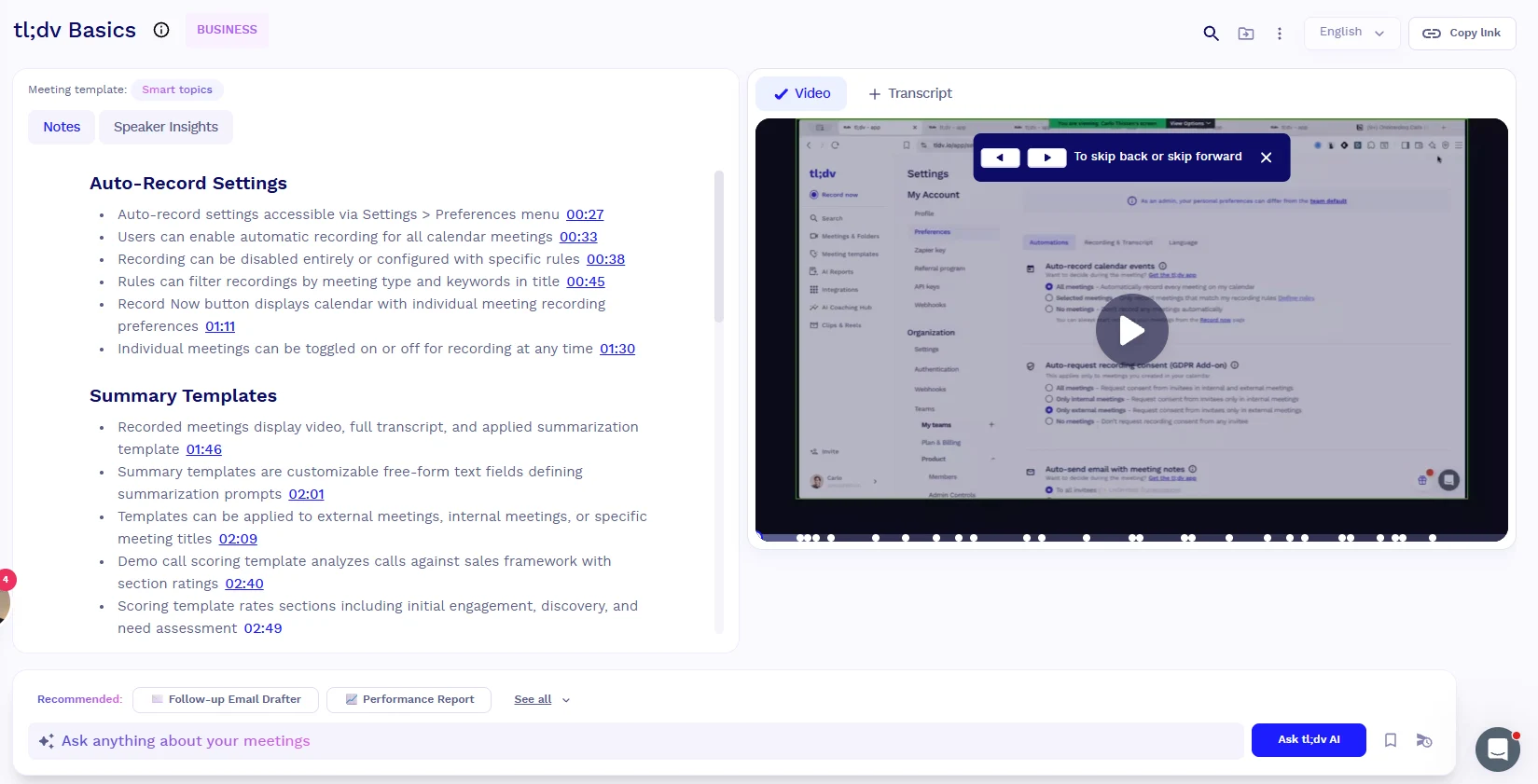
Best for: free Google Meet recordings and sales teams that want more from their calls.
tl;dv is worth a look if your Google Meet calendar is full of sales demos and client calls. Beyond recording meetings, it offers CRM sync, while its Business plan adds sales playbook tracking and coaching insights across calls.
You don't have to pay to use the recording features, either. The free plan includes unlimited video recordings and transcripts in 40+ languages. To capture video, tl;dv sends a bot into your Google Meet call, and the host needs to let it in.
If you'd rather keep the bot out, there's a desktop app for Mac and Windows. You also get an iOS app. tl;dv primarily stores meeting data in the EU, with AI processing available in the EU or US depending on your settings.
Limitation: Unlike some tl;dv alternatives, it can't record Google Meet video without a bot. The desktop app only saves audio, even on paid subscriptions. The free tier also limits you to 10 AI meeting notes.
Pricing: free plan with unlimited recordings and 10 AI meeting notes. Pro tier costs $18 per user per month billed annually, or $29 monthly. Business subscription adds more advanced sales coaching features.
How to choose an AI note taker for Google Meet
With so many AI note takers offering similar features, the easiest way to narrow down your options is to think about what you actually need during and after a meeting.
Do you mind if a bot joins? If you run client calls regularly, an extra AI participant might feel intrusive. A browser extension or desktop app avoids that. On the other hand, a bot that joins automatically is useful when you can't attend a meeting yourself.
What do you want to keep afterward? For everyday team check-ins, a transcript and action items might be enough. But if you're recording demos, training sessions, or presentations, you'll probably want video you can replay. Don't assume every bot-free note taker saves it.
How much can you get for free? Some tools limit the number of meetings you can record. Others cap transcription minutes, AI summaries, or storage. Check the limits against how often you actually use Google Meet.
Do your notes need to go somewhere else? If you work in sales or account management, CRM sync can save you from copying meeting notes into HubSpot or Salesforce manually. Just check which plan includes it.
What happens to your meeting data? Look at where recordings are stored, how long they're kept, and whether they're used to train AI models. If your team handles sensitive information, check the provider's SOC 2 and GDPR documentation too.
And what about calls outside Google Meet? If you also use Zoom or Microsoft Teams, make sure your AI note taker for Google Meet supports them. The recording method and features can change between platforms, even within the same app. For a closer look, check out our best AI note takers for Microsoft Teams.
Why Bluedot is a better fit for Google Meet
Google's built-in Gemini can handle meeting notes, but it won't give you a video to replay. Fathom and tl;dv offer free video recording, but both need a bot to join your Google Meet call.
With Bluedot, you don't have to choose between recording video and keeping bots out of your meetings. Its Chrome extension captures Google Meet audio and video without adding another participant. You can revisit a client demo, check something shared on screen, or listen to a conversation again when the transcript doesn't tell the whole story.
The recording is only part of it. Bluedot also gives you a transcript, AI notes, and a searchable meeting history. Need to find a decision from last Tuesday's call? Ask AI chat instead of digging through old transcripts. And since Bluedot also works with Zoom, Teams, and in-person meetings, everything stays in one place.
Want to see how it works? Try Bluedot for free with your next Google Meet call.
Frequently asked questions
Does Google Meet have an AI note taker?
Yes. Google's built-in AI note taker is Gemini's "Take notes for me." It's available with eligible paid Google Workspace plans, including Business Standard and higher, Frontline Plus, and Google AI Pro or Ultra for personal accounts. Availability depends on the meeting organizer's subscription.
Can I use Gemini to take notes in Google Meet?
Yes, if the meeting organizer has an eligible plan. You can turn on "Take notes for me" in Google Calendar before the meeting or from inside the call. Gemini supports eight languages: English, French, German, Italian, Japanese, Korean, Portuguese, and Spanish. You can only use one language per meeting.
Where do Gemini meeting notes go?
Gemini saves your notes as a Google Doc in the organizer's Google Drive, under the "Google Meet" folder. The document is also attached to the Calendar event, and the organizer receives an email with a link.
What is the best AI note taker for Google Meet?
Bluedot is our top pick if you want to record Google Meet without a bot and keep the video. It also works with Zoom, Microsoft Teams, and in-person meetings. If you only need written notes and already pay for Google Workspace, Gemini might be all you need.
Is there a free AI note taker for Google Meet?
Yes. Fathom and tl;dv offer unlimited free recordings, while Granola gives you unlimited notes with a 30-day history limit. Fireflies offers unlimited free transcription if you enable auto-join. Bluedot also has a free tier with five recorded meetings in total.
Is there a note-taking app for Google Meet?
Yes, and you don't necessarily need a separate meeting bot. Bluedot, Otter, Fireflies, and Tactiq have Chrome extensions that work inside Google Meet. If you prefer a desktop app, options include Bluedot, Jamie, Granola, Fireflies, Fathom, and tl;dv.
How do I add AI notes to Google Meet?
You have three options. Use Gemini's built-in "Take notes for me" if your plan supports it, install a browser extension or desktop app that captures the meeting without a bot, or connect a third-party note taker that joins your call as a participant.
How do I get rid of the AI note taker on Google Meet?
For Gemini, you can stop "Take notes for me" during the call if you have the necessary permissions. If a third-party bot has joined, the meeting host can remove it from the participant list. To prevent your own bot from joining future meetings, disable auto-join in the note taker's settings.
Which AI note taker for Google Meet doesn't join as a bot?
Bluedot, Jamie, Granola, and Tactiq all work without adding a bot to Google Meet. Otter and Fireflies offer bot-free browser extensions, while Fathom and tl;dv have desktop capture options. If you also want video without a bot, Bluedot is our top pick.
Is Gemini's Take notes good enough for me?
For everyday meetings, it often is. Gemini gives you summaries and action items without installing another tool. But if you need video recordings, more language options, or notes from meetings hosted by people without eligible Google Workspace plans, a third-party note taker may be a better fit.
Where does Bluedot store data?
Bluedot lets you choose between EU and US data storage. Its EU infrastructure runs on AWS in Frankfurt, Germany. Bluedot is SOC 2 Type II audited, supports GDPR compliance, and doesn't use your meetings to train AI models. Business plans also let admins set custom data retention rules. See Bluedot's security page for details.